Printing work orders
Print one work order or every work order matching a filter, in the layout your office uses.
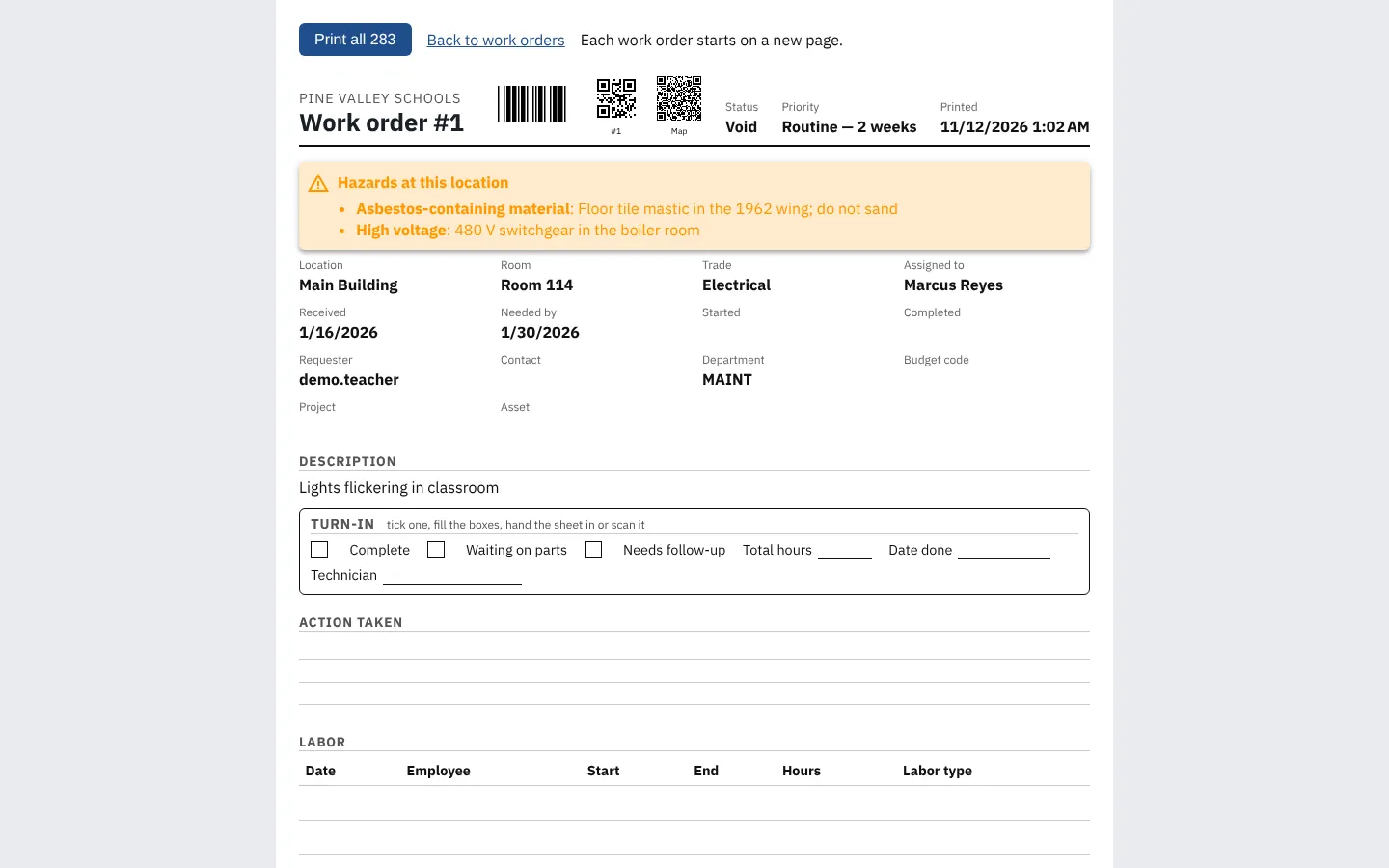
How it helps
Plenty of technicians still want paper in the truck, and plenty of offices still hand out the morning's work on a clipboard. Batch print turns a filter (today's work for one crew) into a stack in one click, and the barcode gets the paper back into the system.
Who uses it
SupervisorsTechniciansAdministrators
How to use it
- Four layouts: the standard sheet with costs, a compact sheet (two to a page), a technician sheet with room to write, and a close-out sheet with sign-off.
- The district picks the default layout and each person can choose their own.
- Print on save prints a work order as soon as it is created.
- Each printed work order carries a barcode; scan it to open the work order.
- PM task lists print as a checklist.
Terms on this page
Work orderRoomPreventive maintenanceEquipment checklist
Related
Next in Work orders: Copy a work order →
Screenshots come from the Pine Valley Schools demo, a made-up district. Something unclear or out of date? Tell us and we'll fix it.