Work order list
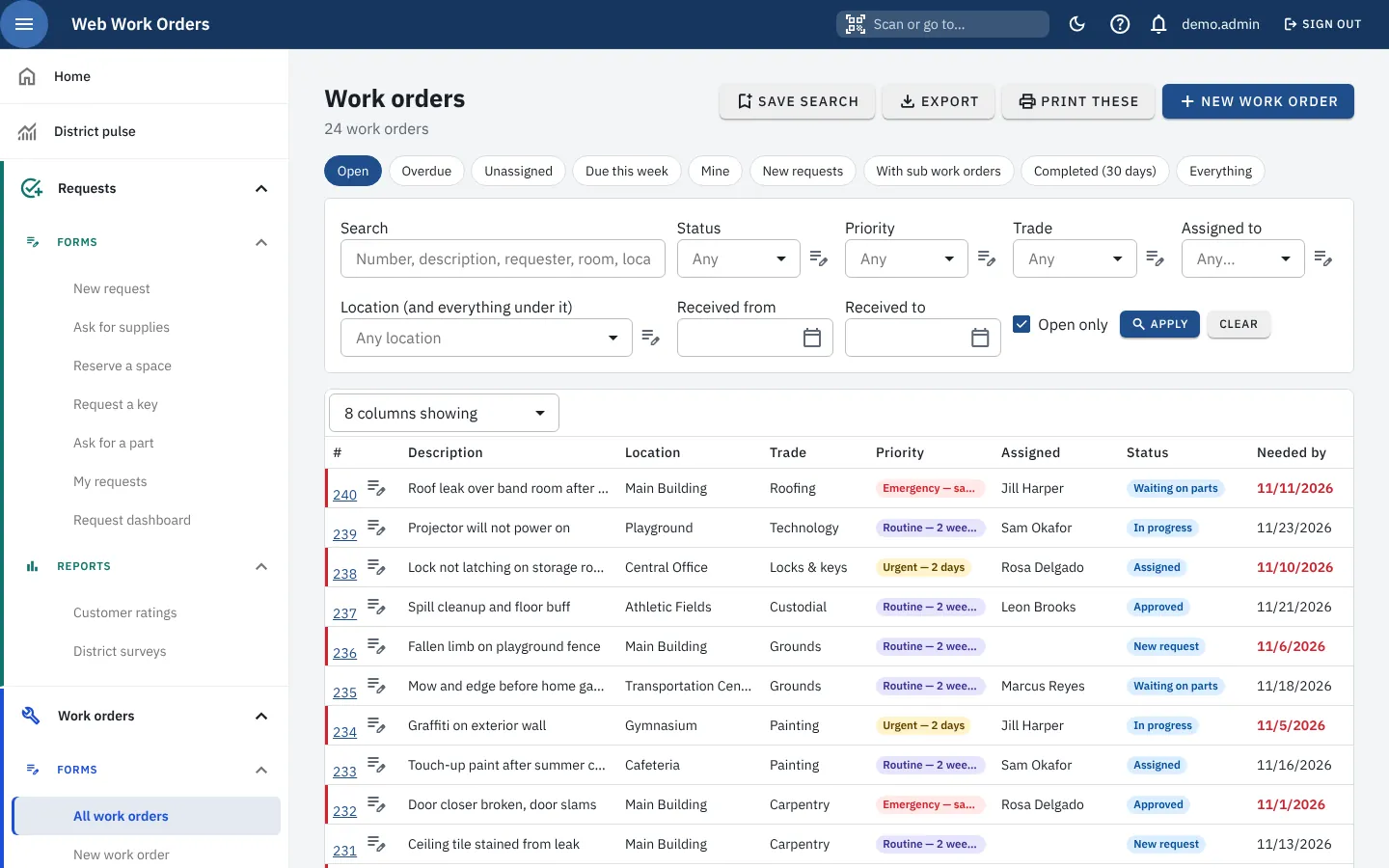
The master list of all work orders. Filter it, sort it, export it.
How it helps
The list is where a supervisor runs the day. One click shows what is open, overdue, unassigned or due this week; filters and saved searches turn the questions you ask every morning into a bookmark; and quick edit changes status, priority or technician without opening each job.
Who uses it
SupervisorsTechniciansAdministrators
How to use it
- Quick views (Open, Overdue, Unassigned, Due this week, Mine) are one click. Filters narrow further; press Enter in the search box to run it.
- The address bar keeps your filters, so you can bookmark a view or send it to a colleague.
- Save search keeps the current view under My searches. The star makes one your default, so Work orders opens on it; the cross removes it.
- With sub work orders lists the master work orders that have been split into parts.
- Click any row to open the work order. Use the column picker (the icon on the right of the header) to show or hide columns.
- Export downloads the current view as a spreadsheet-ready CSV, up to 5,000 rows.
- Keyboard: press n for a new work order, / to jump to search.
Fields on this screen
- Name
- What this search is called under My searches. Saving again with the same name replaces it with the current filters.
Where to find it
In the app at /workorders. Every screen has a ? in the header with help for that page.
Terms on this page
Work orderPriorityStatusOverdueSub work orderQuick viewView as
Related
Next in Work orders: New work order →
Screenshots come from the Pine Valley Schools demo, a made-up district. Something unclear or out of date? Tell us and we'll fix it.