Work order
Everything about one job: details, who asked for it, transactions and cost, notes, attachments and history.
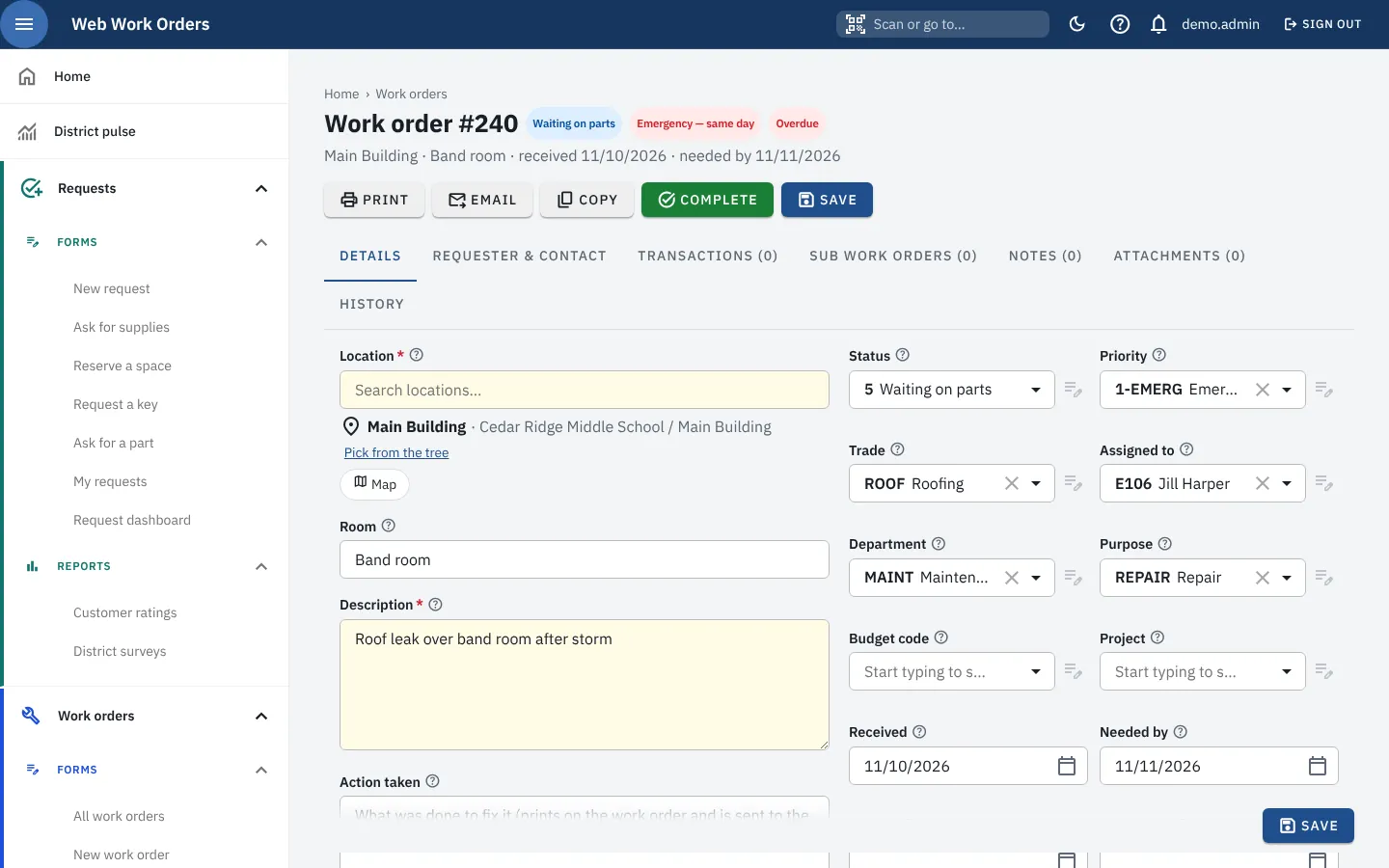
How it helps
One page holds the whole story of a job: who asked, where it is, who is on it, what it cost, every note and photo, and every change with who made it. That is what lets a supervisor answer a principal's question in seconds and what turns a year of work orders into reliable reports.
Who uses it
SupervisorsTechniciansAdministrators
How to use it
- Complete marks the work done, sets the completed date and tells the requester. Reopen undoes that if the problem comes back.
- Transactions: log labor, issue stock, add purchases and vehicle travel. Each line names the account it is paid from and charged to, so budgets stay current. A wrong line is voided, never erased.
- Notes are dated comments. Staff-only notes are hidden from the requester; other notes appear under their My requests.
- History shows every change with who made it and when, field by field.
- If someone else saves the same work order while you are editing, you are warned before anything is overwritten.
- Print opens a clean copy for the clipboard or the truck. Email sends the details and a link to anyone, and the history records who it went to.
- Sub work orders split a big job into parts that different people or trades can work and close on their own. New sub work order copies the location, trade, accounts and requester; the master warns before it is completed while any part is still open.
Fields on this screen
- Location
- The building or site where the work is needed. Pick from the location tree or type part of the name. Costs and reports roll up by location, so choose the most specific one you can.
- Room
- Room number or area within the building, such as 114, Gym, Boiler room or Parking lot B. Technicians use it to find the job without calling back.
- Description
- What is wrong and where, in the requester's words. Keep it to the problem, not the fix: "Water dripping from ceiling tile near the door" is better than "Need a plumber".
- Action taken
- What was actually done to resolve the work, written by the technician. It prints on the work order and is what the requester reads when the job is closed.
- Status
- Where the work order is in its life: new, assigned, in progress, waiting on parts, complete, and so on. Closed statuses hide the work order from the open list. Your admin sets which statuses count as closed.
- Priority
- How urgent the work is. Use the highest priority for safety hazards and anything that stops a classroom from being used; routine items get the normal priority so urgent work stands out.
- Trade
- The kind of work: electrical, plumbing, HVAC, grounds, custodial and so on. It decides which crew sees the work order and groups reports by trade.
- Assigned to
- The employee responsible for doing the work. Assigning sends them a notification and puts the job on their Mobile App list. Leave it blank for the supervisor to assign.
- Department
- The department the work is for, used for reporting and chargebacks (for example Athletics or Food Service).
- Purpose
- Why the work is being done, such as repair, preventive maintenance, vandalism, improvement or inspection. Purpose codes let the district report how much goes to vandalism versus upkeep.
- Budget code
- The account the labor and materials are charged to. If you are not sure, leave it blank and the office will fill it in.
- Project
- Groups related work orders under one project, such as a summer renovation or a bond program, so their total cost can be tracked together.
- Asset
- The equipment the work is on (an HVAC unit, a vehicle, a scoreboard). Linking the asset builds its service history.
- Received
- The day the request came in. Reports measure response time from this date.
- Needed by
- When the requester needs the work done. Work orders past this date show as overdue and appear in the daily overdue alert.
- Started
- The day work actually began on site.
- Completed
- The day the work was finished. Filled in automatically when you press Complete; change it if the work was done earlier.
- Estimated hours
- A rough estimate of labor hours before the work starts. Compare it with the hours logged under Transactions to improve future estimates.
- Estimated cost
- Expected total cost of labor and materials. Useful for approvals and for spotting jobs that run over.
- Requester
- The person who asked for the work. Filled in automatically for requests submitted through the app.
- Requester email
- Where completion and status updates for this work order are sent. Filled in from the requester's profile when the request comes through the app.
- Requester phone
- A phone number or extension for the requester, for questions about the job.
- Contact
- Who to see on site, if that is not the requester (for example the head custodian or the coach who has the keys).
- Contact email
- The on-site contact's email. They receive a copy of the request confirmation if it differs from the requester's.
- Contact phone
- The on-site contact's phone number or extension.
- Note
- A dated comment on the work order: what you found, what you are waiting on, who you spoke to. Internal notes are seen by staff only; other notes are visible to the requester under My requests.
- Staff only
- Keep this note between maintenance staff. Turn it off to let the requester read it.
- Attachments
- Photos, quotes, drawings or invoices for this work order. Photos from a phone are reduced in size automatically. Allowed types and the size limit are set by your admin.
- To
- One or more email addresses separated by semicolons. Anyone can receive it: a vendor, a principal, a colleague. They do not need a sign-in.
- Subject
- The email's subject line. It starts with the work order number so replies are easy to match up.
- Message
- Filled in with the work order's details and a link; change anything before sending. It is sent as plain text through the district's mail settings.
Where to find it
In the app at /workorders/…. Every screen has a ? in the header with help for that page.
Terms on this page
Work orderRequesterTradePurpose codePriorityStatusOverdueLocation pathRoomHazardAssetPreventive maintenanceSub work orderTransactionStaff-only noteVendor
Related
Screenshots come from the Pine Valley Schools demo, a made-up district. Something unclear or out of date? Tell us and we'll fix it.