Labels and scanning
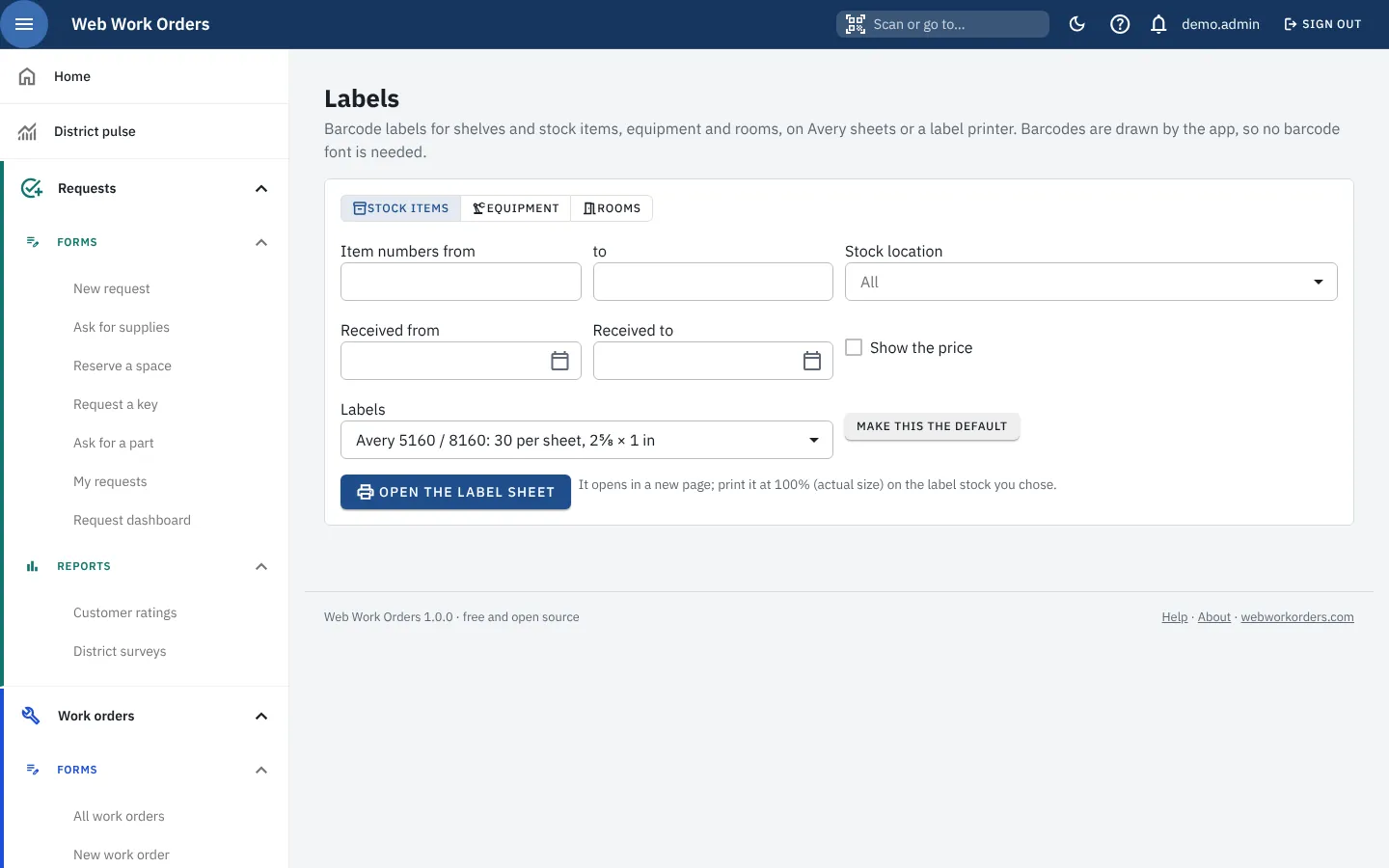
Barcode labels for stock items and shelves, equipment and rooms, on Avery sheets or a label printer.
How it helps
Barcodes and QR codes for shelves, stock items, equipment and rooms. A QR code on a classroom door opens a request for that room on any phone; a scan box on every page opens whatever was scanned; and the Mobile App uses the phone's camera, so no scanner hardware is required.
Who uses it
Stockroom (inventory clerks)SupervisorsAdministrators
How to use it
- Stock item labels carry the item number as a Code 128 barcode, the way the earlier version printed them; choose them by item number range, by stock location or by when they were received.
- Equipment labels carry the asset tag (Code 39) and a QR code that opens a request for that equipment on any phone. Room labels do the same for a room.
- Print at actual size (100%). Make your label stock the default so everyone gets it.
Where to find it
In the app at /labels. Every screen has a ? in the header with help for that page.
Terms on this page
RoomAssetAsset tagStock location
Related
Next in Maps, labels and scanning: Building alarms →
Screenshots come from the Pine Valley Schools demo, a made-up district. Something unclear or out of date? Tell us and we'll fix it.