Mobile Inventory
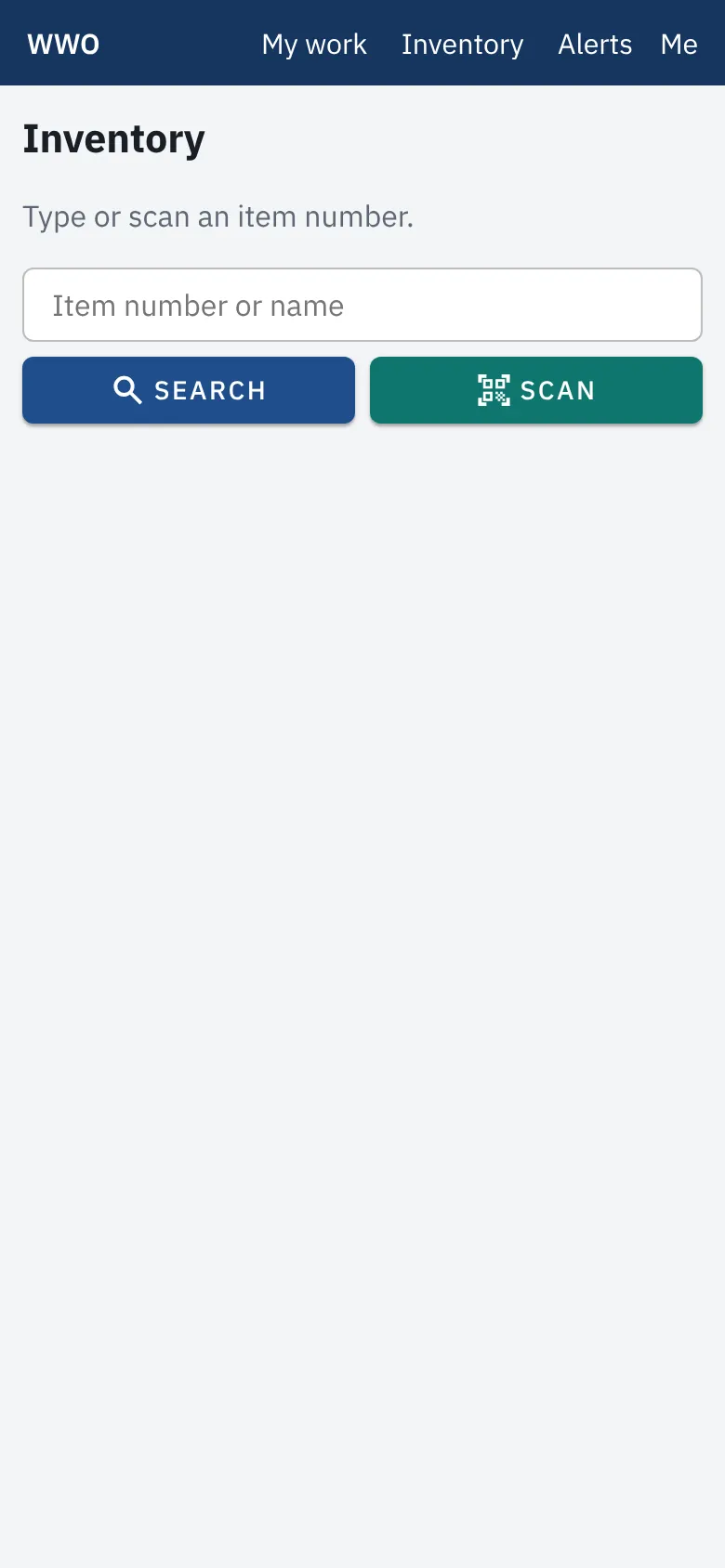
Phone screens for the storeroom and the truck: look up an item, see what is on hand where, and issue, receive, transfer and count stock.
How it helps
Counts and transfers happen at the shelf, not later from a clipboard, so on-hand numbers stay right and trucks get restocked from real data.
Who uses it
Stockroom (inventory clerks)Technicians
How to use it
- Type or scan an item number; the phone's camera reads barcodes.
- Each move is recorded with who did it, the same as on the desktop.
- The organization (or one person) chooses which actions the phone shows, the stock location it starts on (a technician's truck), where transfers go, whether quantities can be decimals, and the reasons offered when a count is posted.
- It is a module: a district can switch it on or off.
Fields on this screen
- Mobile Inventory actions
- Which actions the phone shows on an item: issue to a work order, receive, count and adjust, transfer. Untick what the shop floor should not do from the phone.
- Usual stock location
- The stock location the phone starts on when an item is opened, when the item is kept there; else the item's first location.
- Transfers go to
- Where a transfer from the phone goes unless changed, such as the truck stock. Blank means pick each time.
- Decimal quantities
- On: quantities like 2.5 can be entered on the phone (wire, pipe, liquids). Off: whole numbers only.
- Adjust reasons
- The reasons offered when a count is posted from the phone, one per line.
Terms on this page
Work orderStock locationModule
Related
Next in Mobile App: Check in from the phone →
Screenshots come from the Pine Valley Schools demo, a made-up district. Something unclear or out of date? Tell us and we'll fix it.