Mobile App
Phone screens for technicians: your work, status, hours, materials, purchases, new work orders and completion with signature.
How it helps
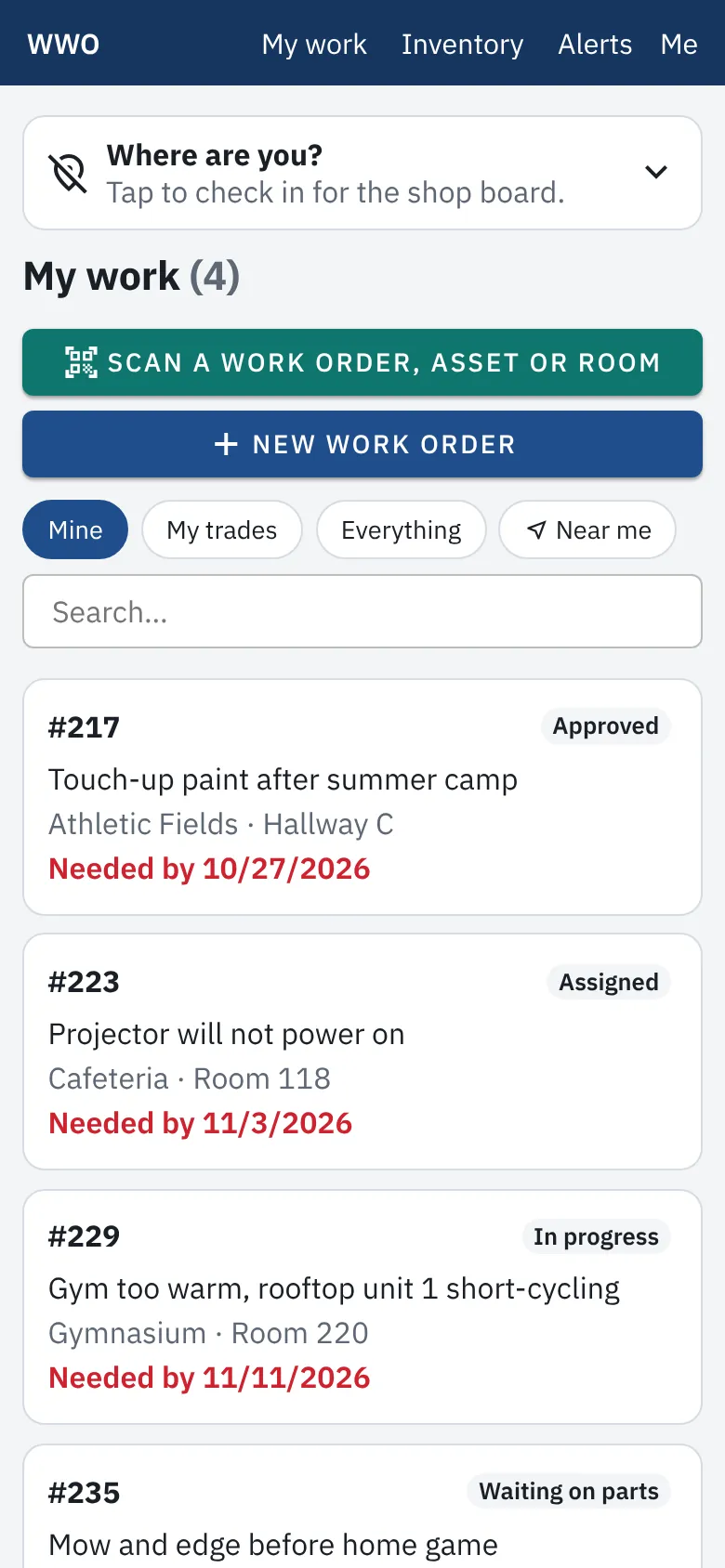
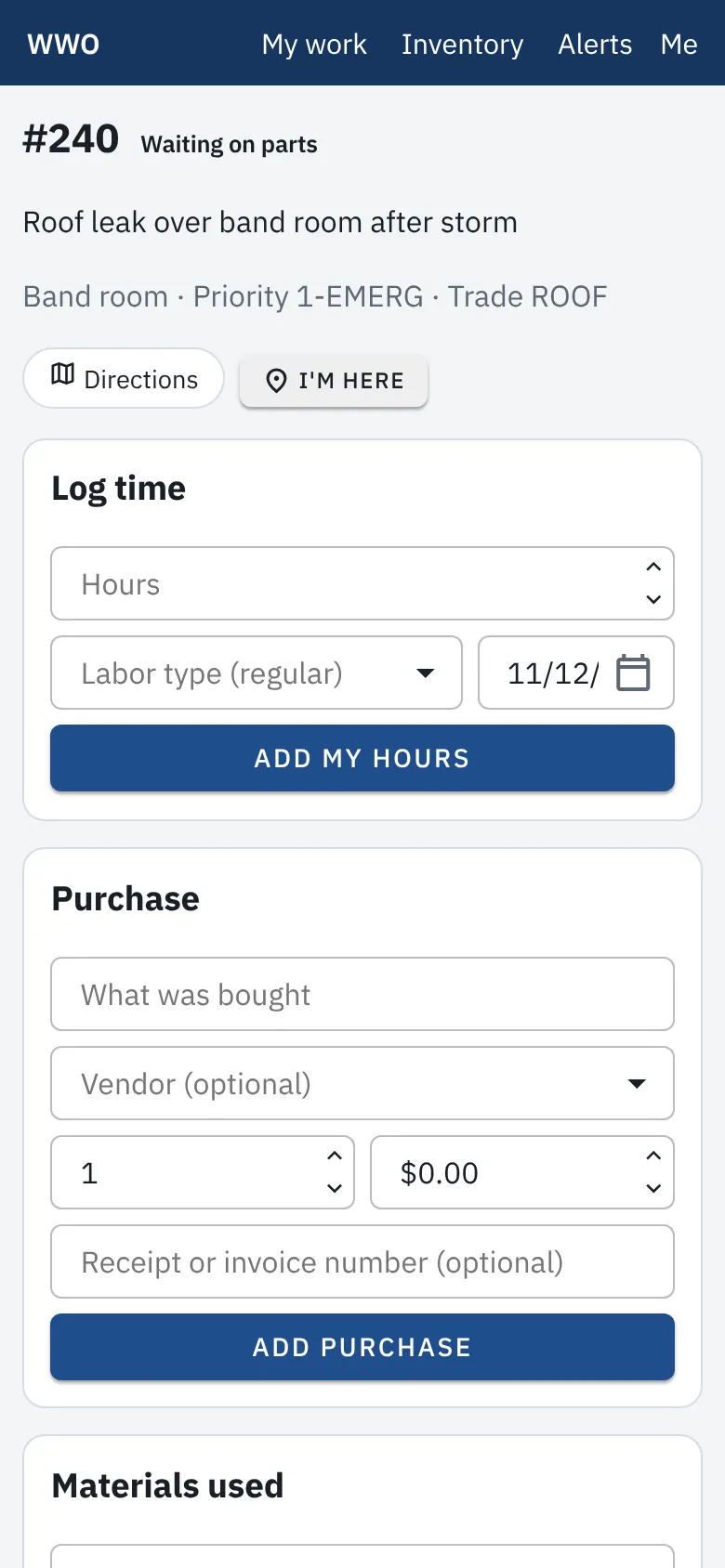
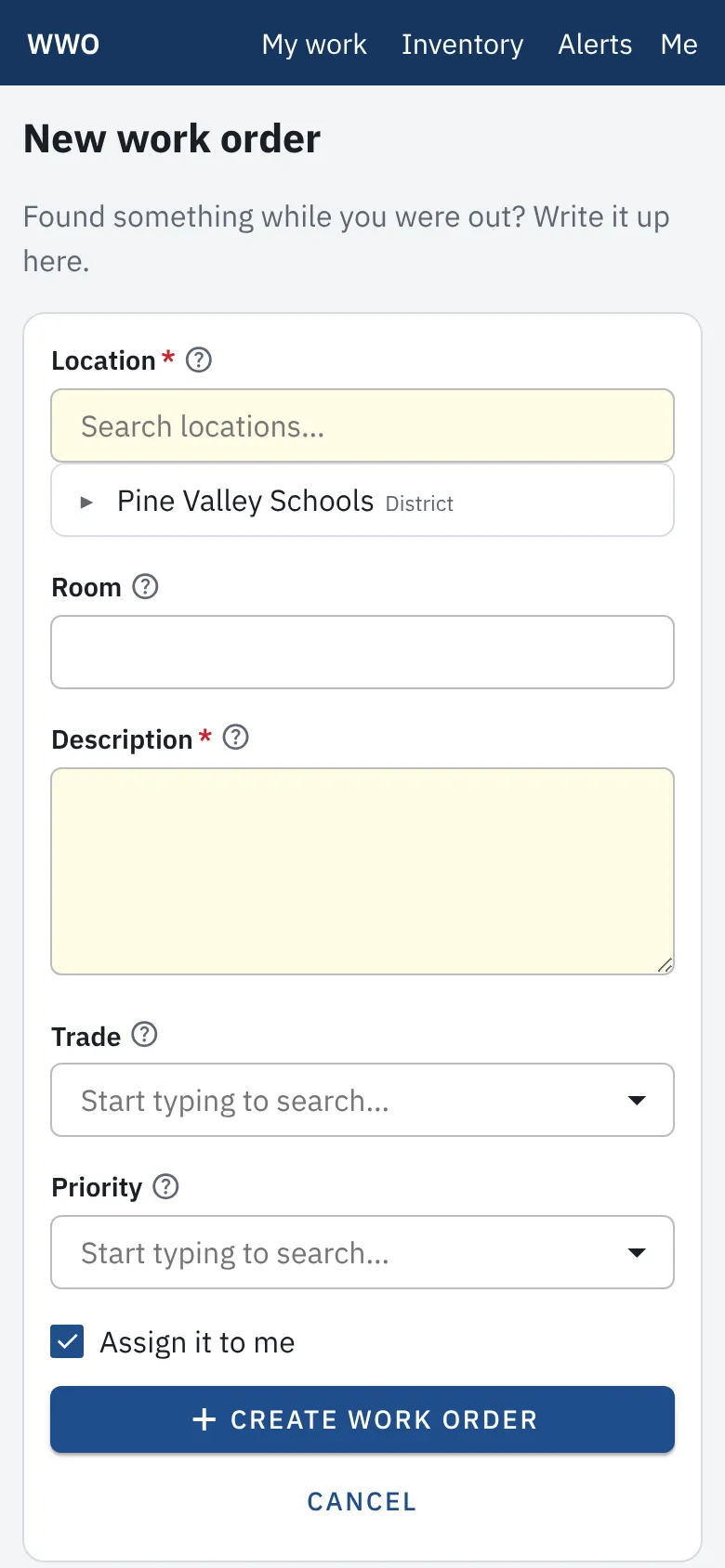
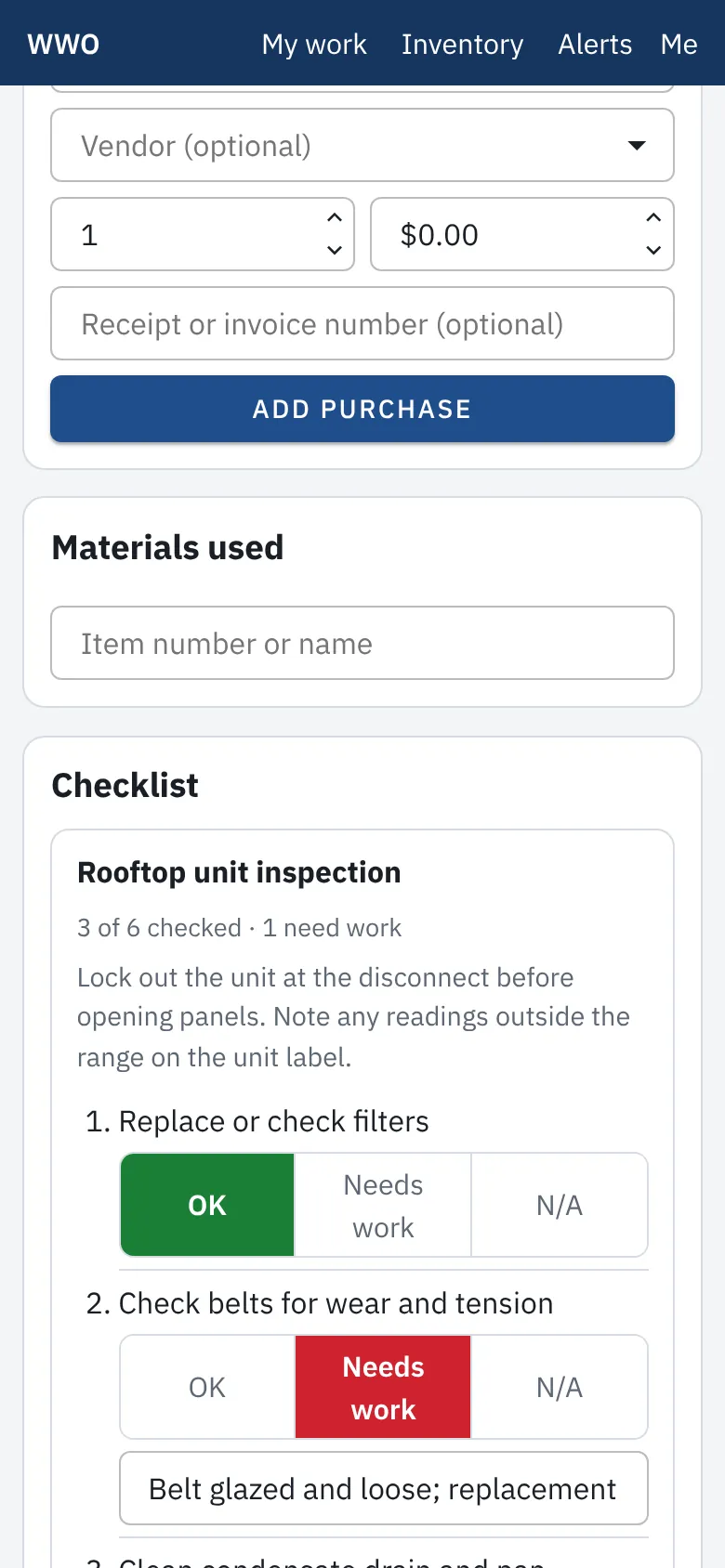
Technicians update the job where the job is: tap a status, log hours, use materials, add purchases and photos, fill in the equipment checklist, write up something they found, and finish with a signature on the spot. The home screen lists their own work, their trades, everything, or the open work nearest to them, and one tap tells the shop where they are. It opens from the phone's home screen with no app store, so the office gets real-time status instead of end-of-day paperwork.
Who uses it
How to use it
- Open a job, tap a status as it moves along, add hours, materials and purchases as you go, then Complete and get a signature on the spot.
- New work order writes up something you found in the field and can assign it to you.
- Mine, My trades, Everything and Near me at the top change which open work is listed. Near me uses the phone's position and the coordinates on each location.
- Where are you? at the top checks you in (On the way, On site, Back at shop…) so the shop's live board shows where everyone is.
- Admins choose what technicians see and which statuses they can set, with a color for each, under Admin › Settings › Mobile App, and can set any of it differently for one person under Admin › Mobile App by employee.
- Install it: in your phone's browser menu choose Add to Home Screen.
Fields on this screen
- What technicians can do
- Sections shown on the Mobile App's work order screen and its home page. Turning one off hides it on every phone; the desktop screens are not affected.
- Statuses technicians can set
- Buttons on the phone for moving a job along (in progress, waiting on parts, and so on). Complete is always there. Leave empty for Complete only.
- Status colors
- The color each of those statuses shows in on the phone, so a technician sees at a glance which jobs are waiting or urgent.
- Work orders listed first
- What the Mobile App's home screen shows by default: only work assigned to the technician, everything open in their trades, or everything open. Technicians can switch with the chips at the top.
- How far \"near me\" reaches (feet)
- Work at a location within this distance of the phone counts as near. Uses each location's latitude and longitude from Admin → Locations.
Where to find it
In the app at /m. Every screen has a ? in the header with help for that page.
Terms on this page
Work orderTradeStatusAssetEquipment checklistLive board
Related
Screenshots come from the Pine Valley Schools demo, a made-up district. Something unclear or out of date? Tell us and we'll fix it.