Mobile App by employee
Mobile App settings for one technician where they should differ from the organization's.
How it helps
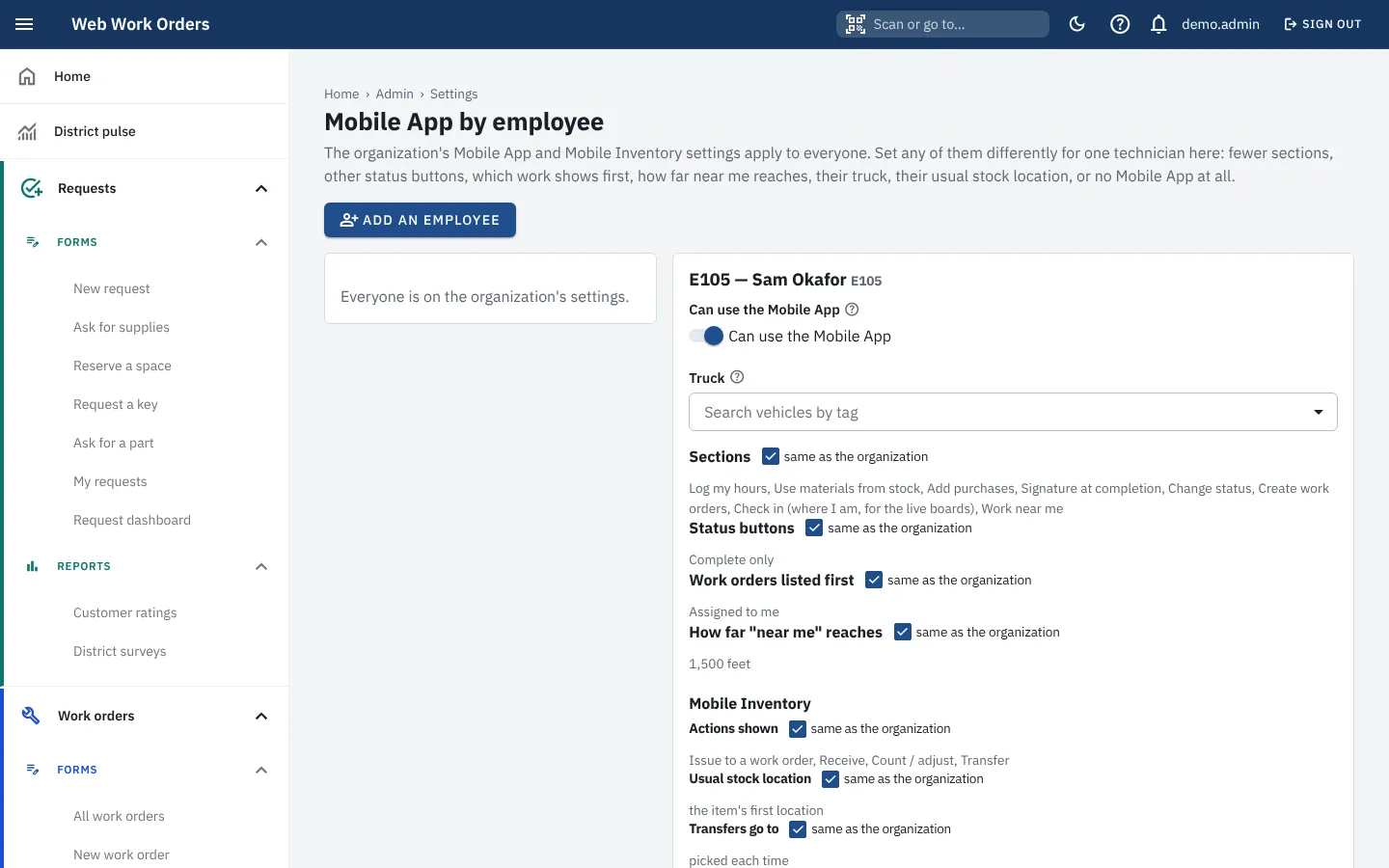
The organization sets what technicians see on their phones; for one person it can be different: fewer sections for a new hire, other status buttons for the grounds crew, which work shows first, how far near me reaches, a truck for the live board, or no Mobile App at all.
Who uses it
How to use it
- Each setting starts as the organization's (Admin › Settings › Mobile App). Untick "same as the organization" to set it for this person.
- Turn the switch off to keep one person out of the Mobile App while it stays on for everyone else.
- Truck is the vehicle shown with them on the live Trucks board; left empty, the earlier version's vehicle assignment is used when the database has one.
- Back to the organization's settings removes everything set for this person.
Fields on this screen
- Employee
- The technician these Mobile App settings are for. Anything left as "same as the organization" follows Admin → Settings → Mobile App.
- Can use the Mobile App
- Turn this off to keep one person out of the Mobile App while it stays on for everyone else.
- Truck
- The vehicle this technician drives (an asset tag), shown with them on the live Trucks board. Leave empty to use the earlier version's vehicle assignment, if the database has one.
Where to find it
In the app at /admin/mobile. Every screen has a ? in the header with help for that page.
Terms on this page
StatusAssetAsset tagLive board
Related
Next in Mobile App: Try the Mobile App from a desk →
Screenshots come from the Pine Valley Schools demo, a made-up district. Something unclear or out of date? Tell us and we'll fix it.