Users
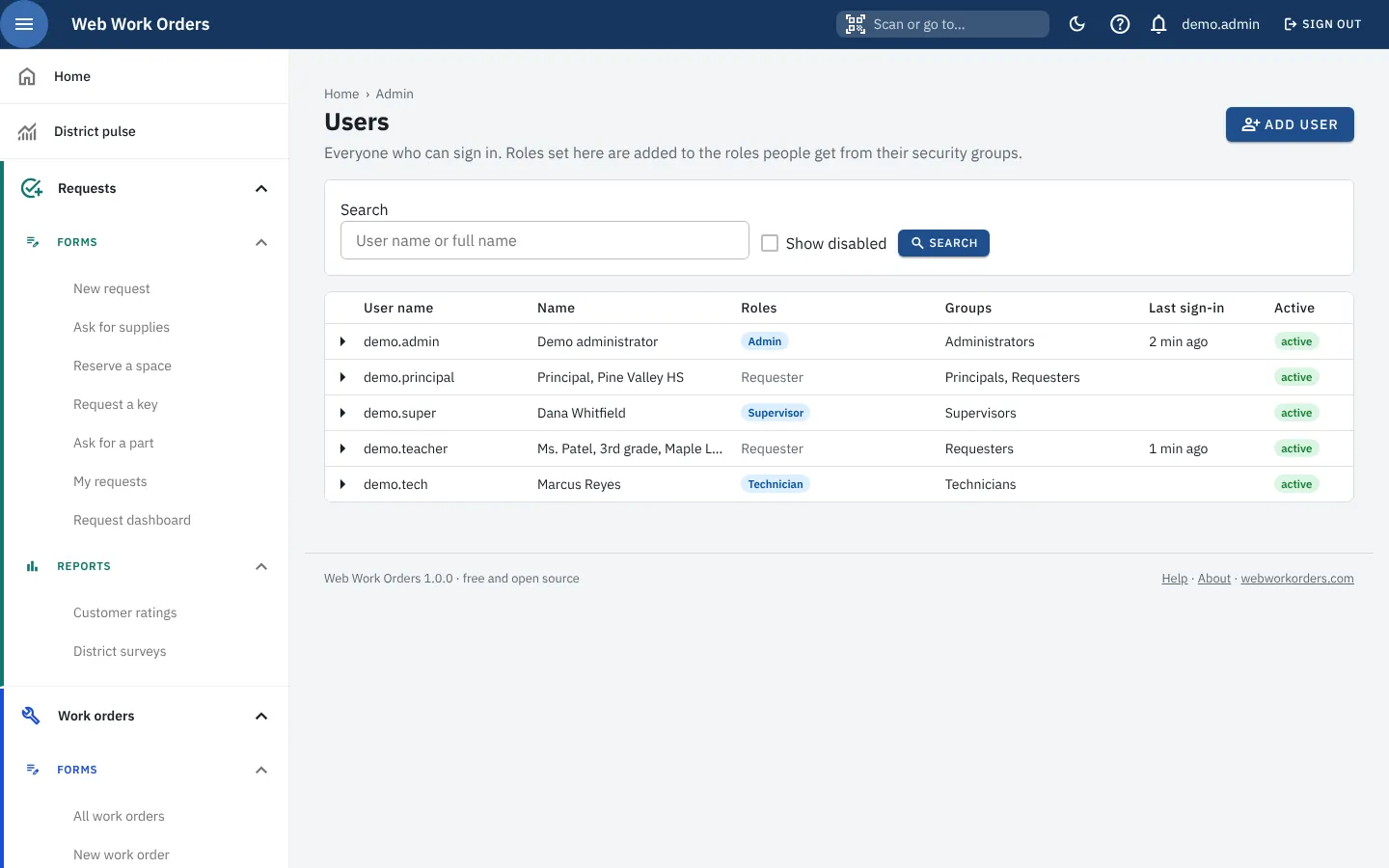
Everyone who can sign in, what they can do, and whether they are active.
How it helps
Everyone who can sign in, what they can do and whether they are active. Copy access gives a new hire the same roles, groups, trades and locations as someone in the same job in one step, View as shows the app exactly as one person sees it, and disabling instead of deleting keeps their history.
Who uses it
How to use it
- View as opens the app as that person for 15 minutes, to see exactly what they see. A banner shows while it lasts; everything done is recorded under your own name, and Back to me ends it. Administrators and disabled accounts cannot be viewed as.
- Roles here are added to the roles a person gets from their security groups (see Roles).
- Reset password gives a temporary password that must be changed at the next sign-in.
- Disable, don't delete: a disabled person keeps their history on work orders.
Fields on this screen
- User name
- What the person types to sign in. It cannot be changed after the account is created, because work orders and history refer to it.
- Full name
- The person's name as it should appear in lists and notifications.
- Roles
- What this person can do: Requester submits and follows requests; Technician works assigned jobs; Supervisor manages all work orders; Inventory clerk issues stock; Finance sees accounts and budgets; Executive sees the executive reports; Facilities runs reservations; Admin changes settings. Roles from security groups are added to these.
- Copy access from
- Give this person the same roles, security groups, trades and locations as someone who already does the same job. Nothing they already have is taken away. Directory sign-in uses the same copy for people signing in for the first time.
- Password
- At least 10 characters. A new password set by an admin must be changed at the person's next sign-in.
- Disabled
- A disabled account cannot sign in but keeps its history. Use this instead of deleting when someone leaves.
- Where this person's email notifications go. If blank, the email on their employee record is used.
- Employee record
- Links the sign-in to an employee so assignments reach the right person and the Mobile App shows their work.
Where to find it
In the app at /admin/users. Every screen has a ? in the header with help for that page.
Terms on this page
Work orderRequesterTradeReservationRoleView as
Related
Next in Locations and people: Attendance →
Screenshots come from the Pine Valley Schools demo, a made-up district. Something unclear or out of date? Tell us and we'll fix it.