Code lists
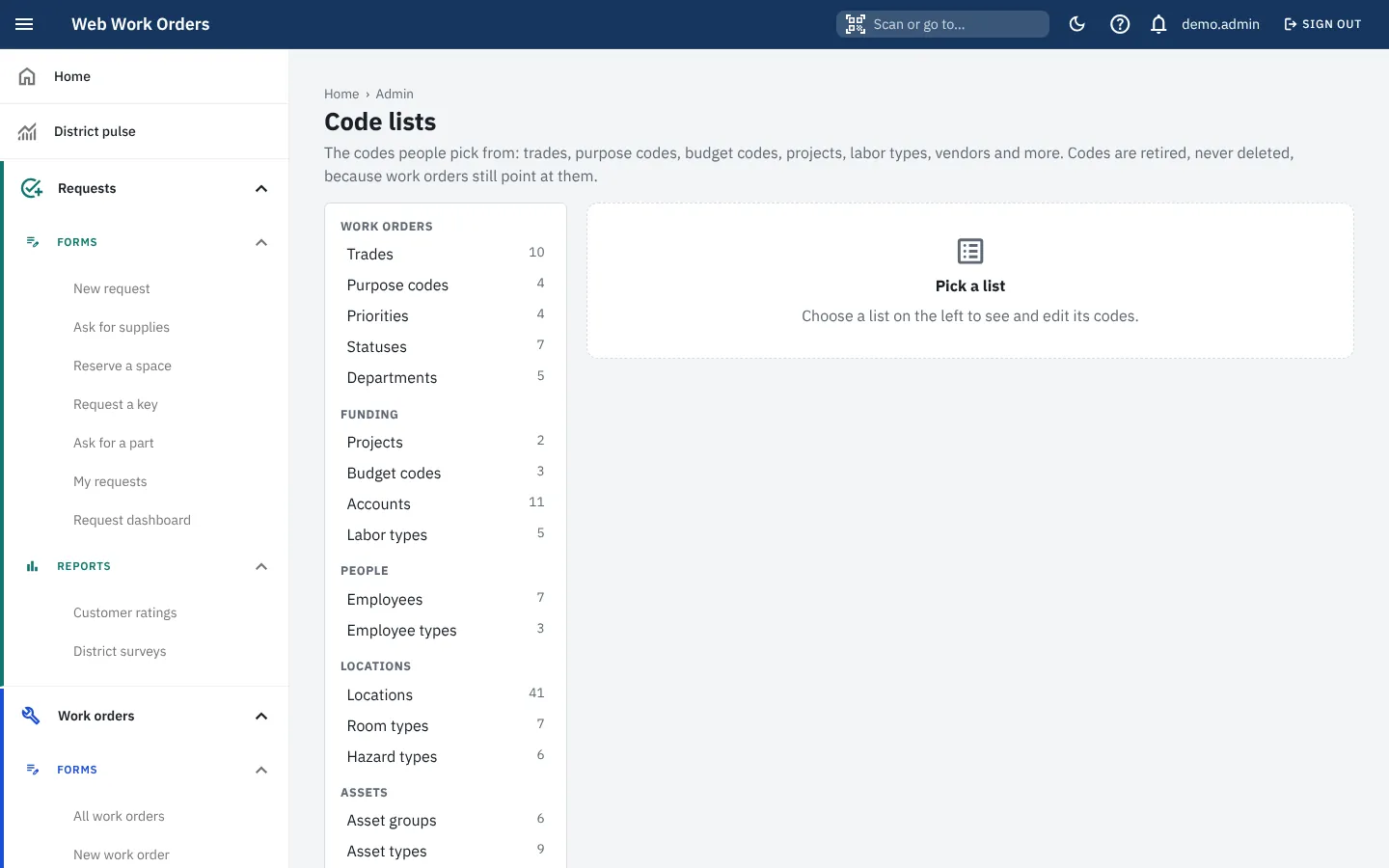
Every code list people pick from: trades, purpose codes, budget codes, projects, labor types, vendors, room types and more.
How it helps
Every list people pick from (trades, purpose codes, budget codes, projects, labor types, vendors, room types) in one place. Codes are retired, never deleted, so old work orders keep their meaning, and a missing code can be added from the form without leaving it.
Who uses it
How to use it
- Pick a list on the left. Add a code with the row at the top; click the pencil to rename it or change its details.
- Codes are never deleted, because work orders and costs point at them. Untick In use to retire a code: it stops being offered but old work orders keep it.
- Purpose codes can belong to a trade and asset types to a group; the pickers then only offer the ones that fit.
- Requesters see it controls which priorities and departments appear on the request form.
- Pickers pick up changes straight away.
Fields on this screen
- Code
- The short code stored on work orders. It cannot be changed later, so pick one that will last.
- Name
- What people see in pickers next to the code.
- Belongs to
- Only offer this code together with that one (purpose codes under a trade, asset types under a group). Leave blank to offer it everywhere.
Where to find it
In the app at /admin/lists. Every screen has a ? in the header with help for that page.
Terms on this page
Work orderRequesterTradePurpose codeRoomAssetLabor typeBudget codeVendor
Related
Next in Locations and people: Users →
Screenshots come from the Pine Valley Schools demo, a made-up district. Something unclear or out of date? Tell us and we'll fix it.