Settings
General, email, requests, statuses, Mobile App, inventory, preventive maintenance, AI and security.
How it helps
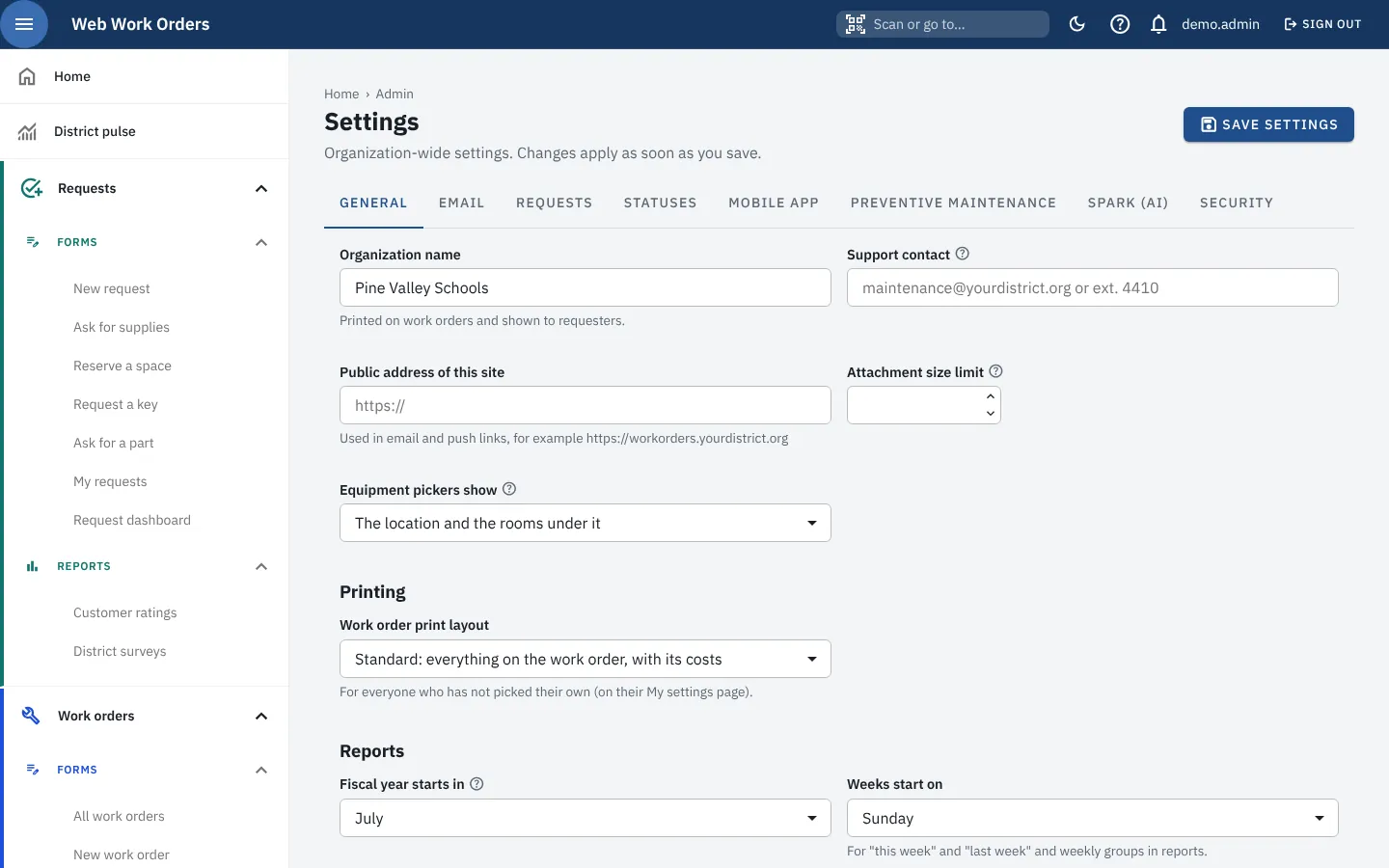
General, email, requests, statuses, Mobile App, inventory, preventive maintenance, AI and security settings in one place. Every setting says what it does when left alone, and Reset to defaults puts an area back after showing what changes, with the reset recorded in the audit log.
Who uses it
How to use it
- Each tab lists its settings with the value used when one is left blank. Reset to defaults puts a tab back after showing what changes; passwords and keys are kept.
- Send yourself a test email after changing mail settings.
- Status codes must match the WOStatus table; the Statuses tab explains each setting.
Fields on this screen
- What technicians can do
- Sections shown on the Mobile App's work order screen and its home page. Turning one off hides it on every phone; the desktop screens are not affected.
- Statuses technicians can set
- Buttons on the phone for moving a job along (in progress, waiting on parts, and so on). Complete is always there. Leave empty for Complete only.
- Status colors
- The color each of those statuses shows in on the phone, so a technician sees at a glance which jobs are waiting or urgent.
- Work orders listed first
- What the Mobile App's home screen shows by default: only work assigned to the technician, everything open in their trades, or everything open. Technicians can switch with the chips at the top.
- How far \"near me\" reaches (feet)
- Work at a location within this distance of the phone counts as near. Uses each location's latitude and longitude from Admin → Locations.
- Mobile Inventory actions
- Which actions the phone shows on an item: issue to a work order, receive, count and adjust, transfer. Untick what the shop floor should not do from the phone.
- Usual stock location
- The stock location the phone starts on when an item is opened, when the item is kept there; else the item's first location.
- Transfers go to
- Where a transfer from the phone goes unless changed, such as the truck stock. Blank means pick each time.
- Decimal quantities
- On: quantities like 2.5 can be entered on the phone (wire, pipe, liquids). Off: whole numbers only.
- Adjust reasons
- The reasons offered when a count is posted from the phone, one per line.
- Check-in statuses
- The buttons a technician taps to say where they are, shown on the live boards: On the way, On site, Back at shop… Separate them with commas.
- Charge matches within
- How far a card charge may be from the order's total and still count as matched: freight, a rounded tax, a small substitution. Beyond it the charge is flagged Amount differs for someone to look at.
- Card payments
- Off, or Stripe Checkout: renters pay a reservation's balance by card on Stripe's own page and the payment is recorded here when Stripe confirms it.
- Stripe secret key
- Your district's Stripe secret key (sk_live_… or sk_test_…), stored encrypted. It is used only from the server to start checkouts and read them back.
- Stripe webhook signing secret
- The signing secret (whsec_…) of the webhook endpoint you add in Stripe for this site. Each delivery is checked against it before anything is recorded.
- Fiscal year starts in
- The month the district's fiscal year begins (July for most school districts), for "this fiscal year" in reports and the fiscal-year grouping.
- SMTP server
- The outgoing mail server, such as smtp.office365.com or your district's relay. Mail queued by the app and by database triggers is sent through it.
- From address
- The address notifications come from. Use a mailbox people can reply to, such as [email protected].
- Status for new requests
- The status a request gets when a teacher or staff member submits it. The request queue lists work orders in this status.
- Status when accepted
- The open status a request moves to when a supervisor accepts it from the queue. New work orders staff create directly and PM-generated work orders start here too. Leave blank for the next open status after the new-request status.
- Status when declined
- The closed status used when a request is declined. It must be one of the closed statuses.
- Ask after every
- 1 asks the requester how it went after every completed request; 2 asks after every second one, 3 every third, and so on. The work order number decides, so the sample is steady and nobody is asked twice for one job.
- Link good for
- How many days the survey link in the completion notice stays open. After that the page says the link has expired and the request page still takes a note.
- Low is a score at or under
- Any answer at or under this number (1 to 4), or a request to be contacted, counts as low: supervisors get a Low rating notice and it waits on the Customer ratings report until someone records a follow-up.
- Questions asked
- Which of the five questions the survey shows. The earlier version's survey reports scored all five; untick one the district does not want to ask and the report simply leaves it blank.
- Opening words
- The sentence at the top of the survey page. Leave blank for the built-in wording.
- Thank-you
- What the page says once the answers are in. Leave blank for the built-in wording.
- Problems in one request
- How many problems at one place a requester can send on one form; each becomes its own work order. The earlier version allowed nine. 1 turns the extra problems off.
- Notify this address
- A shared mailbox (for example the maintenance office) that gets a copy of every new request.
- Complete status
- The status the Complete button sets. Defaults to the status named Complete.
- Closed statuses
- Comma-separated status codes that mean the work order is finished (complete, cancelled, declined, duplicate). Closed work orders leave the open list and do not count as overdue.
- Equipment pickers show
- When a form's location is chosen, the equipment list shows what is in that location and the rooms under it, or only what is recorded at the location itself.
- Map links open in
- Where the Map and Directions links on work orders, assets, requests and the Mobile App go: OpenStreetMap, Google, Apple or Bing Maps, or the district's own GIS viewer.
- Map tiles
- The map server behind the Map page, as a tile link with {z}, {x} and {y}, for example the district's ArcGIS basemap. Leave empty for OpenStreetMap. The second box is the credit shown on the map.
- PM generation hour
- The hour (0 to 23) when preventive maintenance work orders are generated each day. Leave blank to turn automatic generation off.
- PM lead time
- Generate PM work orders this many days before they are due, so technicians can plan. 0 means on the due date.
- PMs count from
- For PMs set to the district default: count the next one from the last one generated, or from the last one completed. Read from the earlier version's PM settings until it is set here.
- PMs wait for the last one
- For PMs set to the district default: make a new work order every period, or only once the last one is finished.
- Two frequencies mean
- For PMs with two frequencies (every 3 months or 3,000 miles): due at whichever comes first, or only when both are reached. The earlier version's generator waited for both.
- Use the district's generation procedure
- Run the earlier version's own procedure (dbo.sp_GeneratePMS) for generation instead of the built-in generator. It changes its own helper tables and turns work order triggers off while it runs, so it is off unless you choose it.
- Fill PM work orders the earlier way
- Project PM, requester "PM Scheduler" and the assignee's supervisor as contact when the PM does not name them, so reports from the earlier version group PM work the same way.
- AI API key
- Your district's own key for the AI assistant. It is stored encrypted and nothing is sent to the AI service until a key is saved and the module is on.
- Support contact
- Who people should contact for help with Web Work Orders in your district. Shown on the Help page and on error pages.
- Attachment size limit
- Largest file anyone can attach to a work order, in megabytes. Photos are reduced before upload, so 10 MB covers most needs.
Where to find it
In the app at /admin/settings. Every screen has a ? in the header with help for that page.
Terms on this page
Work orderRequesterTradeStatusNeeded-by dateOverdueRoomAssetPreventive maintenanceStock locationReservationModuleFiscal yearLive boardCustomer satisfaction score
Related
Screenshots come from the Pine Valley Schools demo, a made-up district. Something unclear or out of date? Tell us and we'll fix it.