Notification rules
What the app notifies people about, on which channels, and whether they can change it.
How it helps
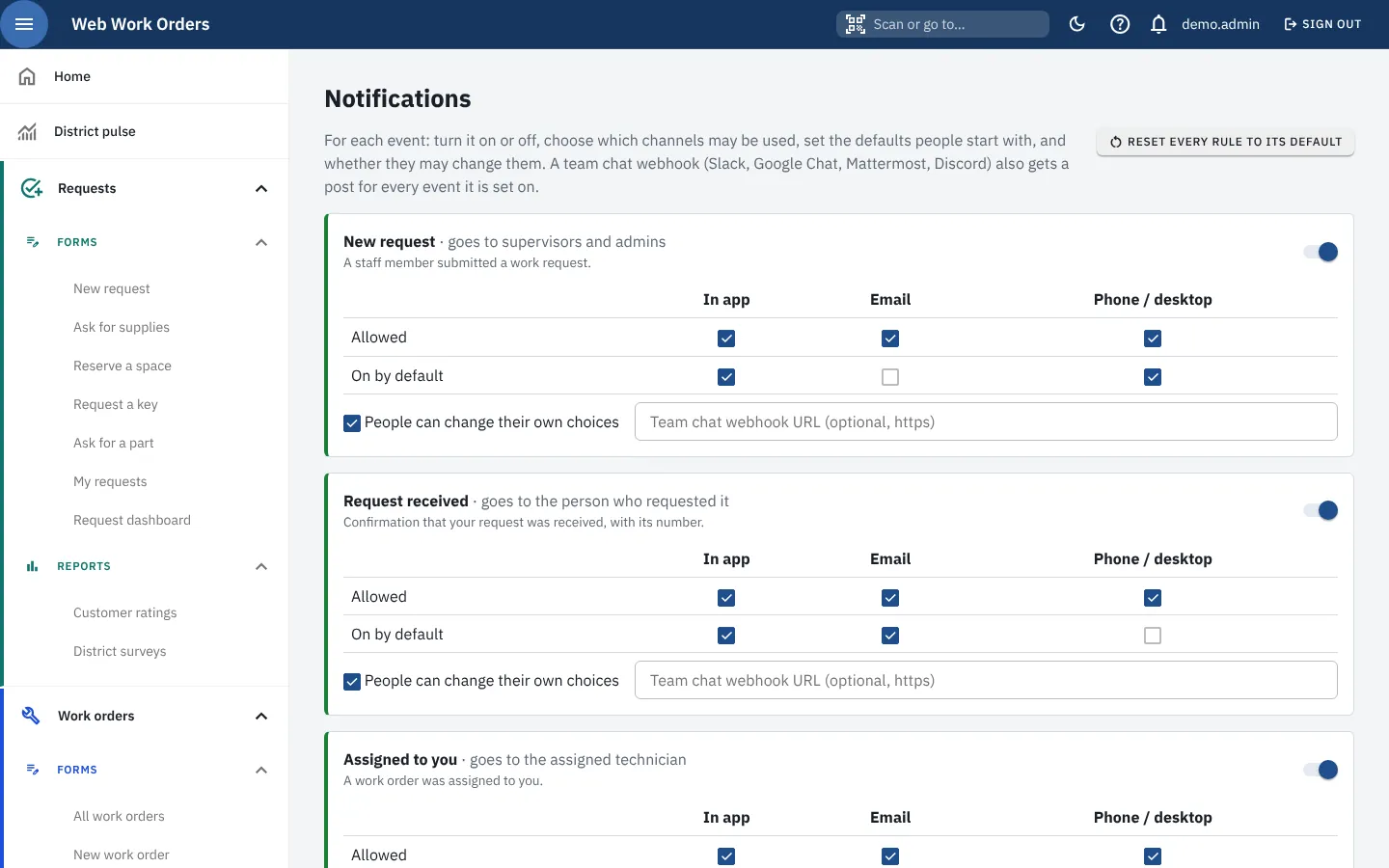
For each event, the district chooses which channels may be used (in the app, email, text message, device push, team chat), what people start with, and whether they can change it. Team chat webhooks post cards to Teams, Power Automate, Slack or Google Chat as well.
Who uses it
How to use it
- Allowed channels are the most a person can choose; defaults are what they start with.
- Team chat webhooks post to Teams, Slack or Google Chat as well.
- When this database's earlier trigger still queues email (to the requester on submit and status change, to the technician on assignment), a box at the top says so. Hold the trigger's email keeps those messages in the queue unsent, marked Held in the email log, so people get the app's notice and not both; off, both go out. The earlier switches can also be turned off in the earlier version's own setup.
Where to find it
In the app at /admin/notifications. Every screen has a ? in the header with help for that page.
Terms on this page
Related
Next in Setup and security: Field help →
Screenshots come from the Pine Valley Schools demo, a made-up district. Something unclear or out of date? Tell us and we'll fix it.