Email log
Every email the app sends, including the mail the district's database queues itself, with what happened to each.
How it helps
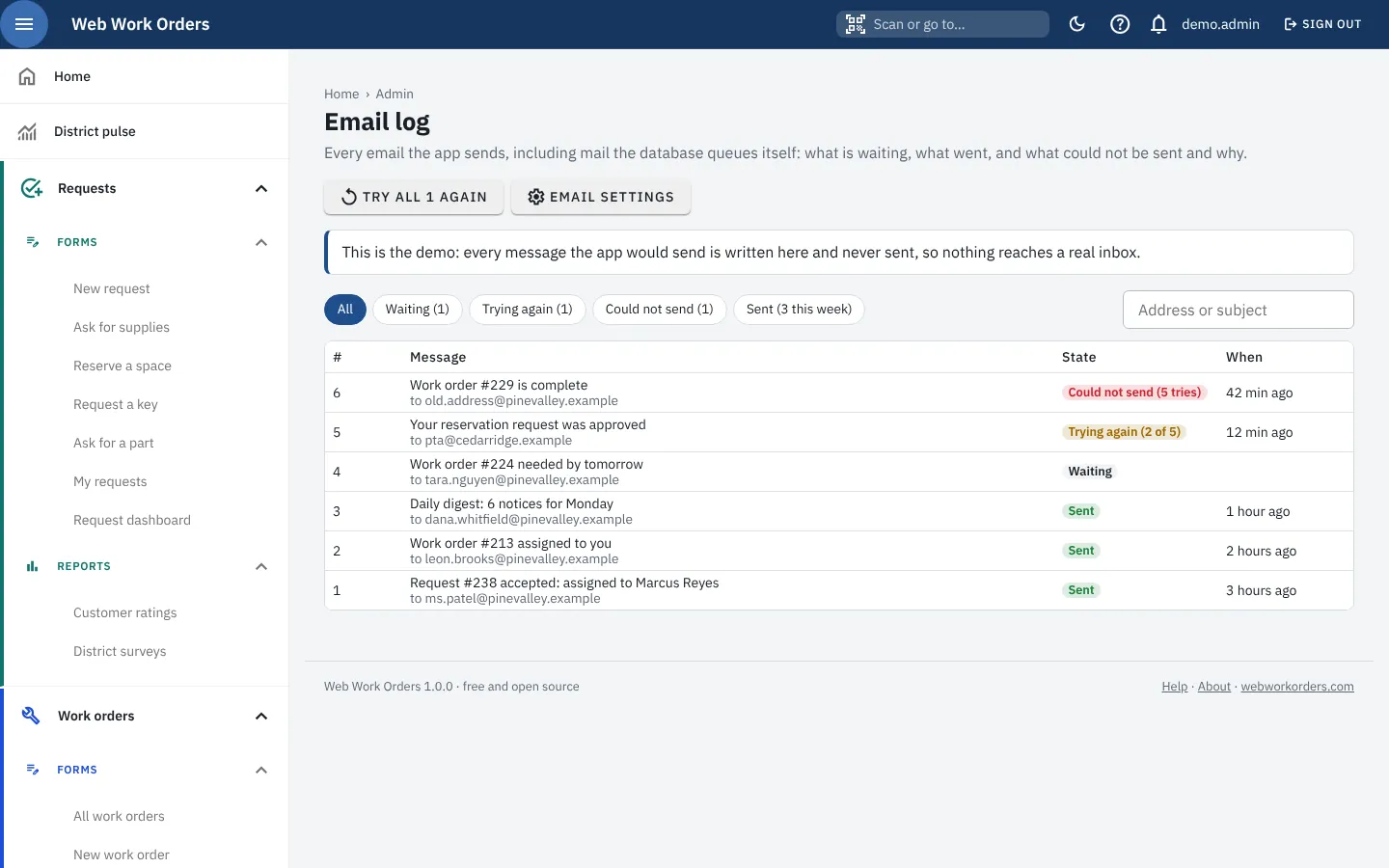
Every email the app and the district database send: what is waiting, what went, and what could not be sent and why. When the mail server password changes, the messages that failed are sent again with one click instead of being lost.
Who uses it
How to use it
- Waiting means it has not been tried yet; a mail server must be set up under Settings › Email for anything to go.
- A message that fails is tried again up to five times. After that it shows under Could not send with the last error.
- Try again starts a message's tries over, for example after fixing the mail server password. Messages are never deleted.
- Open a message to read it as it was sent. Mail in HTML is shown as plain text.
- Held messages were queued by the earlier version's work-order trigger while Hold the trigger's email (Admin › Notification rules) was on; the app sent its own notice instead. Send it after all lets one go out on the next run.
Where to find it
In the app at /admin/email. Every screen has a ? in the header with help for that page.
Related
Next in Setup and security: View as another person →
Screenshots come from the Pine Valley Schools demo, a made-up district. Something unclear or out of date? Tell us and we'll fix it.