Routing rules
Rules that route new requests and work orders as they come in: trade, technician, priority, needed-by date, who is told.
How it helps
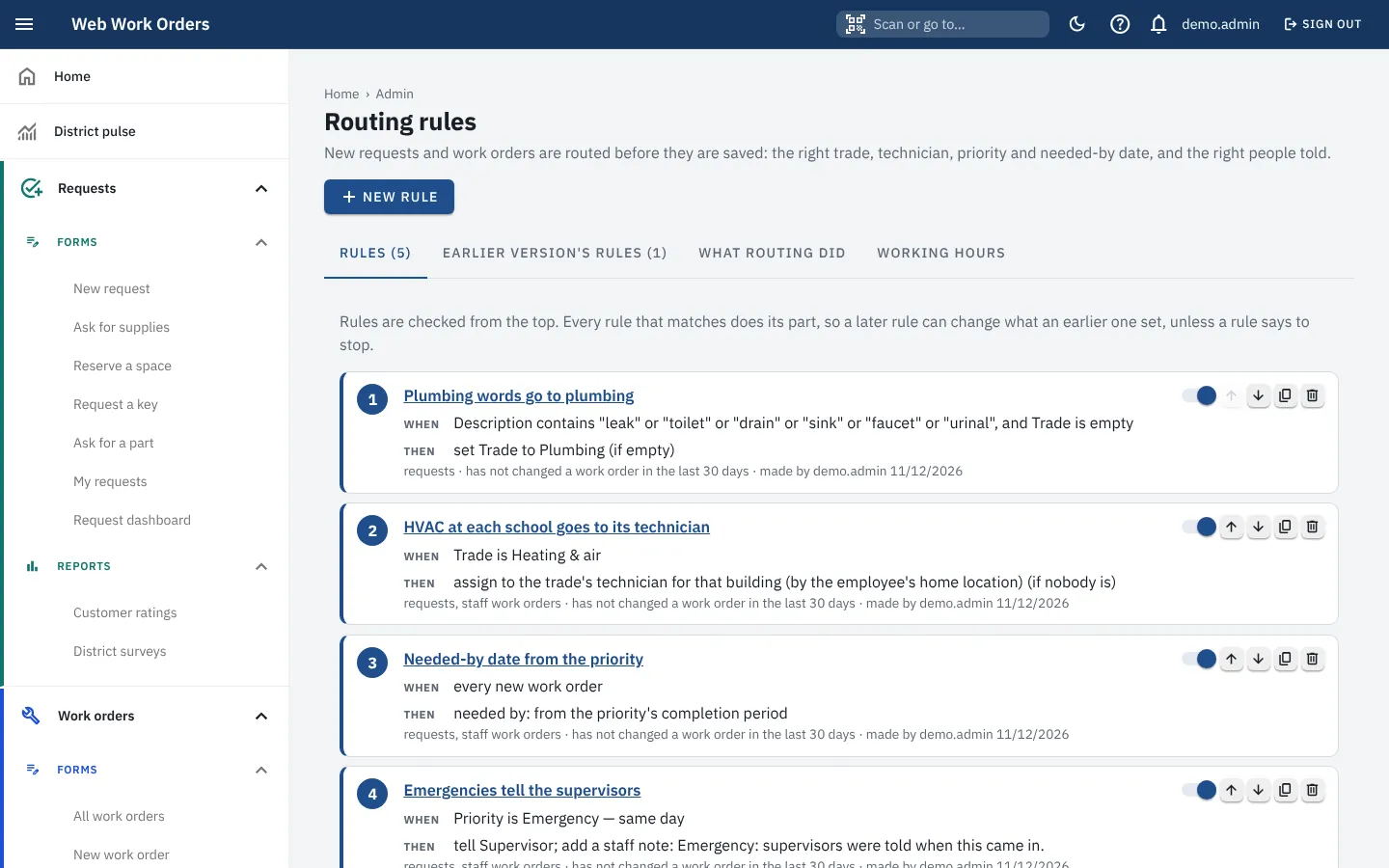
Requests stop waiting in a pile for someone to sort them. Rules run on every new request and work order before it is saved: fill in the trade and priority, assign the technician who covers that building or the one with the least open work, set the needed-by date, and tell the right people. Each rule reads like a sentence, can be checked against the last 90 days first, and every change it makes is in the work order's history.
Who uses it
How to use it
- Rules are checked from the top; every rule that matches does its part, unless one says to stop. Use the arrows to change the order.
- Start from a ready-made rule, or make your own with New rule. Switch a rule off to pause it.
- The earlier version's rules are listed on their own tab. Bring one over to see and run it here; if the database still runs them itself, Web Work Orders leaves them to it.
- What routing did lists every work order a rule changed. Each work order's History tab shows it too.
- Working hours decide what "after hours" means for rules that look at when a request came in.
Where to find it
In the app at /admin/routing. Every screen has a ? in the header with help for that page.
Terms on this page
Work orderTradePriorityNeeded-by date
Related
Screenshots come from the Pine Valley Schools demo, a made-up district. Something unclear or out of date? Tell us and we'll fix it.