Request dashboard
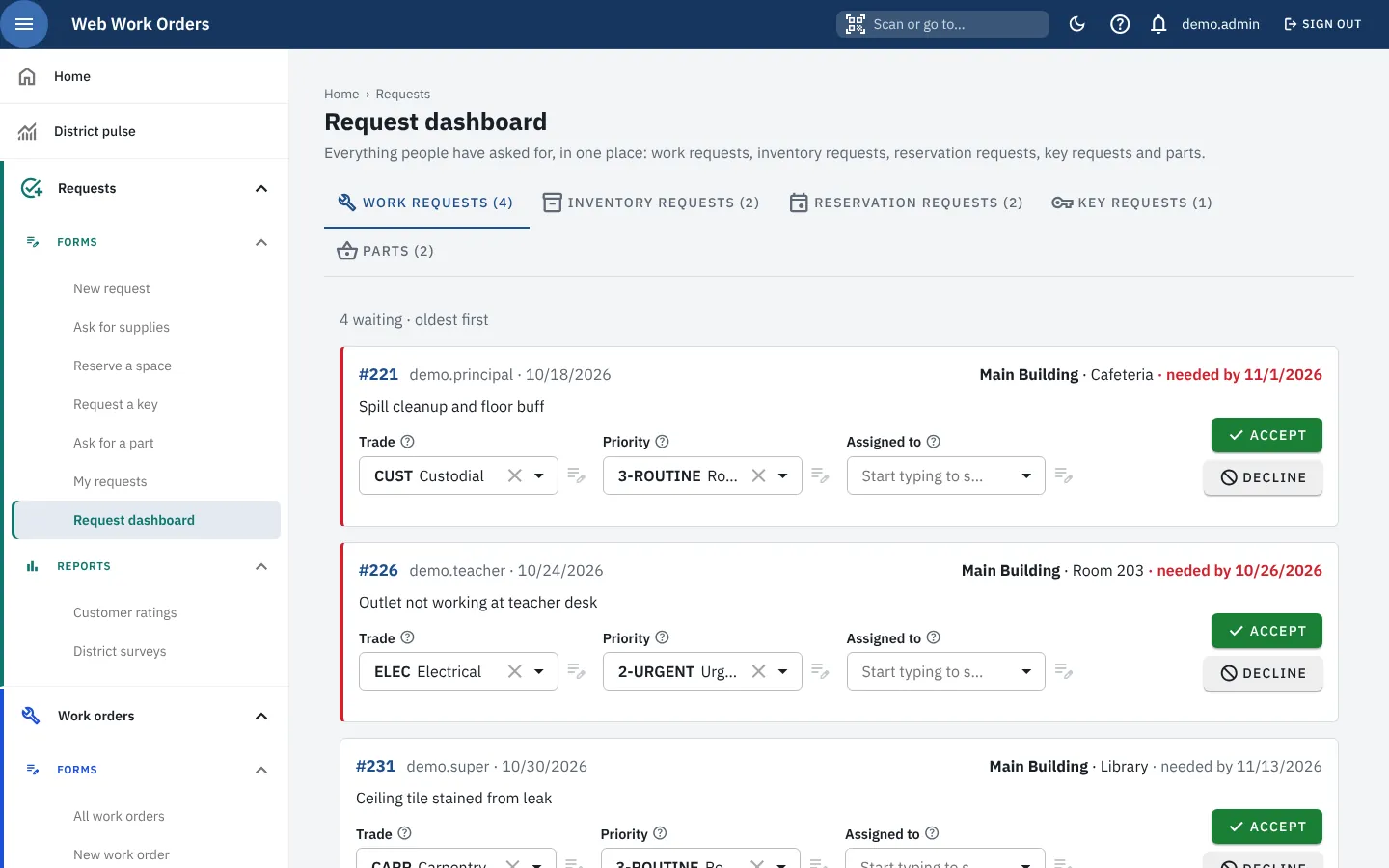
Everything people have asked for in one place: work requests, inventory requests and reservation requests, each on its own tab.
How it helps
Work requests, supply requests and reservation requests arrive in one place, each tab for the people who handle it. A supervisor accepts a request with its trade, priority and technician in one step or declines it with a reason the requester sees, so nothing sits in an inbox.
Who uses it
SupervisorsStockroom (inventory clerks)Administrators
How to use it
- Work requests: accept with a trade, priority and assignee, or decline with a reason the requester sees.
- Inventory requests: tick lines, approve them from a stock location, make a numbered pick list to print, mark them picked, then deliver. Delivering takes the stock off the shelf and records it against the requester's location.
- Reservation requests: approve the step a request is waiting at, or decline it. Clashes with other bookings, blackout dates and insurance are shown on each card.
- Each tab shows only to the people who handle it: supervisors and technicians for work, the stockroom for inventory, the facilities office and approvers for reservations.
Where to find it
In the app at /requests/queue. Every screen has a ? in the header with help for that page.
Terms on this page
Work requestRequesterTradePriorityStock locationPick listReservationBlackout date
Related
Screenshots come from the Pine Valley Schools demo, a made-up district. Something unclear or out of date? Tell us and we'll fix it.