Sign-in
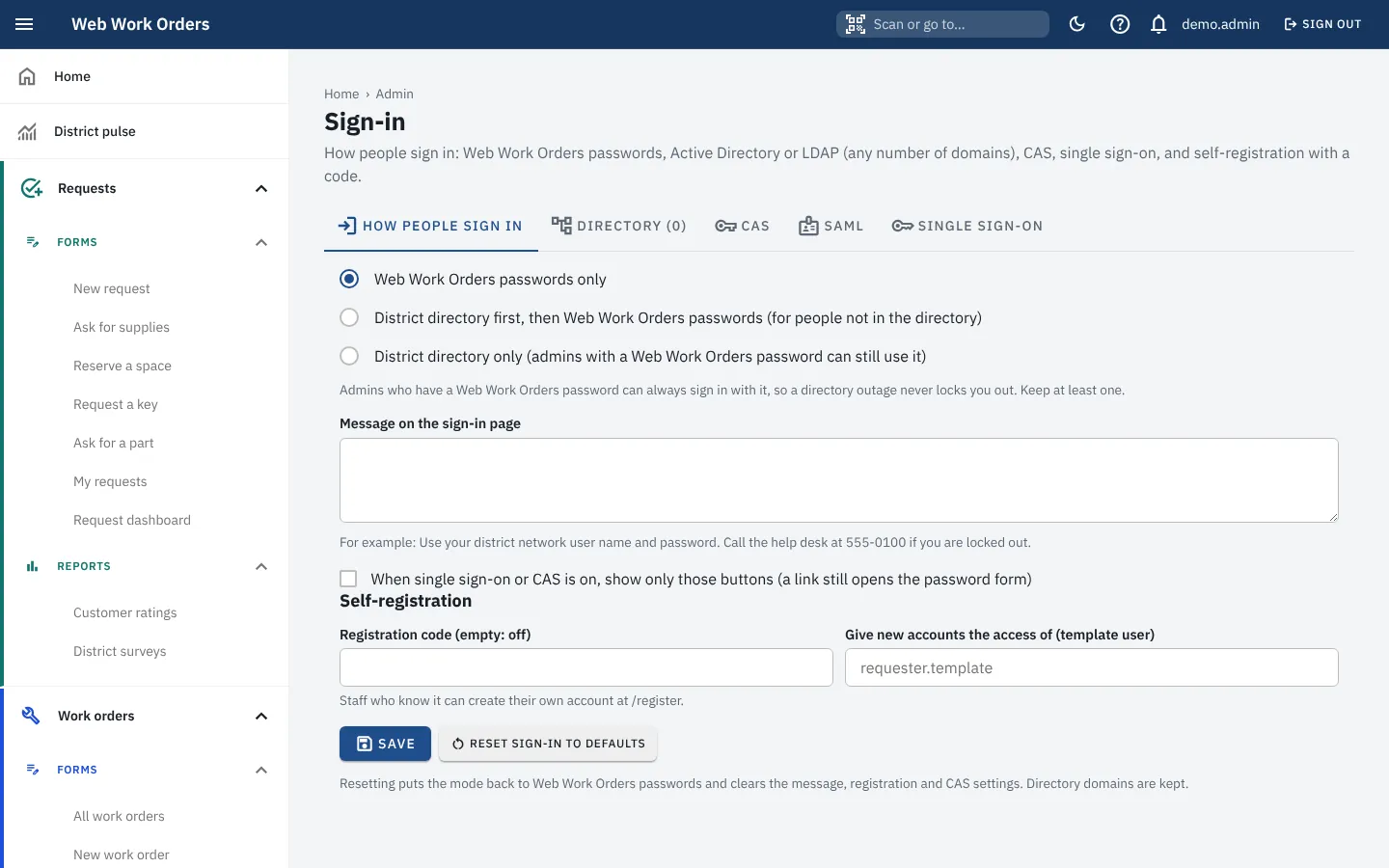
How people sign in: Web Work Orders passwords, Active Directory or LDAP, CAS, single sign-on and self-registration.
How it helps
People sign in with the accounts they already have: Active Directory or LDAP (several domains), CAS, SAML 2.0 (AD FS, Shibboleth, Okta, ClassLink, Clever), or single sign-on with Microsoft Entra ID, Google Workspace or ClassLink. New staff are added on first sign-in with a template user's access, a test shows every step before you switch, and admins keep a password that works if the directory is down.
Who uses it
How to use it
- Directory: add your Active Directory domain (and a second or third if you have them). People type their network user name, district\\name or name@district; the matching domain is tried first.
- Search-then-bind: a service account finds the person, then their own password is checked. Use LDAPS (port 636) or StartTLS so passwords never cross the network in clear text.
- Required group: only its members may sign in. Groups give roles: map a group's name or DN to Technician, Supervisor and so on; nested groups count in Active Directory.
- New people are added the first time they sign in, with the template user's security groups, trades and locations (the earlier version's login default user).
- Test sign-in shows every step and the person's groups without signing anyone in.
- Admins with a Web Work Orders password can always use it, so a directory outage never locks you out.
- CAS and single sign-on (Entra ID, Google, ClassLink) add buttons to the sign-in page. Self-registration lets staff with the code make their own account at /register.
Where to find it
In the app at /admin/signin. Every screen has a ? in the header with help for that page.
Terms on this page
Work orderTradeRoleSingle sign-onSAML
Related
Screenshots come from the Pine Valley Schools demo, a made-up district. Something unclear or out of date? Tell us and we'll fix it.