Work order watch
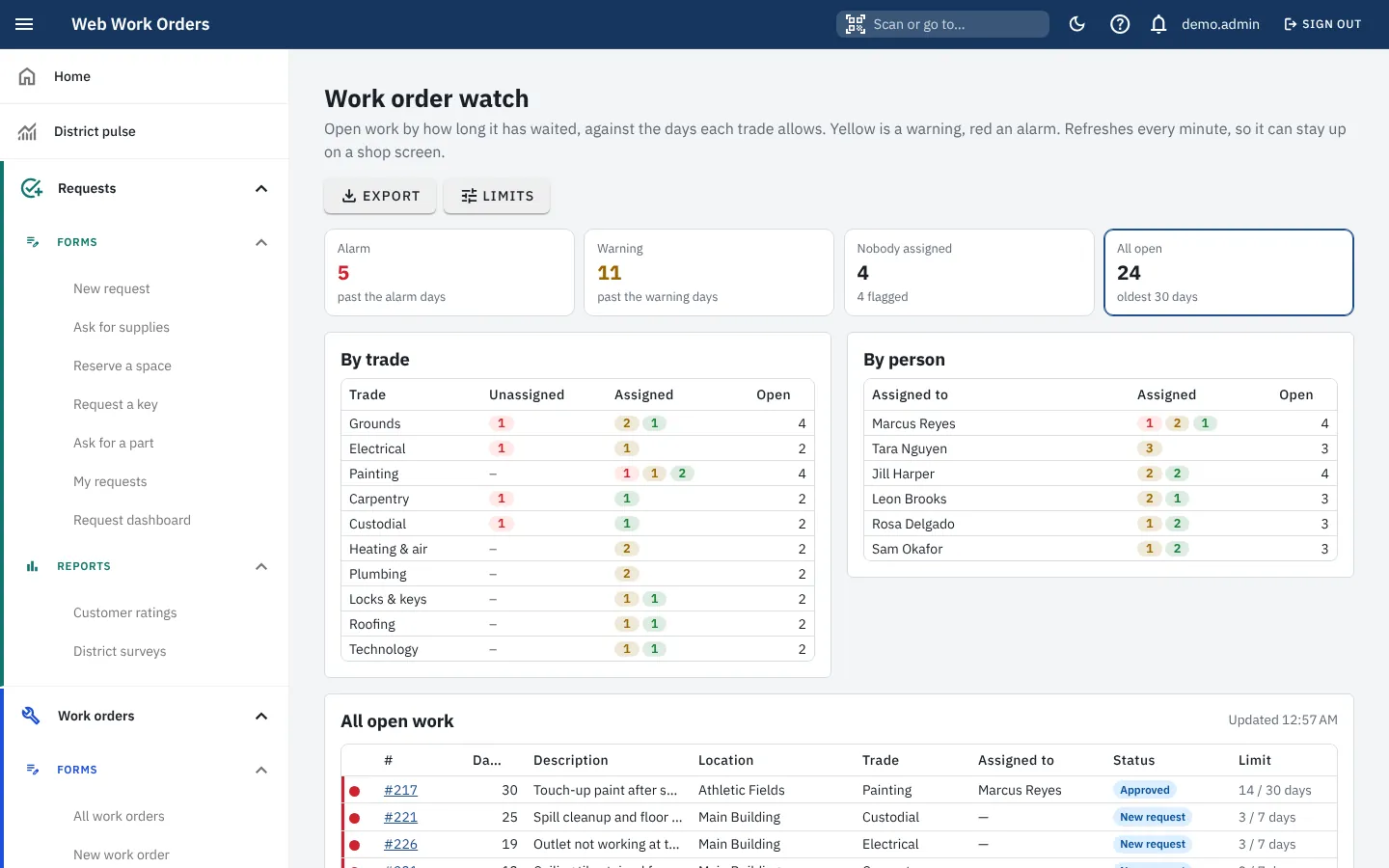
Open work by how long it has waited, against the days each trade allows, by trade and by person.
How it helps
Overdue is too late. The watch board shows work that is getting old before it becomes a complaint, against limits each trade sets for itself, and sends one warning and one alarm per stage. On a shop TV it keeps everyone honest without a meeting.
Who uses it
How to use it
- Age counts days since the work order was received. Unassigned work and assigned-but-not-done work each have a warning and an alarm limit.
- Click a tile (Alarm, Warning, Nobody assigned) or a trade or person to narrow the list; click again to clear it.
- Limits (supervisors and admins): the first row covers every trade; add a row for a trade that needs tighter or looser limits. Leave a box empty for no limit.
- Each work order raises one warning and one alarm per stage, to the assigned person and supervisors as ticked, plus any extra addresses. The daily check sends them; channels are set under Notification rules › Waiting too long.
- The page refreshes itself every minute, so it works as a shop display.
Where to find it
In the app at /workorders/watch. Every screen has a ? in the header with help for that page.
Terms on this page
Work orderTradeOverdueWall screen
Related
Next in Work orders: Live boards →
Screenshots come from the Pine Valley Schools demo, a made-up district. Something unclear or out of date? Tell us and we'll fix it.