Work order transactions
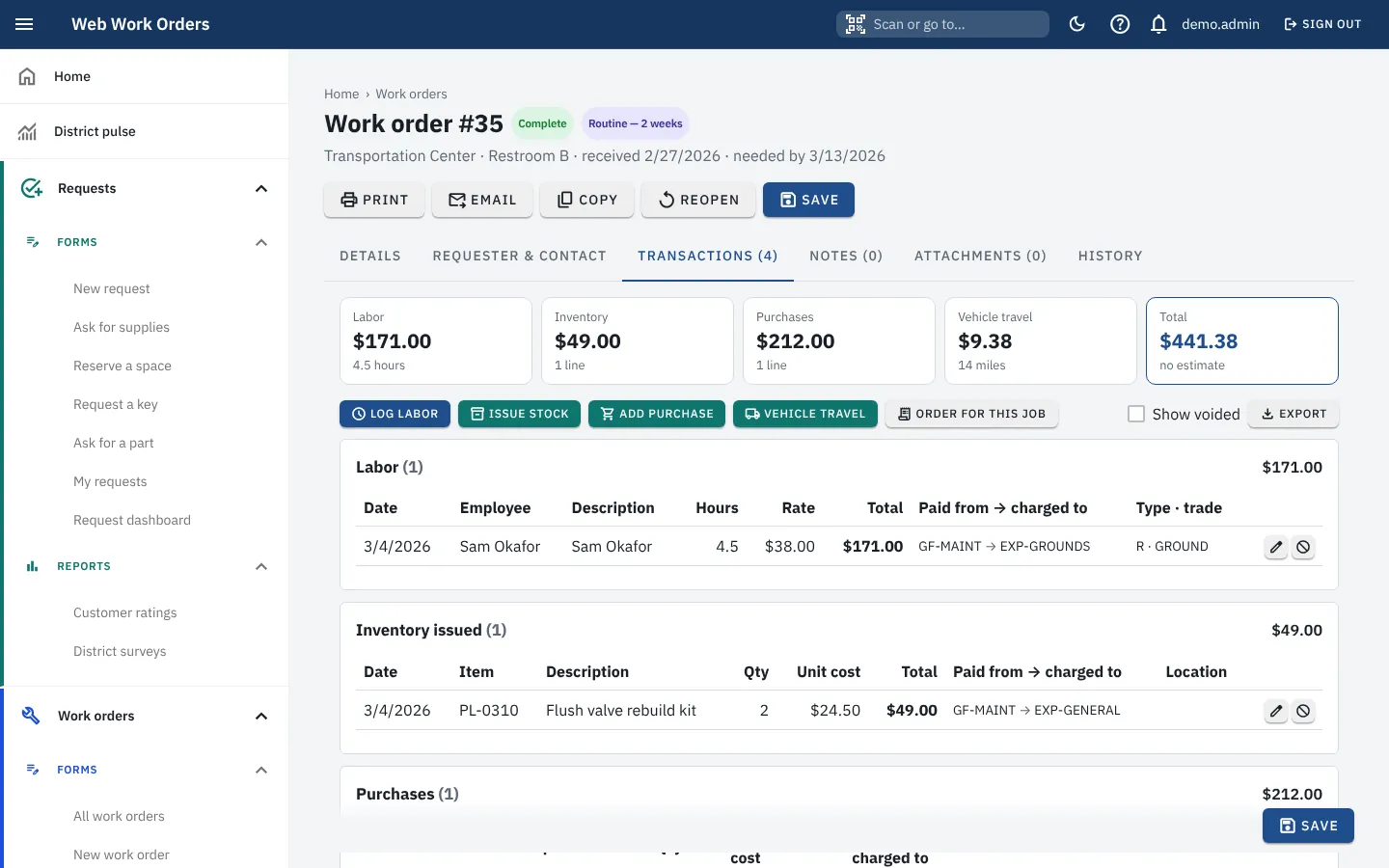
The Transactions tab on a work order: labor hours, stock issued, purchases and vehicle travel, each line paid from one account and charged to another.
How it helps
Cost per job, per building and per account comes from these lines, so this is where budgets stay honest. Because every line names the fund it is paid from and the account it is charged to, account balances move as the work happens instead of at the end of the month.
Who uses it
How to use it
- Labor lines take the employee's rate for the labor type (regular, overtime, callback) and their primary trade.
- Issuing stock lowers what is on hand at the stock location and puts the cost on the job.
- A purchase can also be received into stock in the same step.
- A wrong line is voided with a reason: it stays in the history with zero amounts, so old reports stop counting it and nothing is erased.
Fields on this screen
- Employee
- Who did the work. Each labor line records one person's hours on this work order; the rate, trade and accounts fill in from their labor rates.
- Hours
- Hours worked on this visit, in decimals (1.5 = an hour and a half). Travel time counts if your district includes it.
- Rate
- The hourly charge rate for this line, from the employee's labor rates for the chosen labor type. Change it for this line only; change the rate table under Admin → Labor rates.
- Labor type
- Regular, overtime, callback, holiday and so on. Each type has its own rate per employee and can be reported separately.
- Date of work
- The day the hours were worked, not the day they were entered. Reports and account activity use this date.
- Trade
- The trade the hours count toward, normally the employee's primary trade. Trade reports use this, not the work order's trade.
- Item
- The stock item used on this work order. Issuing it lowers the on-hand quantity at the stock location and records the cost here.
- Quantity
- How many units of issue were used (as the item is stocked: each, box, foot). A negative quantity returns stock from the work order.
- Stock location
- Which warehouse or truck the material came from. The location with the most on hand is suggested.
- Paid from
- The fund the money comes out of (general fund, bond, grant). Its balance goes down by the amount. Defaults from the employee's labor rates.
- Charged to
- The expense account the cost is recorded against (a trade, a program, a school). Its balance goes up by the amount. Budget reports group by this.
- Description
- What the line is for. Prints on the work order and shows in the account ledger, so make it meaningful ("Contactor 40A", not "parts").
- Purchase date
- The invoice or receipt date. Monthly cost reports use it.
- Quantity
- How many were bought at this unit cost. The line total is quantity × unit cost.
- Unit cost
- Price paid per unit, before tax unless your district records with tax. The line total updates as you type.
- Unit
- Unit of issue: each, box, gallon, foot. Optional, but it makes the ledger readable.
- PO number
- Your purchase order number, so finance can match this line to the order and the invoice.
- Vendor
- Who it was bought from. Pick from the supplier list; add new vendors under Admin → Codes → Suppliers.
- Invoice number
- The vendor's invoice or receipt number for reconciliation.
- Stock item
- Fill this in when the purchase is of an item you also keep in stock. Then you can receive the quantity into a stock location at the same time.
- Receive into stock
- Also add the quantity bought to this stock location (the earlier version's "split" purchase). Leave blank when the parts went straight onto the job.
- Vehicle
- The district vehicle used. Its rate per mile comes from the vehicle record (Assets).
- Miles
- Miles driven for this work order, from the odometer or the trip log.
- Rate per mile
- The cost per mile, from the vehicle record; change it for this line only if needed.
- Date
- The day the vehicle made the trip. Reports group travel cost by this date.
- Reason
- Why the line is being voided (entered twice, wrong work order, returned). The line stays in the history with zero amounts and this reason.
Terms on this page
Work orderTradeAssetTransactionLabor typeCharge ratePaid from / charged toStock locationPurchase orderVendor
Related
Next in Work orders: Sub work orders →
Screenshots come from the Pine Valley Schools demo, a made-up district. Something unclear or out of date? Tell us and we'll fix it.