View as another person
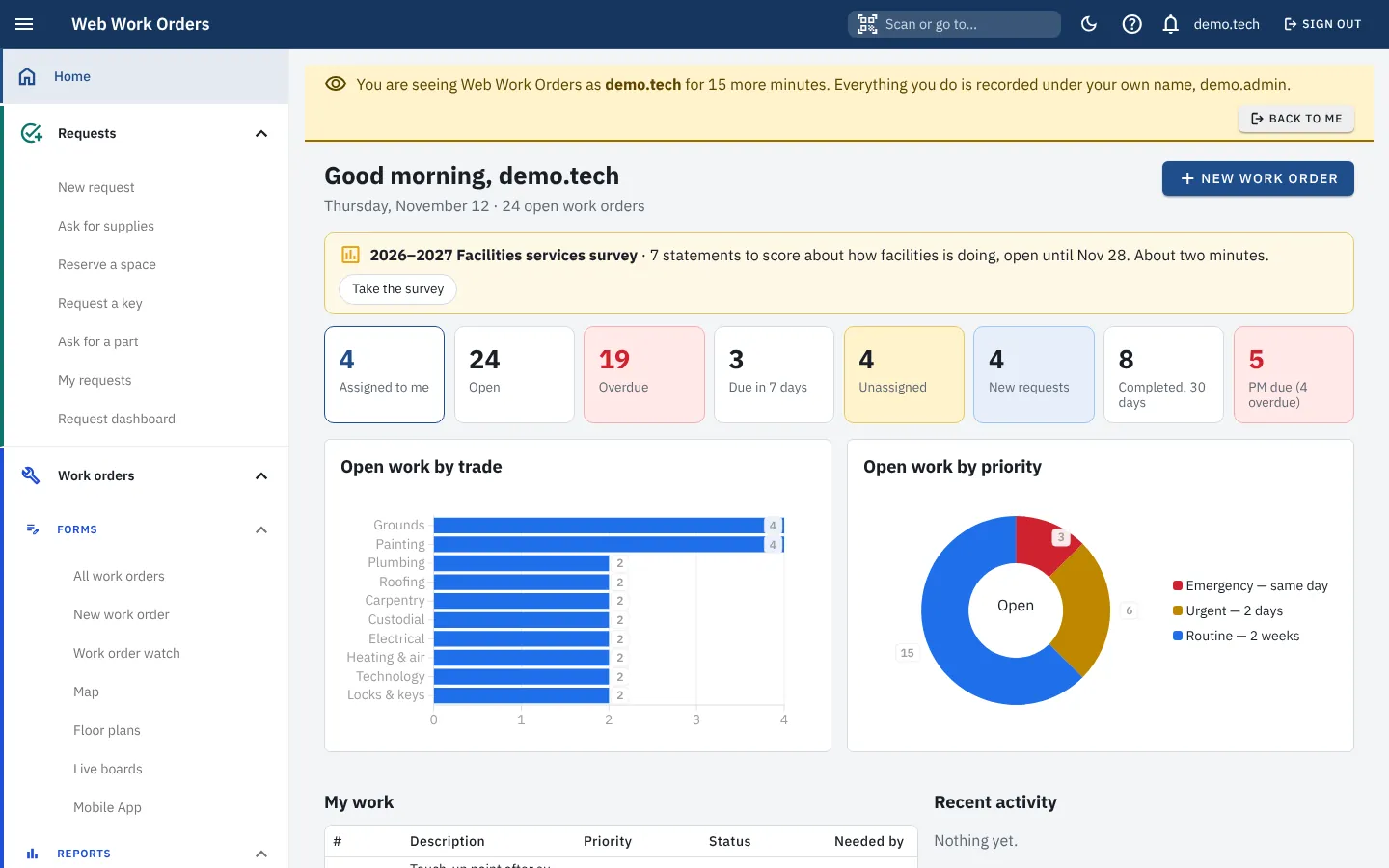
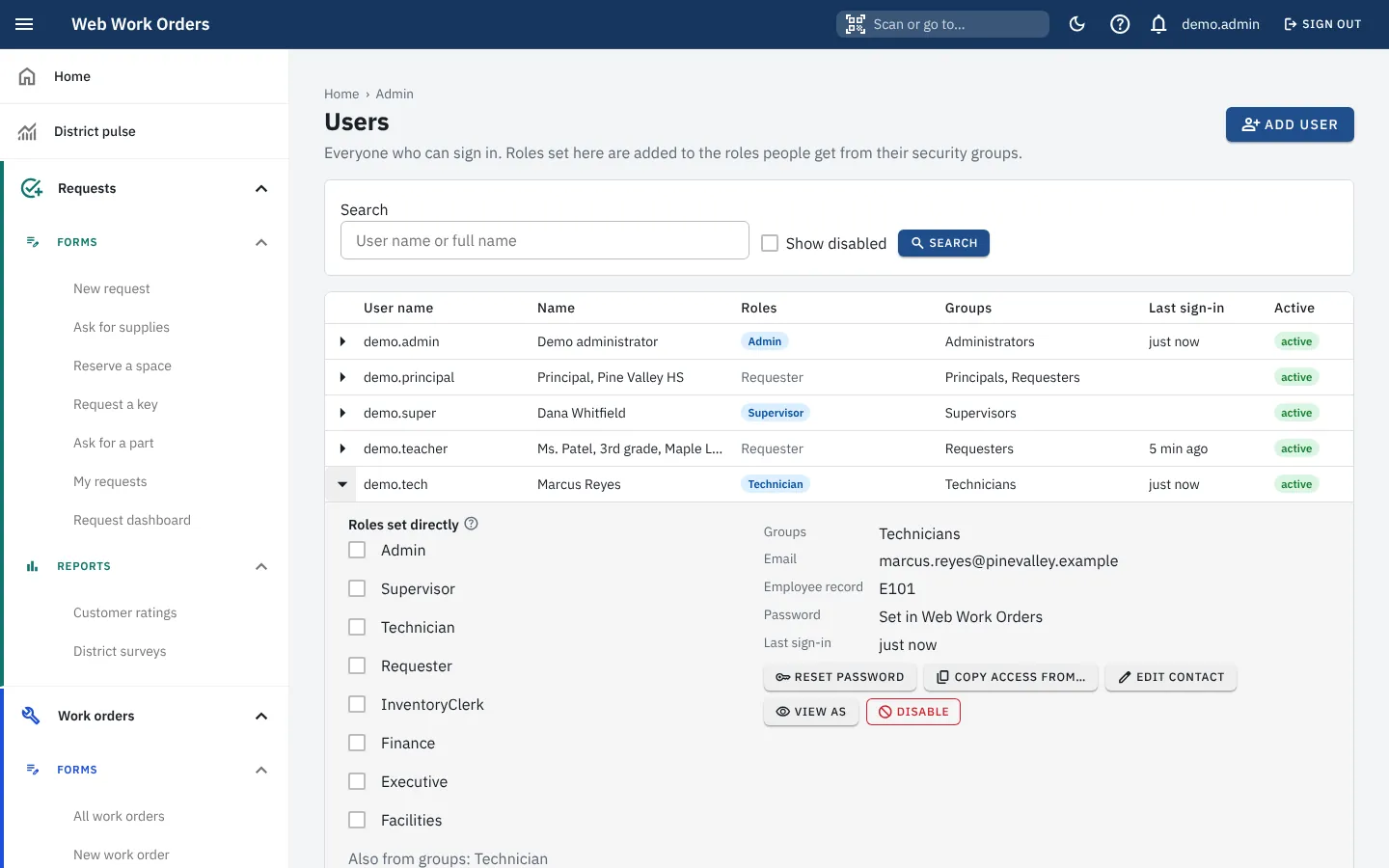
An administrator sees the app exactly as one person does, their menu, their access and their fields, for up to 15 minutes.
How it helps
"It doesn't show the button" is answered in one click instead of a screen share. Staff access, field security and menus can be checked as the person will see them before they ever sign in.
Who uses it
How to use it
- Under Users, open the person and choose View as.
- A banner stays on screen the whole time; Back to me ends it, and it ends on its own after 15 minutes.
- The admin's own roles are dropped for that time, and everything done is written to the audit log under both names.
- Administrators and disabled accounts cannot be viewed as.
Terms on this page
RoleField-level securityView as
Related
Next in Setup and security: Your data (download everything) →
Screenshots come from the Pine Valley Schools demo, a made-up district. Something unclear or out of date? Tell us and we'll fix it.