Equipment checklists
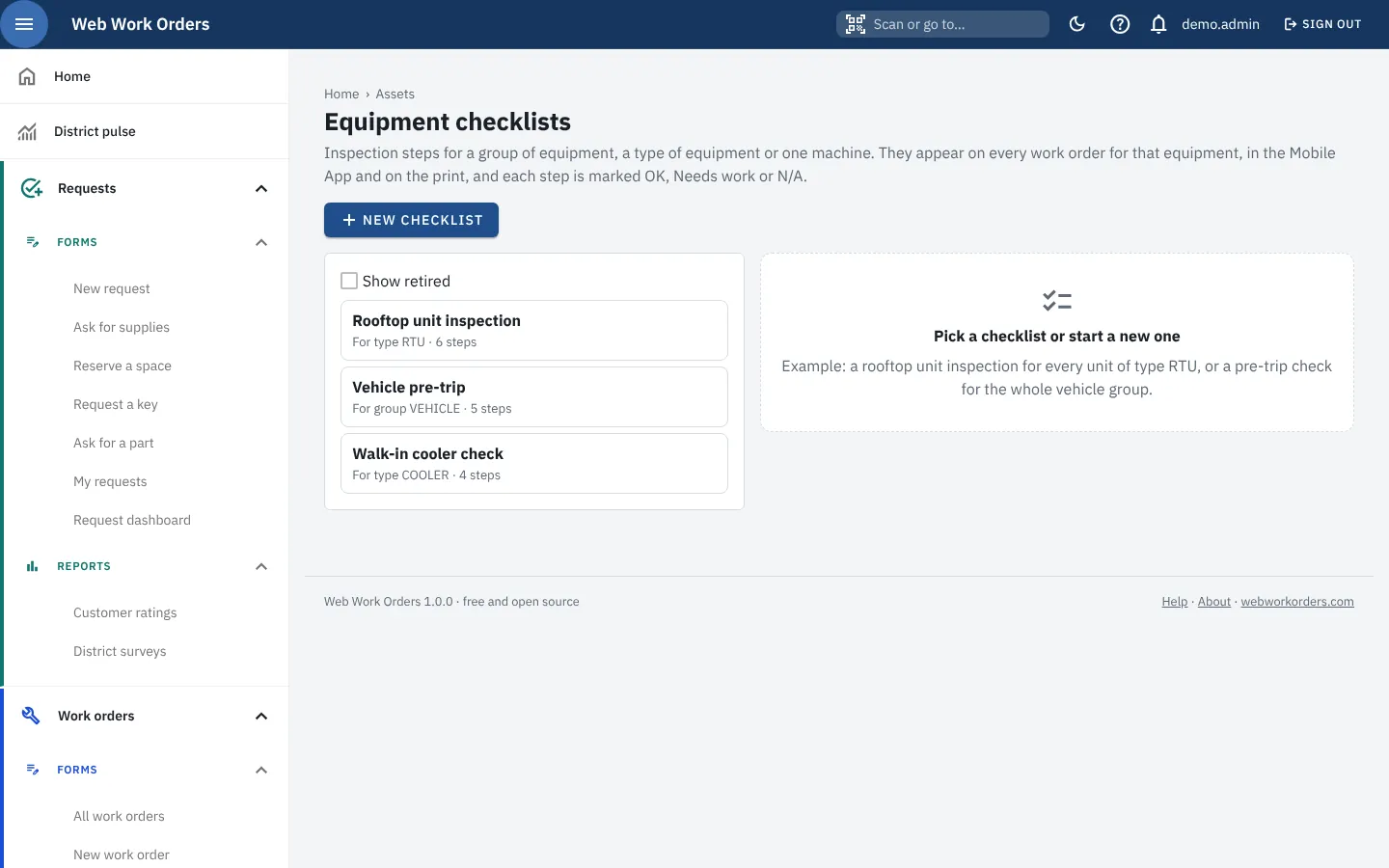
Inspection steps for a group of equipment, a type of equipment or one machine, shown on every work order for it.
How it helps
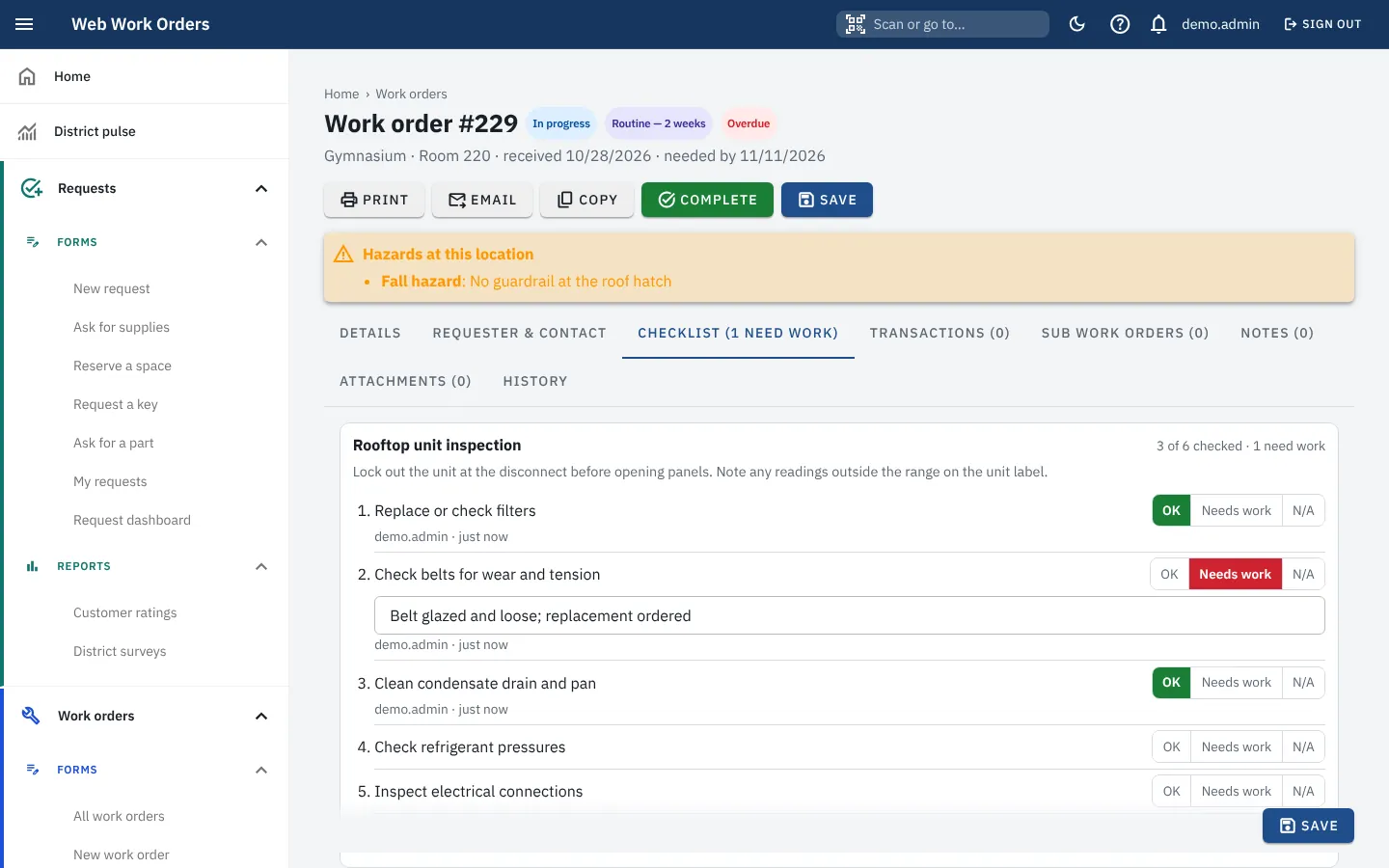
Write the inspection once (a rooftop unit check, a walk-in cooler check, a vehicle pre-trip) and it shows on every work order for that equipment, on the technician's phone and on the printout. Every step is marked OK, Needs work or N/A, so an inspection is a record instead of a memory, and each asset keeps a list of the inspections done on it. The earlier version's checklists come along.
Who uses it
SupervisorsTechniciansAdministrators
How to use it
- Write one step per line. Instructions are shown above the steps (safety, readings to record, who to tell).
- A checklist made for one asset comes first, then one for its type, then one for its group.
- Technicians mark each step OK, Needs work or N/A on the work order or in the Mobile App, with a note for anything that needs work. The print shows the steps with boxes, or with the results once they are filled in.
- Each asset's Checklists tab shows the work orders where its checklist was filled in. Retire a checklist instead of removing it; work orders keep their results.
Fields on this screen
- Name
- What the checklist is called on work orders, such as Rooftop unit inspection.
- Short description
- A line about when it is used, such as quarterly or before each trip.
- For
- Which equipment it is for: every asset in a group, every asset of a type, or one asset.
- Steps
- One step per line. Each is marked OK, Needs work or N/A on the work order.
- Instructions
- Shown above the steps: safety notes, readings to record, who to tell when something needs work.
Where to find it
In the app at /assets/checklists. Every screen has a ? in the header with help for that page.
Terms on this page
Work orderAssetEquipment checklist
Related
Screenshots come from the Pine Valley Schools demo, a made-up district. Something unclear or out of date? Tell us and we'll fix it.