Physical count
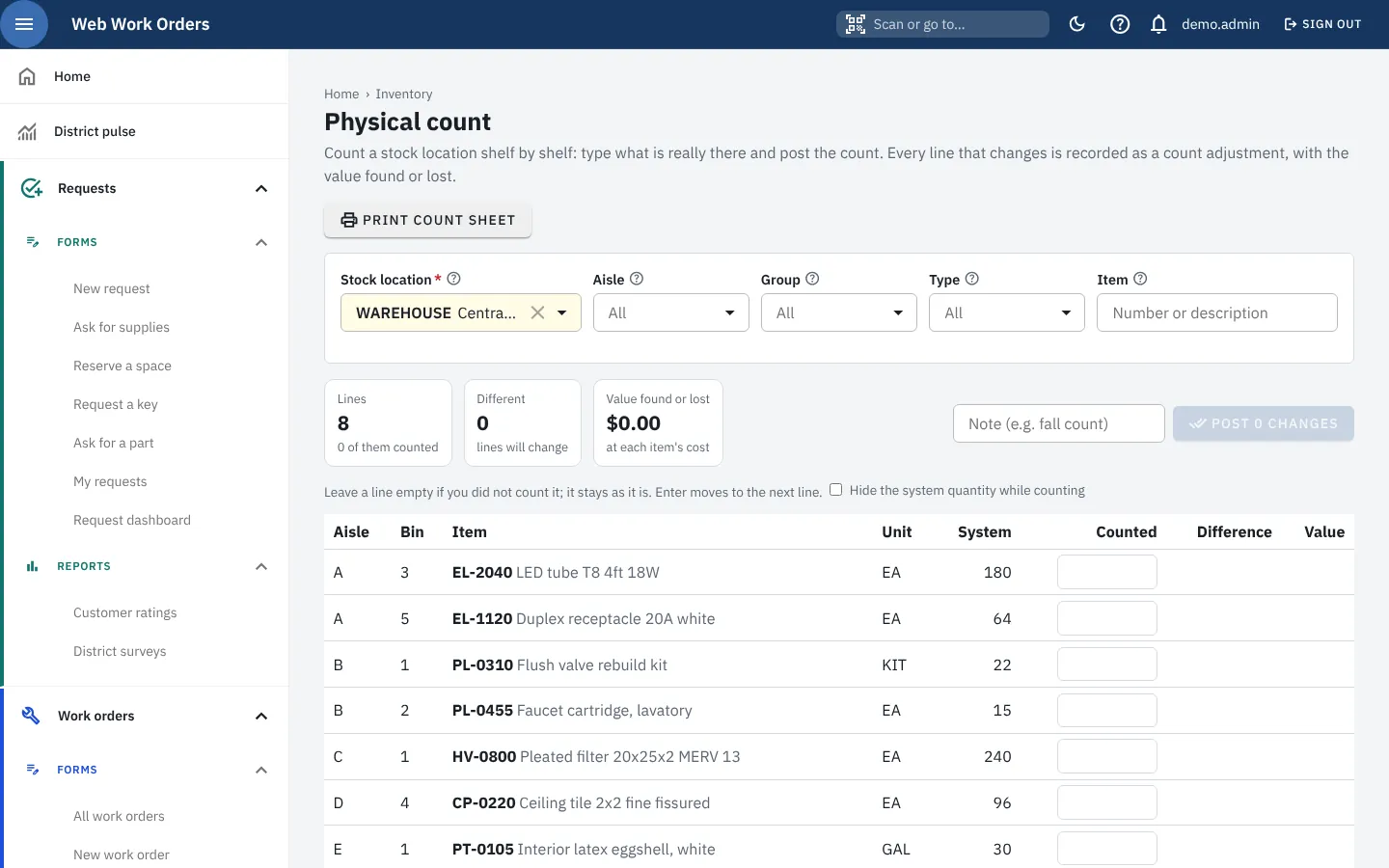
Count a stock location shelf by shelf, type what is really there, and post the count.
How it helps
Counting goes shelf by shelf in aisle and bin order, the way people actually walk a storeroom. You see the difference and the value found or lost before anything is posted, and a blind count sheet keeps the count honest.
Who uses it
Stockroom (inventory clerks)Supervisors
How to use it
- Pick the stock location, then narrow to an aisle, group or type to count one section at a time. Lines are in aisle and bin order.
- Print count sheet gives a paper sheet for the shelves; tick 'Hide the system quantity' first for a blind count.
- Type each count and press Enter to move down. Leave a line empty if you did not count it.
- Post turns every line that differs into a count adjustment, with the value found or lost. They show in the inventory report under Count adjusted.
Fields on this screen
- Stock location
- The stockroom, truck or supply closet being counted.
- Aisle
- Count one aisle at a time; the sheet lists only its shelves.
- Group
- Count only items in this inventory group (commodity).
- Type
- Count only stock items, or only non-stock items.
- Item
- Only items whose number or description contains this.
Where to find it
In the app at /inventory/count. Every screen has a ? in the header with help for that page.
Terms on this page
Stock locationBlind countNon-stock item
Related
Next in Inventory: Stock item →
Screenshots come from the Pine Valley Schools demo, a made-up district. Something unclear or out of date? Tell us and we'll fix it.