My settings
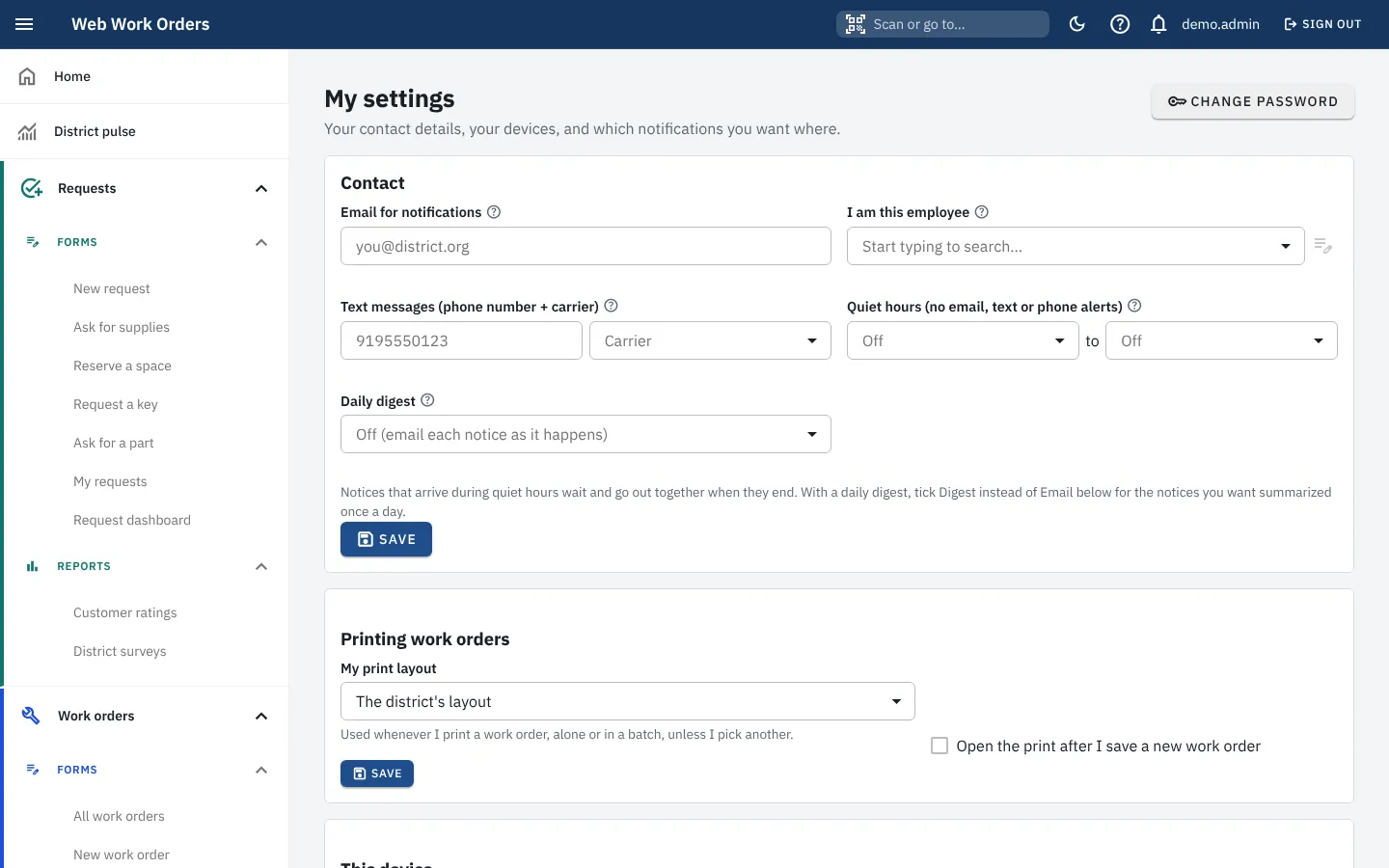
Your email, your employee link and which notifications you want where.
How it helps
Each person decides how they want to be reached, so alerts are useful instead of noise: email, a text message, a push to this device, quiet hours, or one daily digest. Linking a sign-in to an employee record is what lets assignments reach the right technician's phone.
Who uses it
Teachers and staff (requesters)TechniciansSupervisorsAdministrators
How to use it
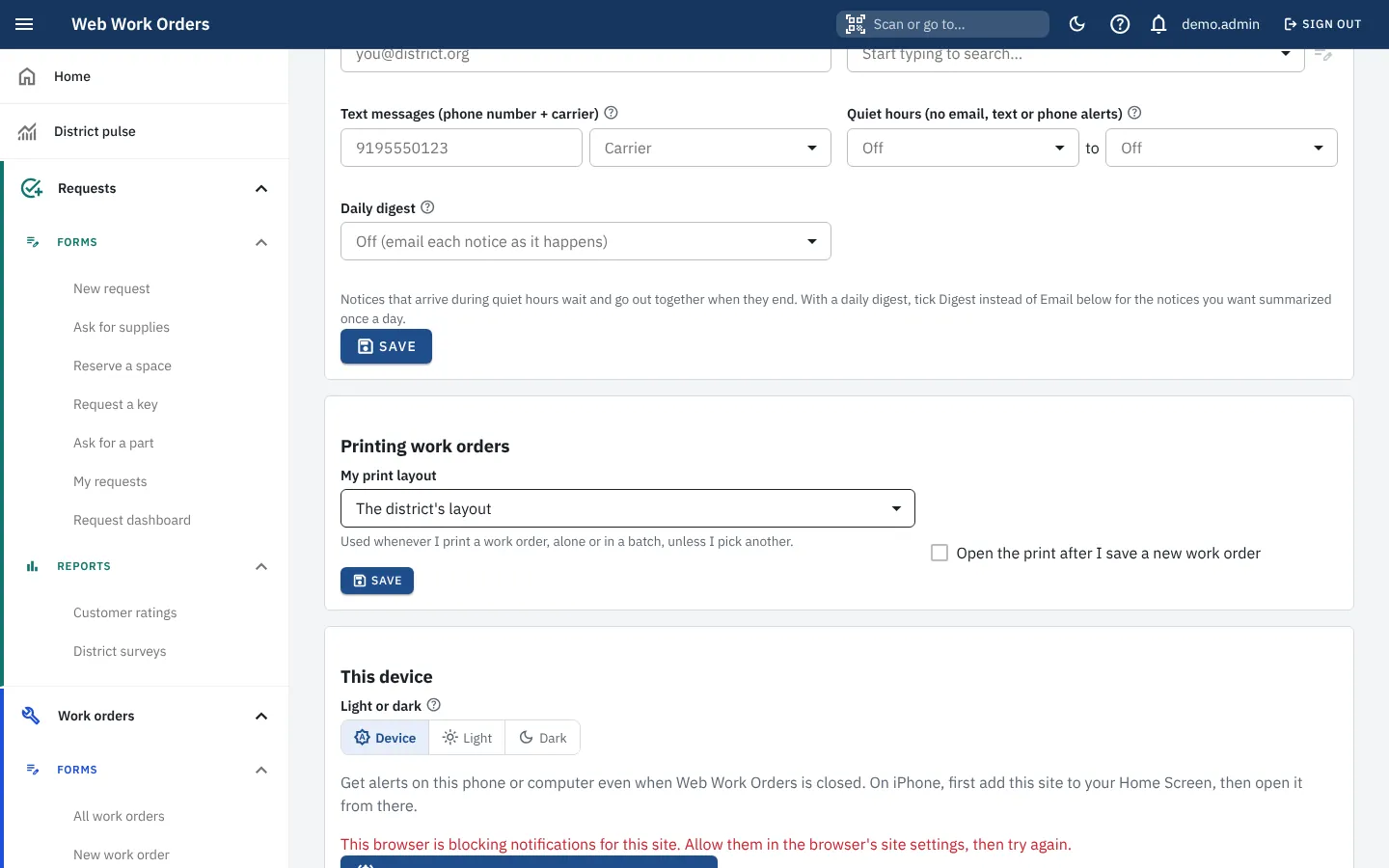
- Turn on notifications for this device to get alerts on your phone or desktop even when the app is closed. On iPhone, add the site to your Home Screen first.
- If you are a technician, link your employee record so assignments and the Mobile App find you.
- Light or dark: Device follows this phone or computer's own setting; Light or Dark stays as picked. The moon button in the header does the same. The choice is kept on this device only.
Where to find it
In the app at /me. Every screen has a ? in the header with help for that page.
Terms on this page
Related
Next in Getting started: Spark, the AI assistant →
Screenshots come from the Pine Valley Schools demo, a made-up district. Something unclear or out of date? Tell us and we'll fix it.