Turn in paper
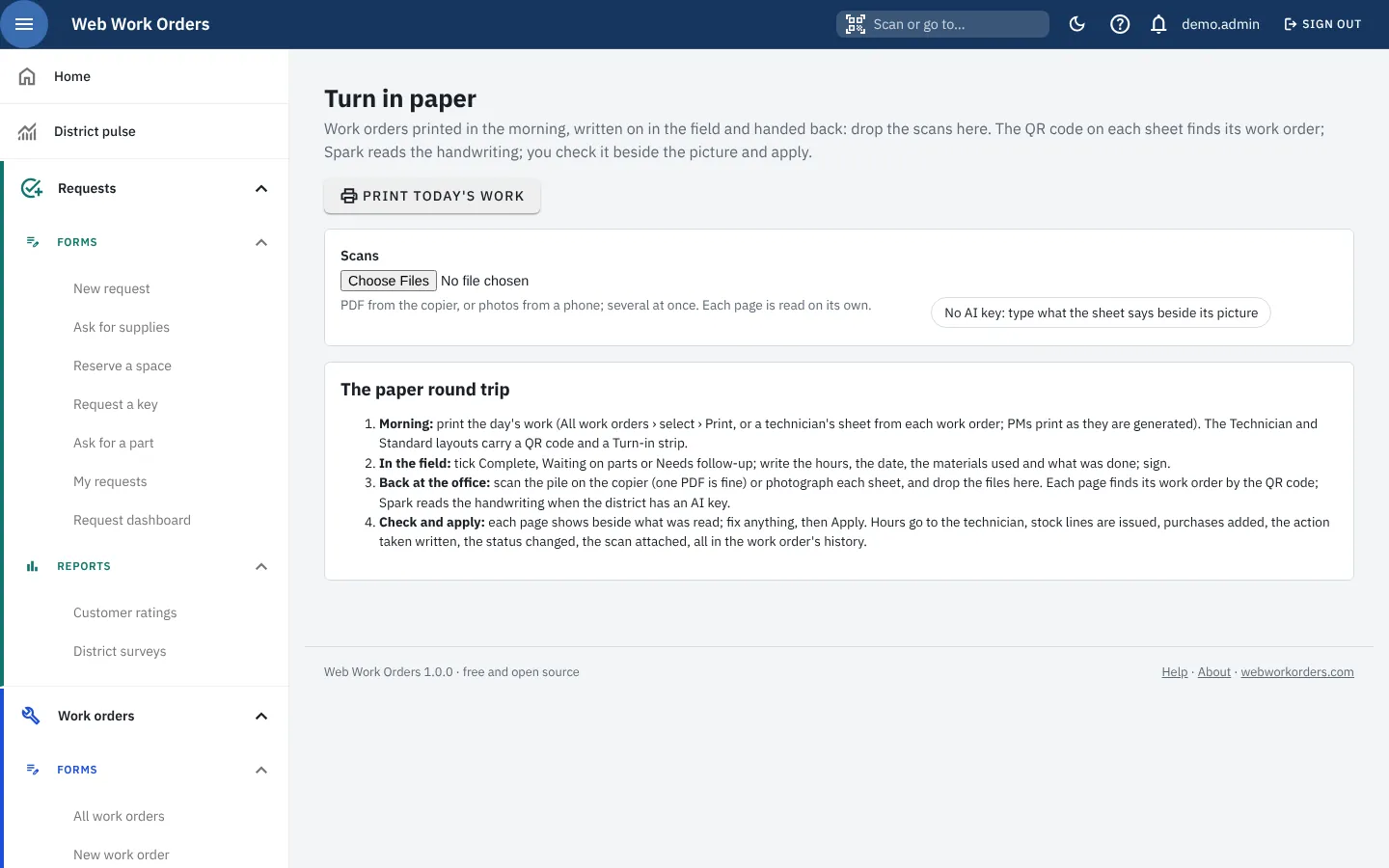
The paper round trip: work orders printed in the morning, written on in the field, handed back and scanned; each page finds its work order by its QR code, Spark reads the handwriting, and you check and apply.
How it helps
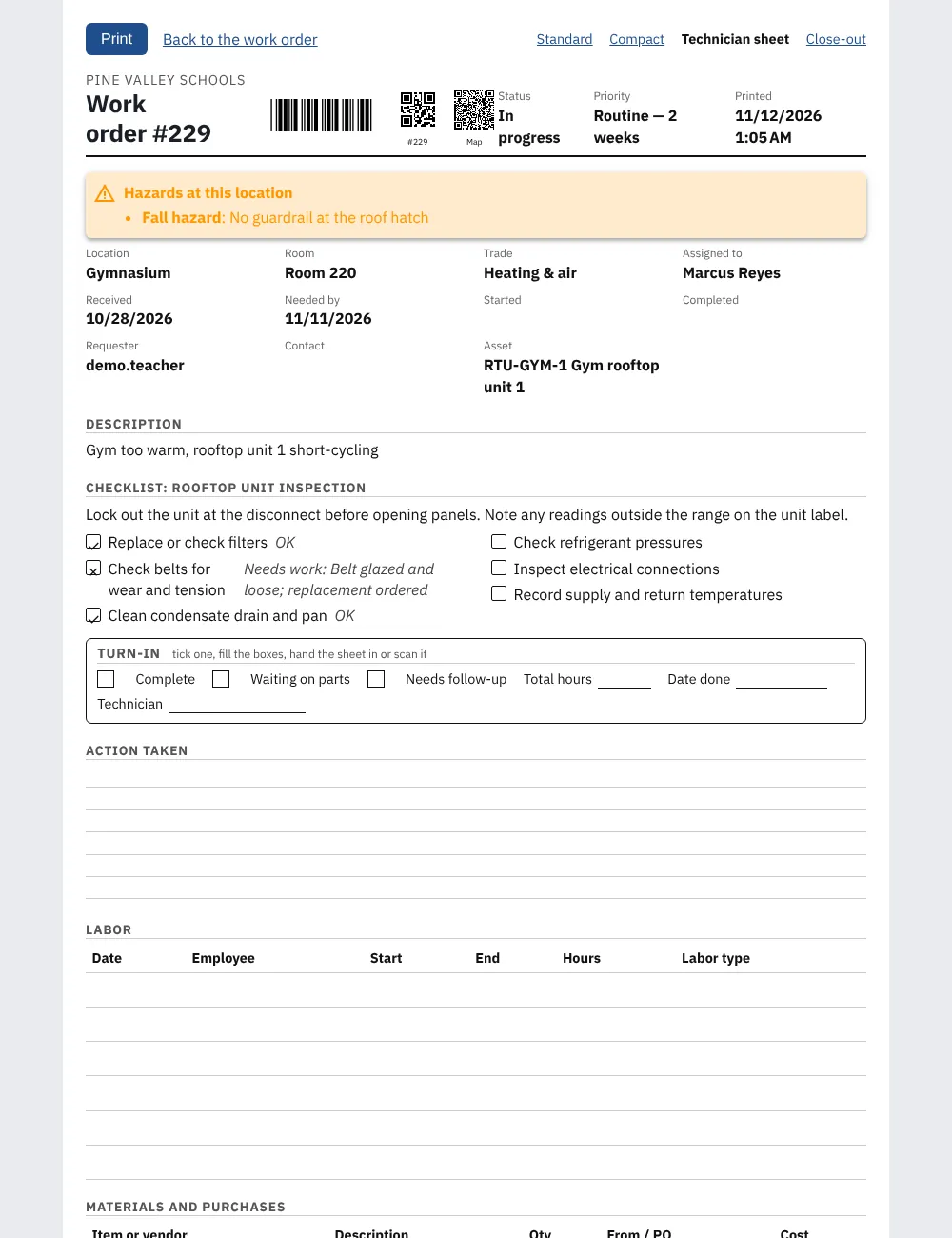
Plenty of shops still run on paper, and the paper was never the problem: the afternoon of typing it back in was. Each printed work order carries a QR code and a turn-in strip; scan the pile, every page finds its own work order, Spark reads the handwriting into a form beside the picture (with the district's own AI key), and the office checks it and presses Apply. Without a key, the same form sits beside the picture to type into.
Who uses it
How to use it
- Print the day's work with the Technician or Standard layout; both carry a QR code and a Turn-in strip (Complete / Waiting on parts / Needs follow-up, total hours, date, technician) above the labor and materials tables.
- Drop the scans here: a PDF from the copier with every sheet in it, or photos from a phone. Pages are read in the browser and kept for an hour while you work through them.
- With the district's AI key (Admin › Settings › Spark (AI)) each page is read into the form beside its picture: status, hours, date, technician, materials and purchases, what was done, and what the reader was unsure of. Without a key, type what the sheet says beside the picture.
- Apply does what you tick: hours to the technician, stock lines issued, purchases added, the action taken written, the status changed (Complete finishes the work order; Waiting on parts moves it to that status), the scan attached, and an internal note that the work came in on paper. Every step is in the work order's history and the audit log.
- A line with a stock number is issued from stock; one without is a purchase and needs a cost. Anything that cannot be applied is listed as skipped, never guessed.
Where to find it
In the app at /workorders/turn-in. Every screen has a ? in the header with help for that page.
Terms on this page
Work orderStatusStaff-only note
Related
Screenshots come from the Pine Valley Schools demo, a made-up district. Something unclear or out of date? Tell us and we'll fix it.