Key requests
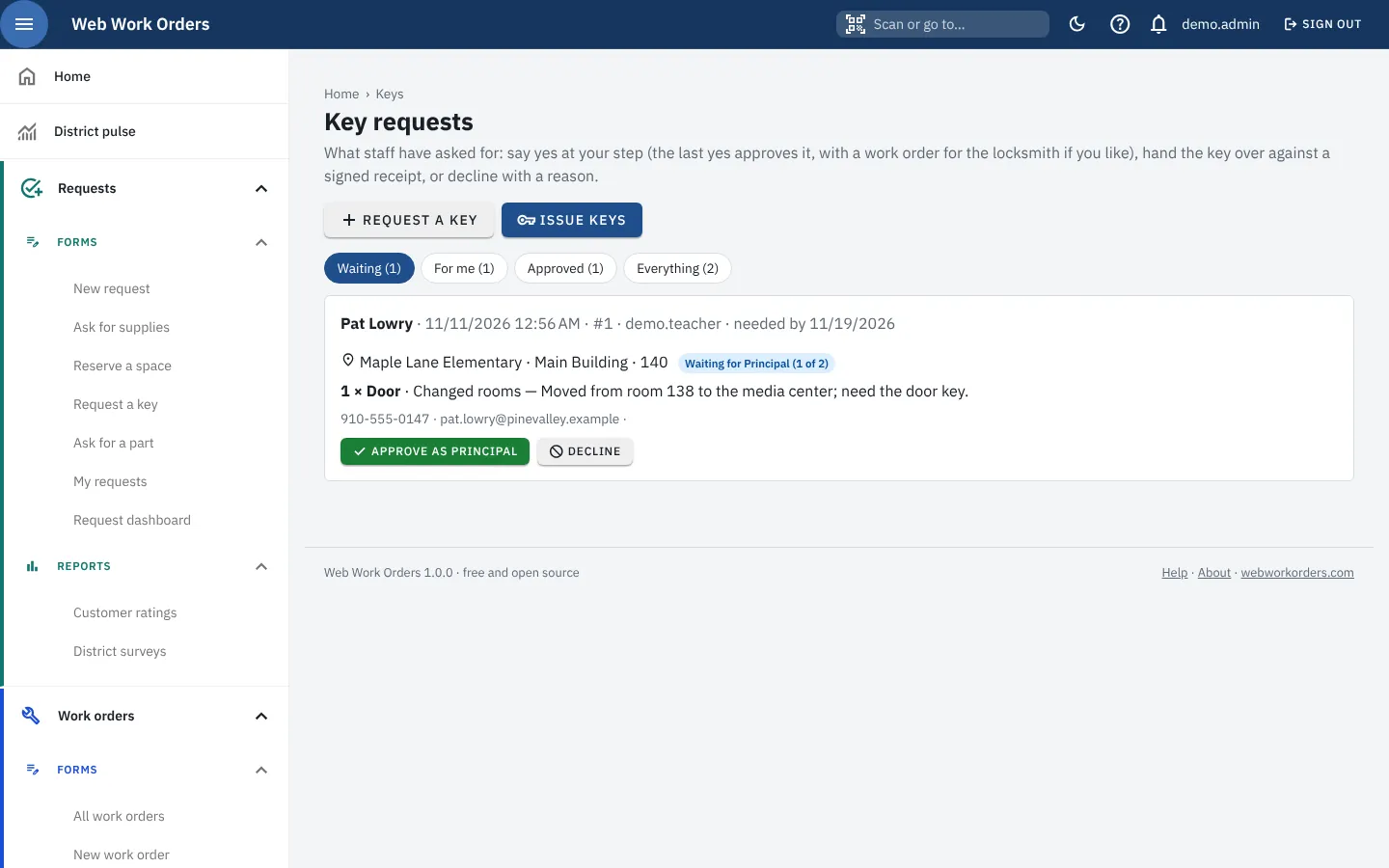
The queue of key requests: say yes at your step (the last yes approves it, with a work order for the locksmith if you like), hand the key over against a receipt, or decline with a reason.
How it helps
The supervisor's queue: approve, approve and make a work order for the locksmith in one click, hand the key over against a receipt, or decline with a reason the requester sees. Key requests also sit on the Request dashboard beside work, supply and reservation requests.
Who uses it
How to use it
- A request waits at the first approval step (Admin › Keys setup) until a member of that step's group says yes, then moves to the next; the last yes approves it. Someone who only approves one step sees just the requests waiting on it; supervisors and admins see everything and can approve any step with no group.
- Approve says yes; at the last step, Approve and make a work order also writes a work order for the locksmith (trade from the Keys.Trade setting) that stays linked to the request. Each yes is shown on the request with who and when.
- Hand over the key opens Issue keys with the person filled in; saving the receipt marks the request issued. Mark issued is for a key handed over without a receipt here.
- Decline needs a reason; the requester sees it on My requests and in a notice.
Where to find it
In the app at /keys/requests. Every screen has a ? in the header with help for that page.
Terms on this page
Work orderRequesterTradeReservation
Related
Next in Keys: Issue keys →
Screenshots come from the Pine Valley Schools demo, a made-up district. Something unclear or out of date? Tell us and we'll fix it.