District pulse
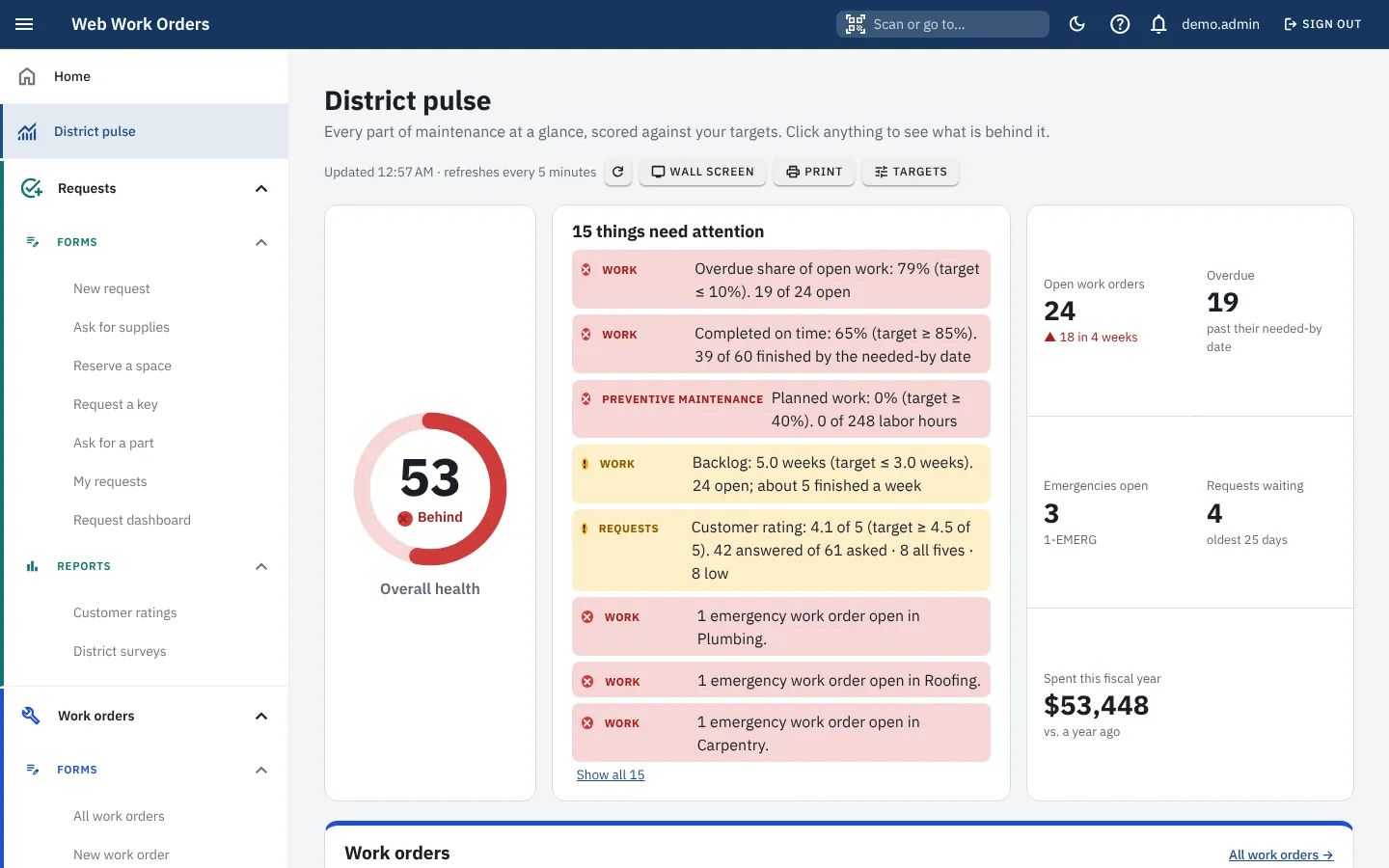
The whole maintenance operation on one page: gauges scored against your targets, what needs attention first, and every number linked to what is behind it.
How it helps
A superintendent can tell in ten seconds whether maintenance is on track, and see exactly where it isn't. A health score and gauges are scored against targets the district sets; a plain-words list names what needs attention first; and every number opens the work orders behind it. One click makes it a wall screen for the shop.
Who uses it
Superintendents and executivesSupervisorsAdministrators
How to use it
- Green (on track), amber (watch) and red (behind) come from the district's targets. Admins change them with Targets; Reset to defaults puts the built-in ones back.
- Overall health weighs each scored number: on track counts 100, watch 60, behind 20.
- Backlog in weeks is the open work divided by what the team finishes in an average week: how long it would take to clear if nothing new came in.
- Budget pace compares the share of each budget spent with the share of the fiscal year gone; the line on each account's bar is today.
- Wall screen hides the menu and refreshes every two minutes, for a TV in the shop or the office. Add ?tv=1 to the address to open it that way.
- Click any gauge, tile, trade, school or account to open the work orders or records behind it.
Where to find it
In the app at /pulse. Every screen has a ? in the header with help for that page.
Terms on this page
Work orderTradeBacklogHealth scoreWall screenFiscal year
Related
Screenshots come from the Pine Valley Schools demo, a made-up district. Something unclear or out of date? Tell us and we'll fix it.