Stock levels
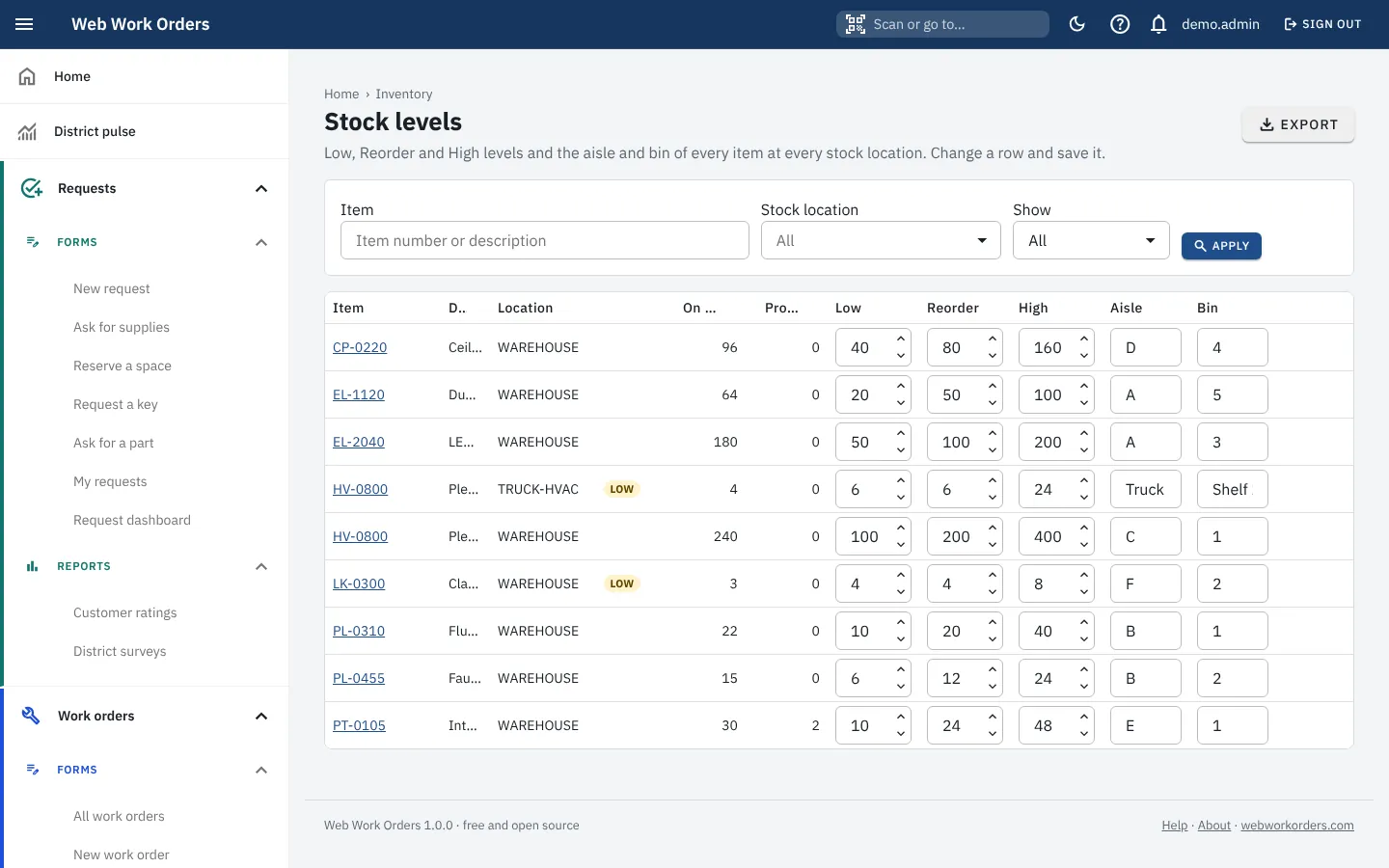
Low, Reorder and High levels and the aisle and bin for every item at every stock location, in one grid.
How it helps
Low, reorder and high levels, aisle and bin for every item at every stock location, in one grid you edit in place. Good levels are what make the Low, Out and Over flags and the reorder list trustworthy.
Who uses it
Stockroom (inventory clerks)Supervisors
How to use it
- Change any cell; the flag beside the item shows what the new levels would mean. Save a row, or save all changes at once.
- Show "No levels set" to find items that never warn anyone when they run low.
- Levels are kept where the earlier version kept them, so both versions show the same LOW and OVER flags.
Fields on this screen
- Low
- When what is available here (on hand less what is promised to approved requests) falls to this level, the item shows Low, appears on the reorder list and stock alerts go out. The earlier version used the same rule.
- Reorder
- An optional second level. Under Inventory → Stock alerts you can choose Reorder instead of Low as the level that counts as low.
- High
- The most you want to keep here. The reorder list suggests ordering up to this level, and the item shows Over when on hand reaches it.
Where to find it
In the app at /inventory/levels. Every screen has a ? in the header with help for that page.
Terms on this page
Stock locationLow, Reorder and High levels
Related
Next in Inventory: Stock alerts →
Screenshots come from the Pine Valley Schools demo, a made-up district. Something unclear or out of date? Tell us and we'll fix it.