New work order
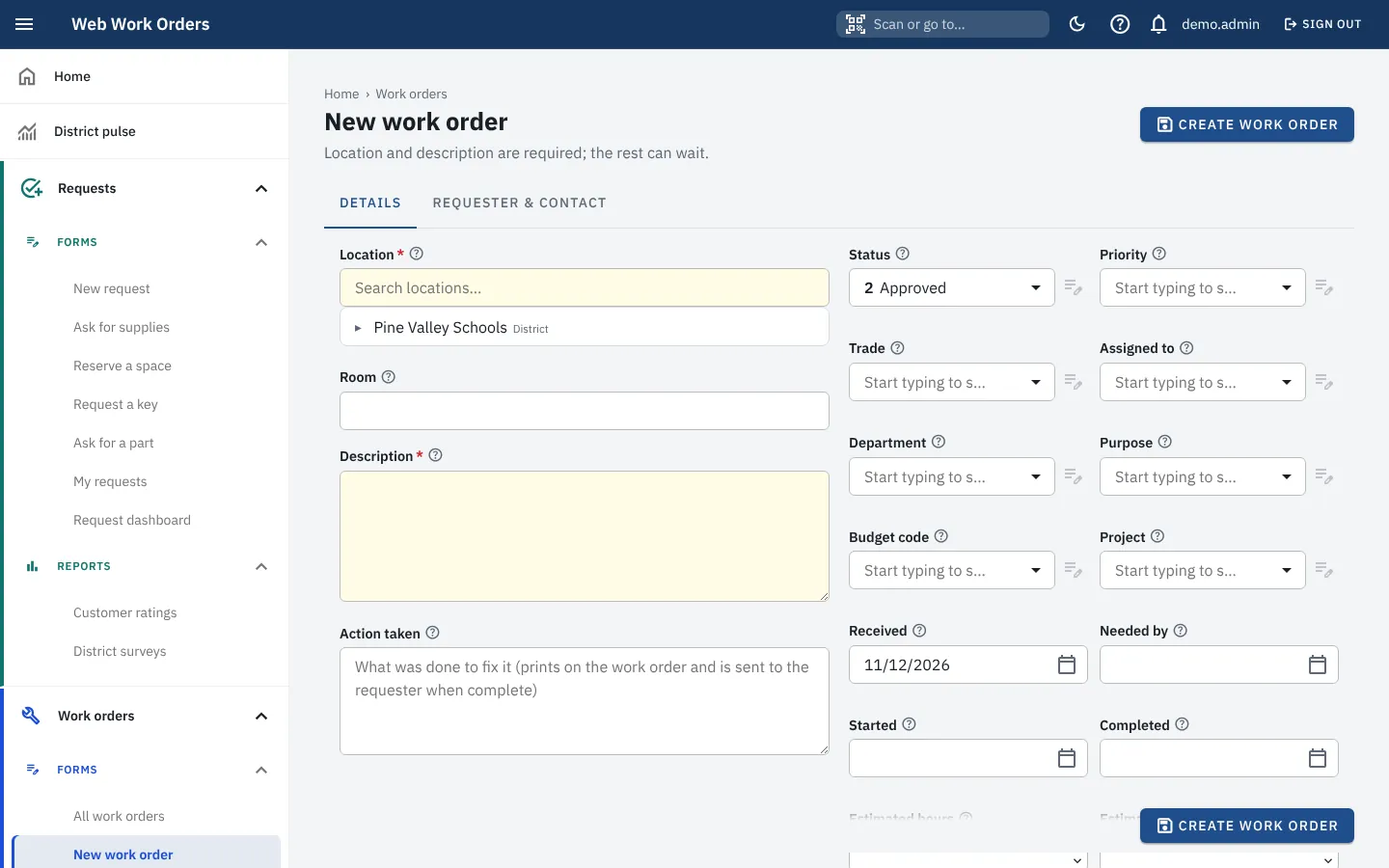
Create a work order directly, without going through the request form. Staff use this for work they find themselves or take over the phone.
How it helps
Not every job starts as a request. Work found on a walk-through or taken over the phone goes straight in, skips the request queue, and is routed, assigned and tracked like everything else, so the record of what the team did is complete.
Who uses it
SupervisorsTechniciansAdministrators
How to use it
- Location and description are required; everything else can be filled in later.
- It starts in the accepted status, so it does not wait in the request queue. Change Status to the new-request status if a supervisor should look at it first.
- If Spark (the AI assistant) is on, describe the problem in the box at the top and it will suggest the trade, priority and room.
- Assigning someone sends them a notification and puts the job on their Mobile App list.
- Press Save to get a work order number. Transactions, notes and attachments become available after the first save.
Where to find it
In the app at /workorders/new. Every screen has a ? in the header with help for that page.
Terms on this page
Work orderTradePriorityStatusRoomTransaction
Related
Next in Work orders: Work order →
Screenshots come from the Pine Valley Schools demo, a made-up district. Something unclear or out of date? Tell us and we'll fix it.