Home dashboard
Your overview: what needs attention today and where things stand.
How it helps
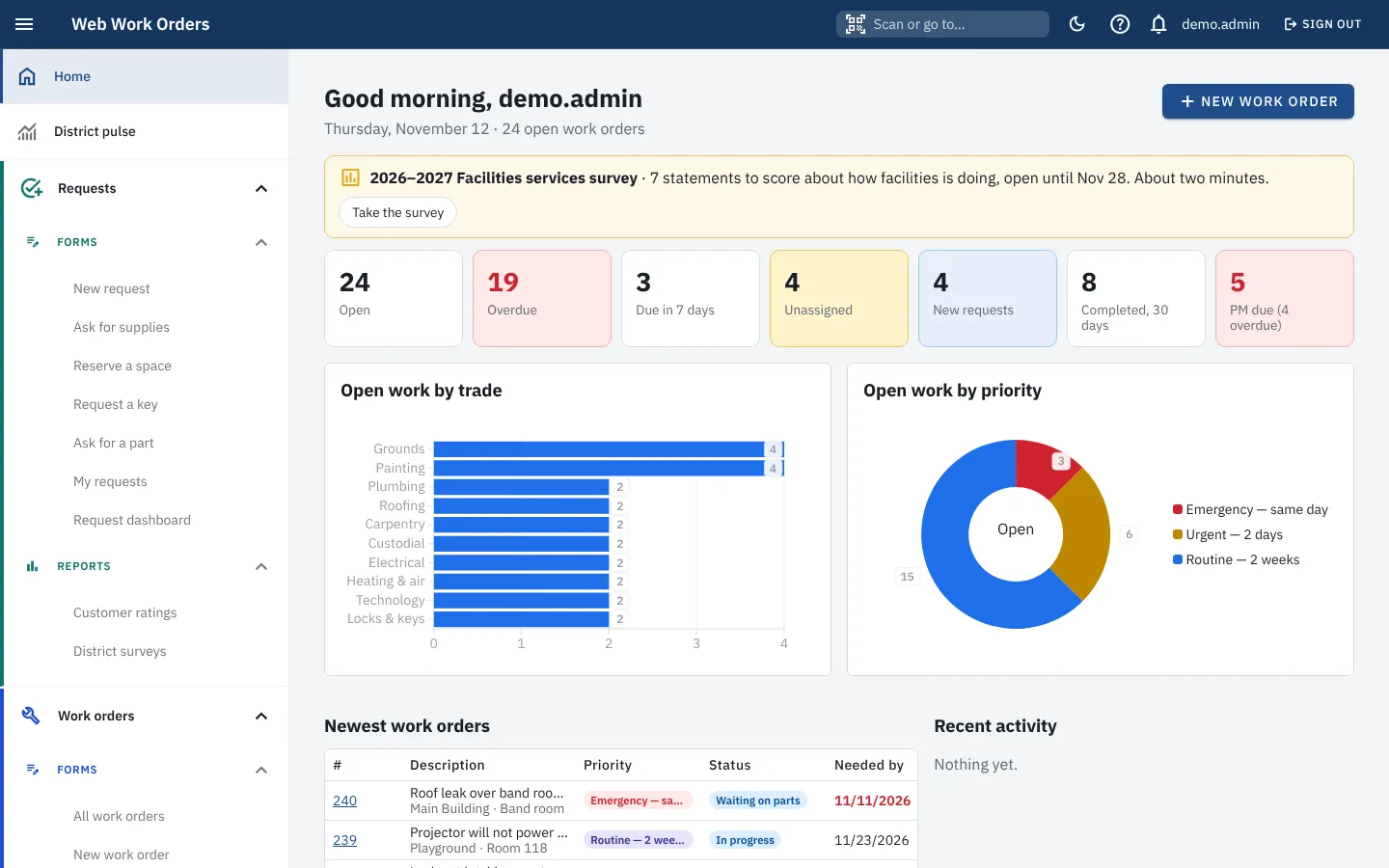
Everyone starts the day on the same page, but sees what matters to them: supervisors see open, overdue and unassigned work across the district, technicians see their own jobs, and requesters see their requests. New administrators also get a setup checklist that ticks itself off, so a district can go live without a consultant walking them through it.
Who uses it
SupervisorsTechniciansTeachers and staff (requesters)Administrators
How to use it
- Tiles link to the matching list. Charts show open work by trade and priority.
- Technicians see their own assigned work; requesters see their requests.
- Press ? on any page for help about that page.
Where to find it
In the app at /. Every screen has a ? in the header with help for that page.
Terms on this page
Work orderRequesterTradePriorityOverdueEquipment checklist
Related
Next in Getting started: Help center →
Screenshots come from the Pine Valley Schools demo, a made-up district. Something unclear or out of date? Tell us and we'll fix it.