Request a key
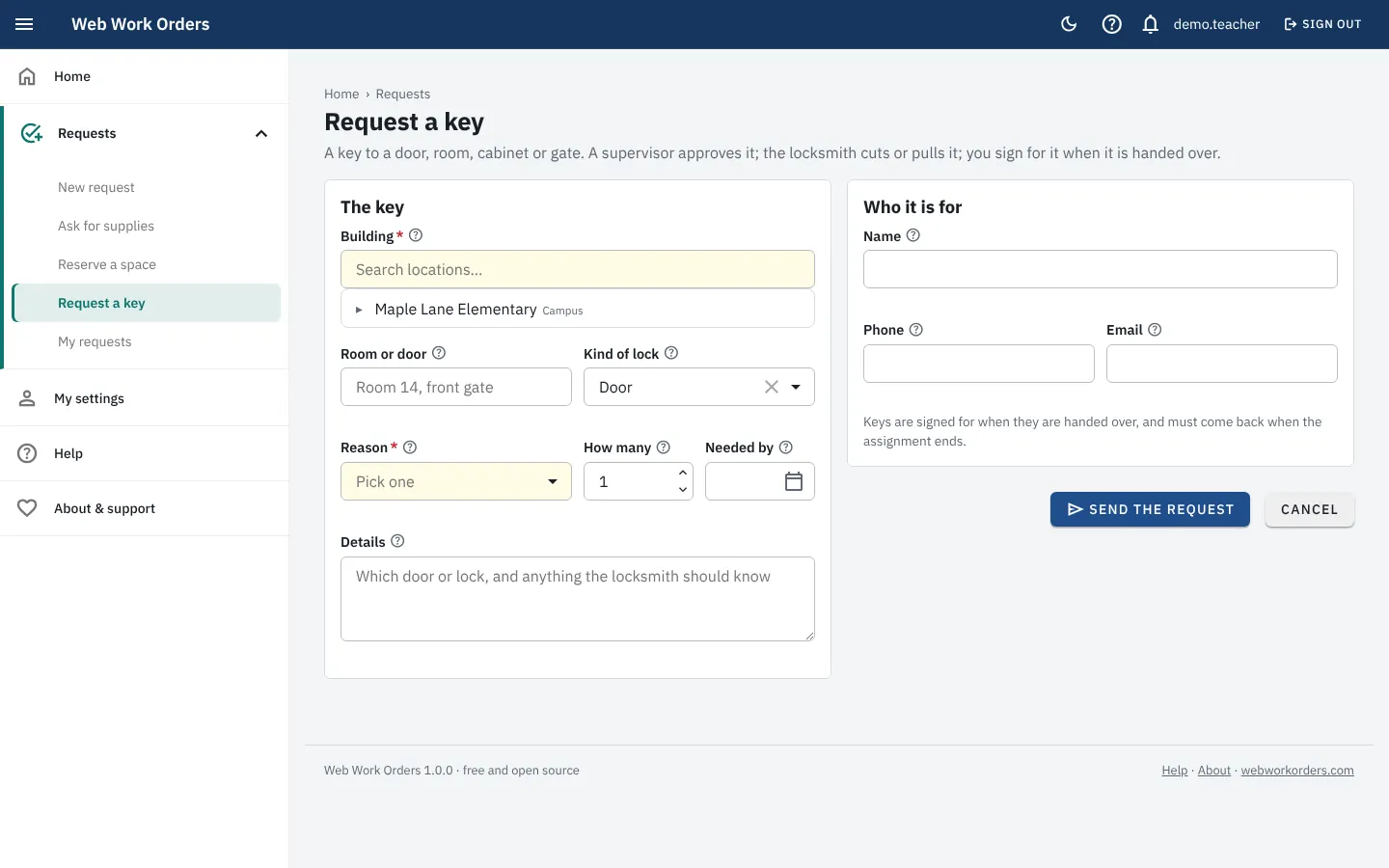
Ask for a key to a door, room, cabinet, desk or gate. A supervisor approves it; the locksmith cuts or pulls it; you sign for it when it is handed over.
How it helps
Staff ask for a key like anything else: the building, the room or door, why, how many and by when. They hear in the app when it is approved and when it is issued, instead of chasing the office.
Who uses it
Teachers and staff (requesters)
How to use it
- Pick the building (the ones you may request for), the room or door, the kind of lock and why you need the key. Say how many and by when.
- Give a phone number or email so the office can reach you when the key is ready. You will hear in the app when it is approved and when it is issued.
- A request can be cancelled from My requests until a supervisor has decided it.
Fields on this screen
- Building
- The school or building the key is for; you can pick from the places you are allowed to request for.
- Room or door
- The room, door, cabinet or gate the key should open.
- Kind of lock
- Door, padlock, cabinet, desk, vehicle, gate… from the district's list.
- Reason
- Why the key is needed: a new hire, a lost key, a room change… from the district's list.
- How many
- How many copies are needed; one per person who will carry the key.
- Needed by
- When the key is wanted; the locksmith's work order carries it.
- Details
- Which door or lock exactly, and anything the locksmith should know.
- Name
- Who the key is for, when it is not you.
- Phone
- A number the office can call when the key is ready.
- An address for the notice that the key is ready.
- Employee
- The employee record the key will be issued to, when the office knows it.
Where to find it
In the app at /keys/request. Every screen has a ? in the header with help for that page.
Terms on this page
Related
Next in Keys: Key requests →
Screenshots come from the Pine Valley Schools demo, a made-up district. Something unclear or out of date? Tell us and we'll fix it.