PM task and schedule
One recurring task: what it is, how often, what it generated.
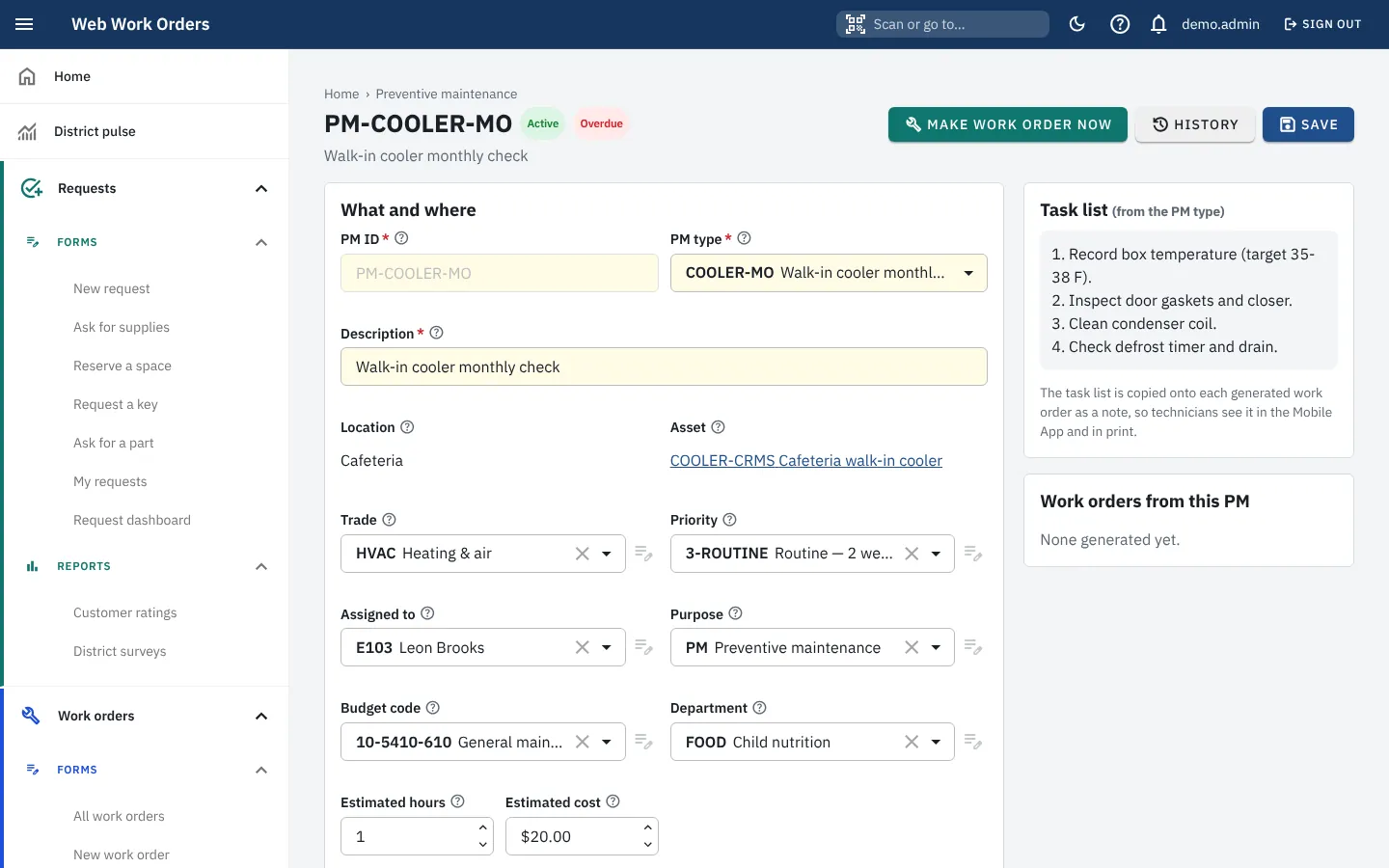
How it helps
Real maintenance doesn't run on one kind of calendar. Filters every 3 months, buses every 5,000 miles, a cooler check every Monday, field work in weeks 23 to 33: the schedule editor handles all of them, says in plain words what it means, and shows the next dates before you save.
Who uses it
How to use it
- Make work order now creates this PM's next work order today and moves its due date forward.
- Schedule: every N units, a calendar pattern or specific weeks of the year. Skip a date (the winter break) or end the schedule on a date or after a number of times.
- Count from the due date or the day the last one was finished, and whether to wait until the last one is complete, follow the PM type unless set here. Make these the task list's defaults sets them for every PM of this type.
- The task list comes from the PM type and is copied onto each work order as a note, and printed as a checklist.
- Set Status to Inactive to pause a PM without losing it.
Fields on this screen
- PM ID
- A short code for this recurring task, such as RTU1-QTR or HS-ROOF-SPRING. It cannot be changed later because generated work orders refer to it.
- PM type
- The kind of service, with its task list. One type is reused across many assets: every rooftop unit gets the same quarterly checklist.
- Description
- What the work order will say when it is generated, for example "RTU 1 quarterly service". Keep it specific to this asset or building.
- Location
- The building the PM is for. When the PM is on an asset, the asset's location is used.
- Asset
- The equipment this PM services. Linking it builds the asset's service history and lets you see all PMs for one unit.
- Every
- How many units between occurrences: every 3 months, every 2 weeks, every 5,000 miles. Add a second frequency for "every 3 months or 3,000 miles".
- Unit
- Hours, days, weeks, months and years come due by date. Miles and hours of use come due by the asset's meter: its vehicle record's odometer compared with the reading when the last one was made.
- Start
- When the PM starts. A PM that has never been generated is first due on this date.
- Next due (by hand)
- Normally worked out from the last one. Set a date here to re-align a schedule once, for example to the start of summer; it is cleared when that work order is made.
- When it is due
- Every N…: every so many days, weeks, months, years, hours or miles. On a calendar pattern: weekly on chosen days, every other week, the last Friday of the month, every July 1. In specific weeks: the same week numbers every year, for summer or school-break work. Only one of the three runs; the others' settings are kept.
- Count from
- The last one generated keeps a steady rhythm. The last one completed waits for the work: a 3-month PM finished late comes due 3 months after it was finished. The district default is set under Settings.
- Make the next one
- Only after the last one is finished: no new work order while the previous one is still open, so a backlog does not pile up. Always, on time: a new one every period regardless.
- Status
- Inactive PMs are kept but never generate work orders. Use it for equipment that is out of service or seasonal work in the off-season.
- Notes
- Standing instructions copied onto every generated work order: gate codes, where the key is, who to call first.
Where to find it
In the app at /pm/…. Every screen has a ? in the header with help for that page.
Terms on this page
Work orderStatusNeeded-by dateBacklogAssetPreventive maintenancePM typeEquipment checklist
Related
Next in Preventive maintenance: PM forecast →
Screenshots come from the Pine Valley Schools demo, a made-up district. Something unclear or out of date? Tell us and we'll fix it.