Keys setup
Who says yes to a key request and in what order, the lists on the request form, the terms on the receipt, and the locksmith's trade.
How it helps
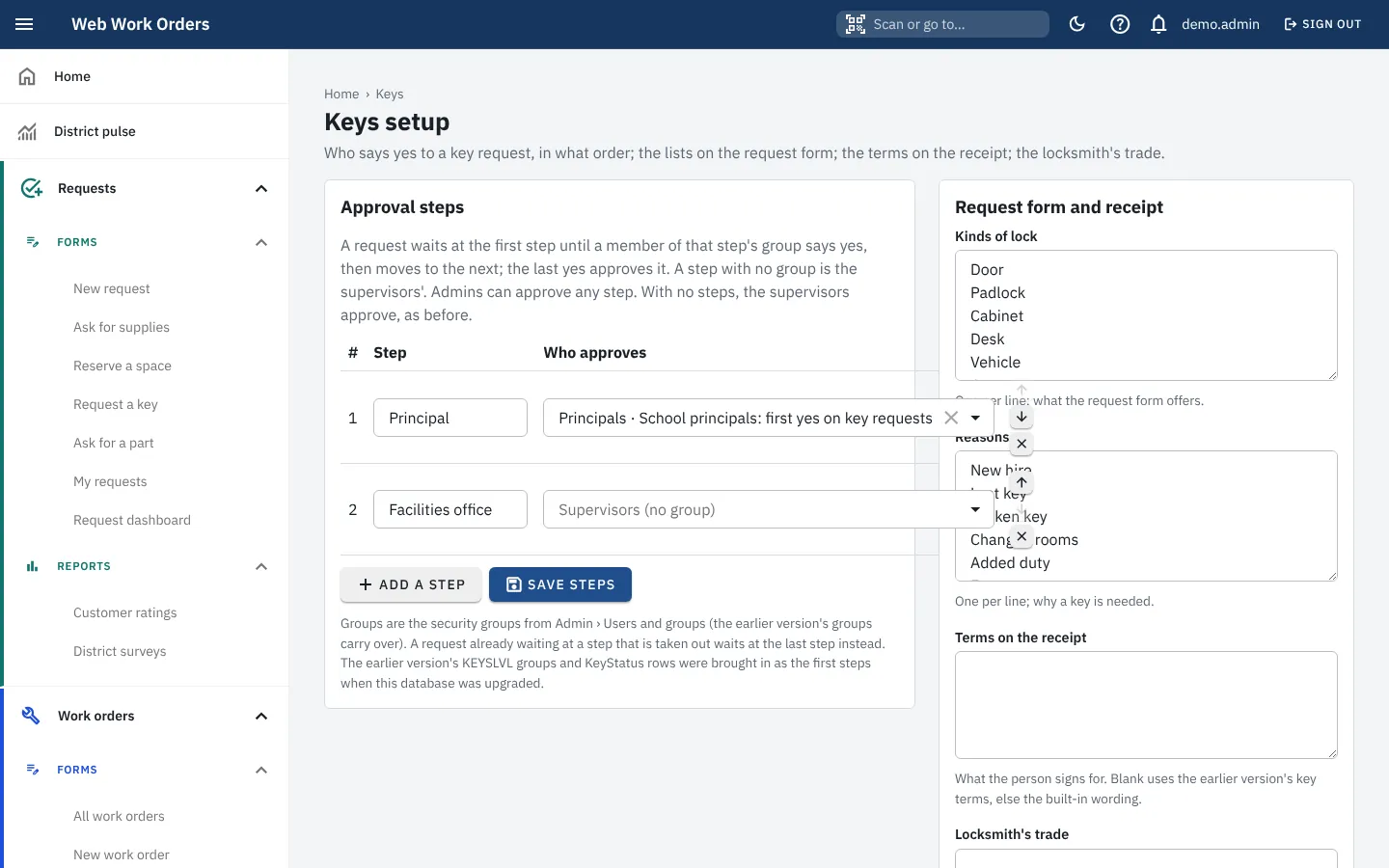
Who says yes to a key request, and in what order: the principal first, then facilities, say. Each yes is on the record with who and when, the next step's people hear, and the last yes approves it. Also the lists on the request form, the terms on the receipt and the locksmith's trade.
Who uses it
How to use it
- Approval steps: a name and the security group whose members approve that step, in order. A step with no group is the supervisors'. Admins approve any step. No steps means the supervisors approve every request, as before.
- The earlier version's KEYSLVL groups and numbered KeyStatus rows became the first steps when the database was upgraded; change them here. A request waiting at a step that is taken out waits at the last step instead.
- Kinds of lock and reasons are one per line; blank terms use the earlier version's key terms, else the built-in wording.
Where to find it
In the app at /admin/keys. Every screen has a ? in the header with help for that page.
Terms on this page
Related
Screenshots come from the Pine Valley Schools demo, a made-up district. Something unclear or out of date? Tell us and we'll fix it.