Floor plan
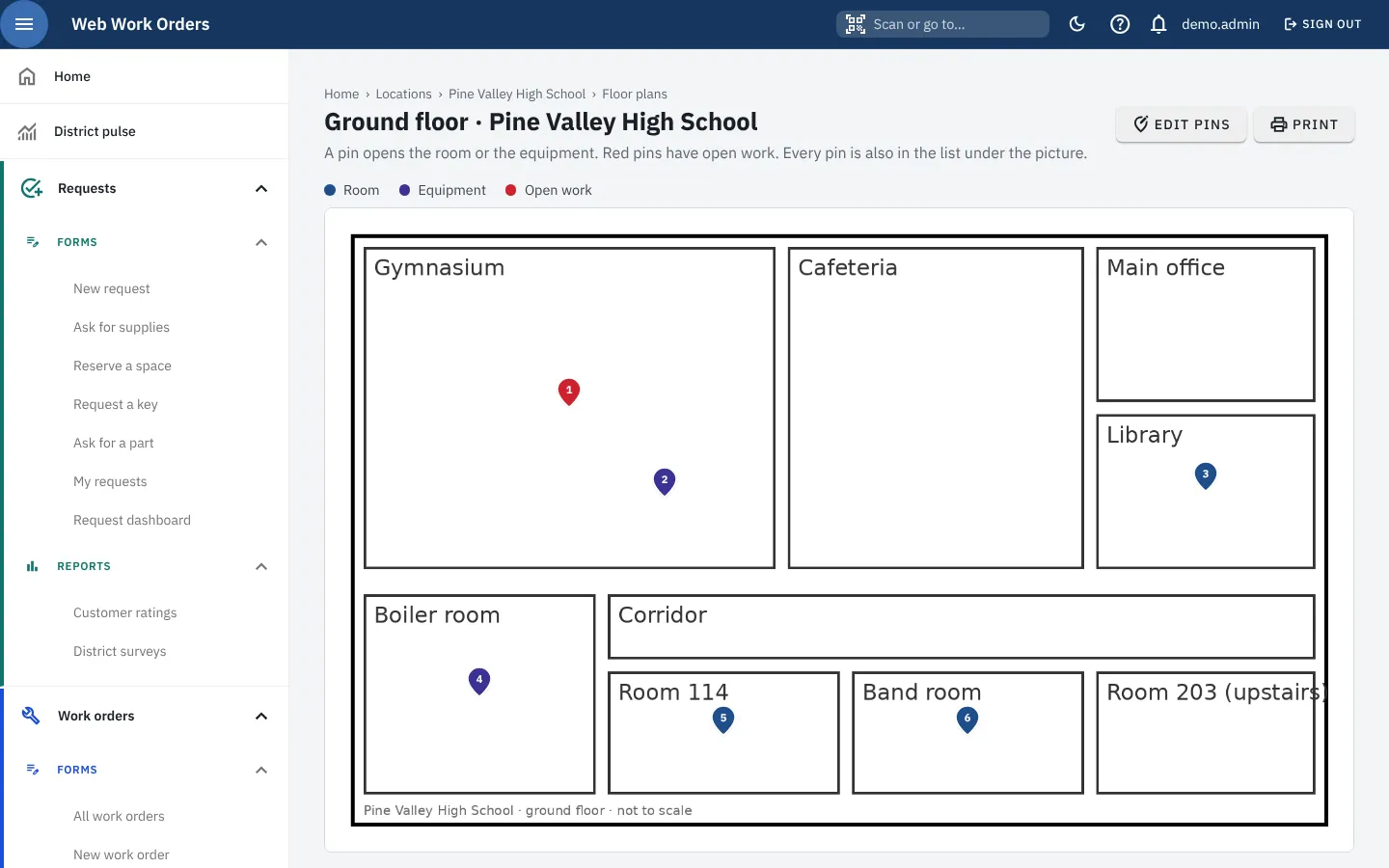
One picture with its pins. A pin opens the room or the equipment; every pin is also in a numbered list under the picture.
How it helps
Every pin is a room or a piece of equipment and opens its work; red pins have open work, with the count. The same pins are a numbered list under the picture for screen readers and for anyone who finds a list quicker, pins can be placed with the keyboard, and work orders, assets and locations carry an On the plan link. A space open for reservations shows only its own pin on its public page.
Who uses it
TechniciansSupervisorsAdministrators
How to use it
- Supervisors and admins press Edit pins, click the picture where something is, then pick the room or the equipment (and a label to show instead of its name, if wanted).
- Click a pin to select it; the arrow keys move it one step, Shift and an arrow move it ten. Clicking the picture while a pin is selected moves the pin there. Add in the middle puts a pin without a mouse, to be moved with the keys.
- Pins are stored as fractions of the picture, so they sit right on a phone, a wide screen and a printout. Taking a pin off keeps its row; nothing is deleted.
- On the plan on a work order, an asset or a location opens the plan with that pin marked green. A space open for reservations shows its own pin to the public on its facilities page, and nothing else from the plan.
- The numbered list under the picture is the same information for screen readers and for people who find a list quicker; each pin's name says whether it is a room or equipment and how much work is open on it.
Fields on this screen
- Room or area
- The location this pin points at. Pick a room under the building the plan belongs to.
- Equipment
- The asset this pin points at, found by tag or description; equipment at this location is offered first.
- Label
- Short text to show instead of the room or equipment name: Boiler 2, Gym office. Blank shows the name.
Where to find it
In the app at /locations/{PathId}/plans/{DocId:long}. Every screen has a ? in the header with help for that page.
Terms on this page
Work orderRoomAssetReservation
Related
Screenshots come from the Pine Valley Schools demo, a made-up district. Something unclear or out of date? Tell us and we'll fix it.