Spark, the AI assistant
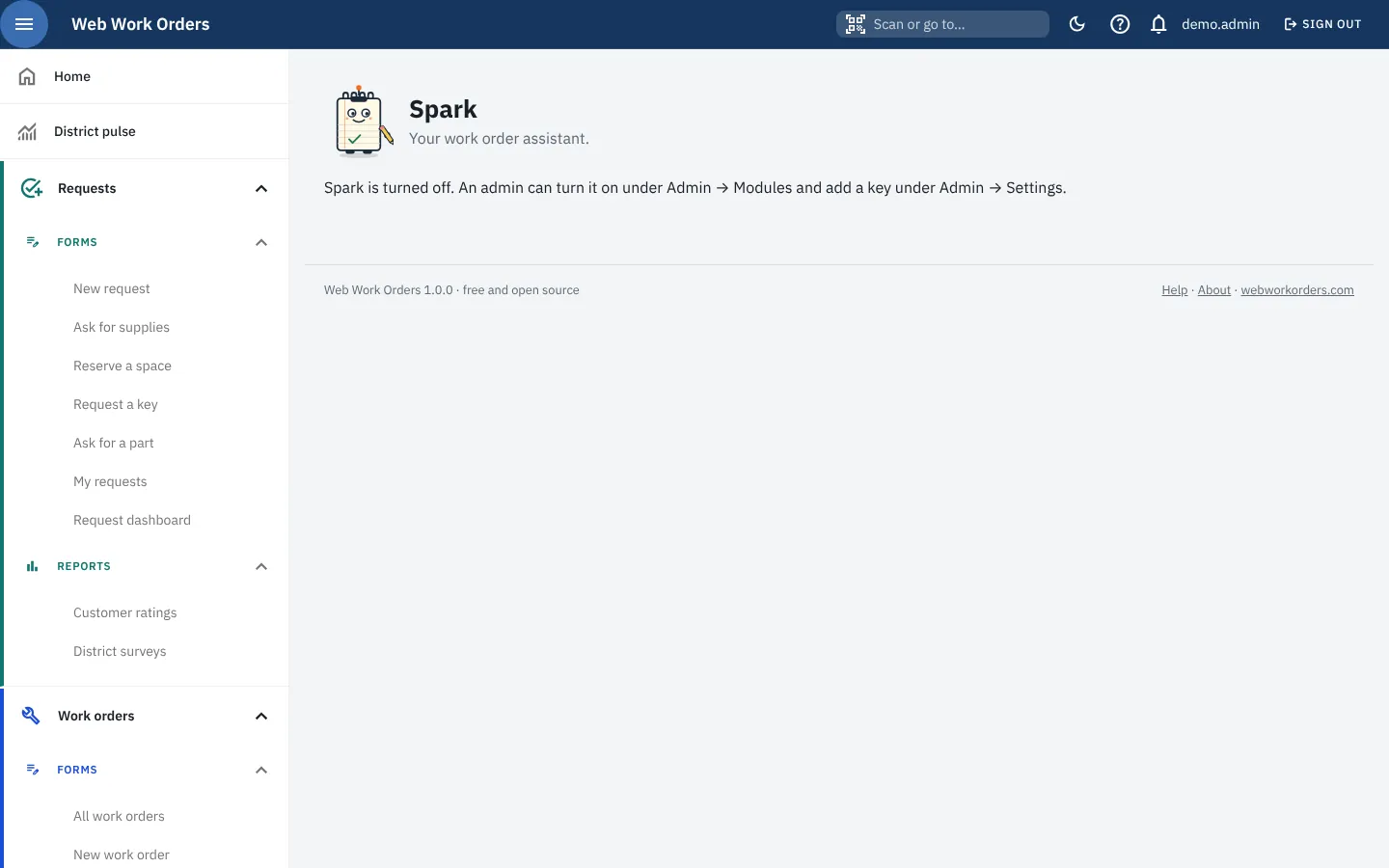
Ask how to use Web Work Orders, or ask about your district's own work orders, costs, stock and PM. Uses your district's own AI key.
How it helps
Spark answers how-do-I questions in plain words, drafts a work order from a description, and, with the district's own AI key, answers questions about the district's own work: what is open at the high school, what plumbing cost last month, who did the last boiler repair, what PM is due, what is low. It looks things up only through the same read-only reports and lists people already use, with the asker's own access, and says under every answer what it checked. It cannot assign, close or edit anything.
Who uses it
Teachers and staff (requesters)TechniciansSupervisorsAdministrators
How to use it
- Ask how to do something, what a field means, or what to put in a request.
- Staff can ask about the data: how many are open by trade, what plumbing cost last month, who did the last repair here, what PM is due, what is low on stock. Spark looks it up through the same reports and lists you use, with your own access, and says what it checked under the answer; a report it ran opens in the report builder from that link.
- It cannot change anything: no assigning, closing or editing. Requesters can ask only about their own requests.
Where to find it
In the app at /assistant. Every screen has a ? in the header with help for that page.
Terms on this page
Work orderRequesterTradePreventive maintenance
Related
Screenshots come from the Pine Valley Schools demo, a made-up district. Something unclear or out of date? Tell us and we'll fix it.