Everything in the box
There is one version of Web Work Orders. Self-hosted or hosted, every district runs the same code. This page says what works today and what’s next, so nobody buys a roadmap.
Want the detail on one screen? Every feature has its own page with screenshots in the Web Work Orders wiki.
The district pulse
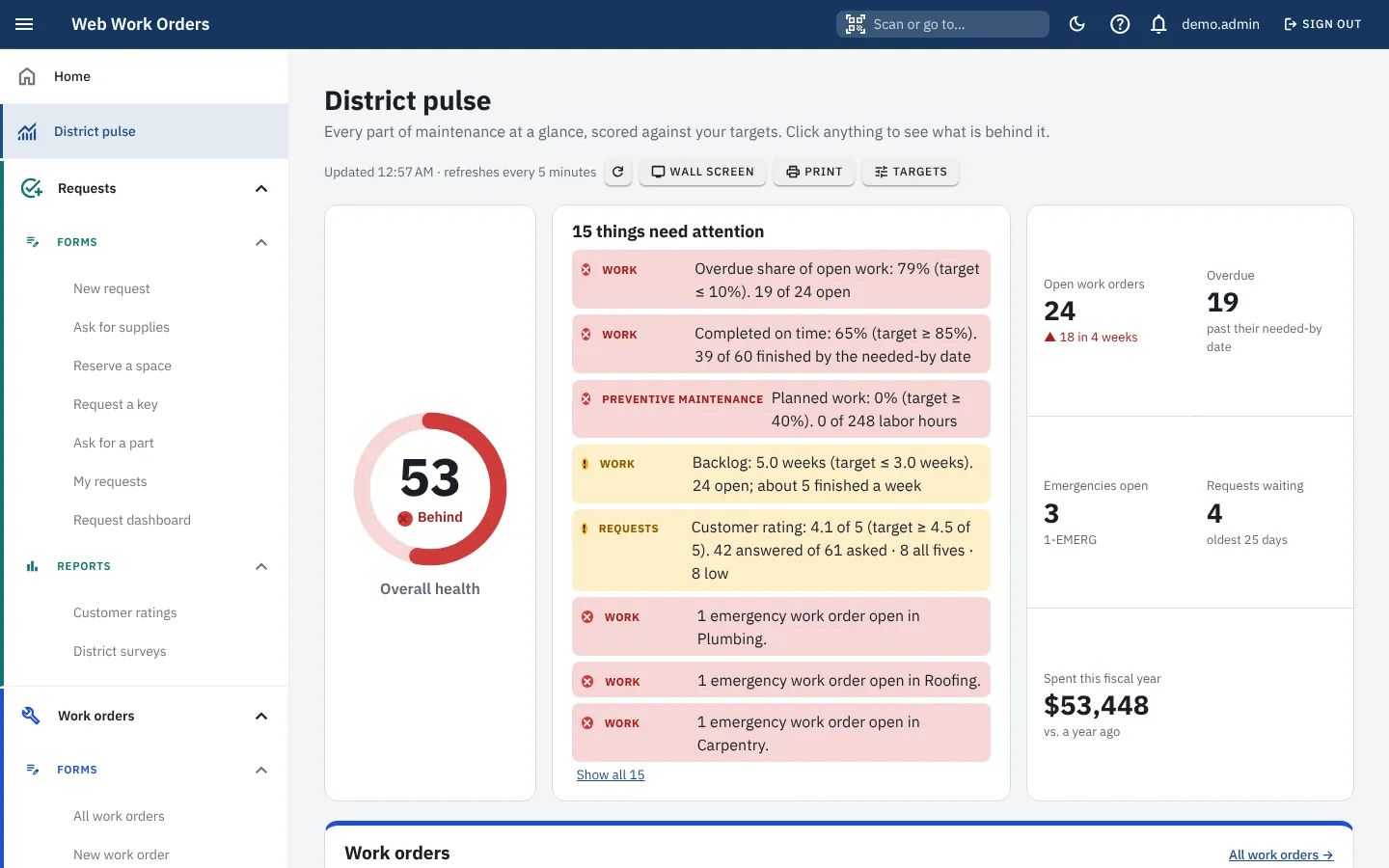
One page that tells a superintendent, a facilities director or a board in ten seconds whether maintenance is on track, and shows exactly where it isn’t.
- A health score from 0 to 100Built from the numbers that matter, each scored green, amber or red against targets your district sets.
- Gauges for the vital signsOverdue work, work finished on time, weeks of backlog, how fast requests are picked up, PM done on time, planned work against breakdowns, budget spending against the calendar, and stock items run out.
- What needs attention, firstA short list in plain words: “Cedar Ridge Middle: 5 of 7 open work orders are overdue.” “Boiler HS-1: $9,400 in repairs this year, 62% of what it costs to replace.” Each one opens the work orders behind it.
- Every school at a glanceOpen and overdue work, cost this year and cost per square foot, colored by status. Plus trades and technicians running behind, accounts by spending pace, backlog week by week, and the equipment costing the most to keep running.
- A wall screenOne click turns it into a big-screen display for the shop or the office that refreshes itself.
Work orders
- Create to closeCreate, assign, track, complete. Reopen with a reason. Every change is recorded field by field, with who and when.
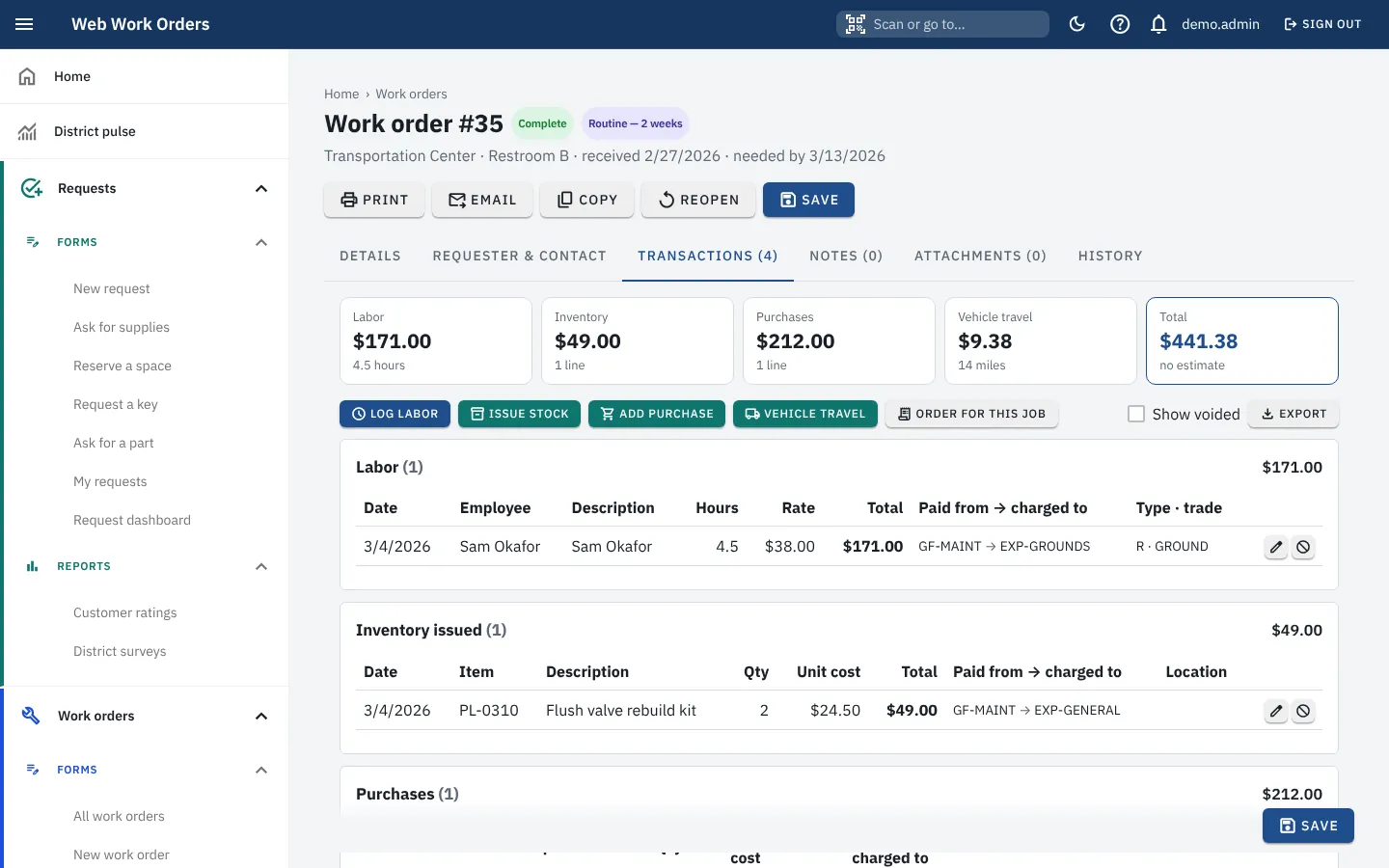
- Transactions on every ticketLabor with labor types and each employee’s rates, stock issued, purchases with vendor and invoice, and vehicle travel at your mileage rate, on one tab with running totals. Every line says which account pays and which is charged. A voided line keeps its record; nothing is erased.
- Master and sub work ordersSplit a big job into parts, see them together, and get a warning before closing the master while a part is still open.
- Photos and filesA picture of the leak beats a paragraph about it. Attach from a phone camera or a desktop.
- Quick views, saved searches and filtersOpen, Overdue, Unassigned, Due this week and Mine, one click each. Save your own searches and pick a default. Pick your columns, export to CSV, bookmark any view.
- Quick edit from the listChange status, priority, trade, technician and dates right from the work order list.
- Routing rulesThe right person, the moment a request comes in. How routing works.
- Work order watchSet how long work may wait, unassigned or assigned, for each trade. Boards by trade and by person show what’s getting old, with a warning level, an alarm level and a daily “waiting too long” notice.
- Copy a work orderOne copy to change first, or one for each of several schools at once, each noting what it was copied from. “Replace the filters in every building” becomes one step.
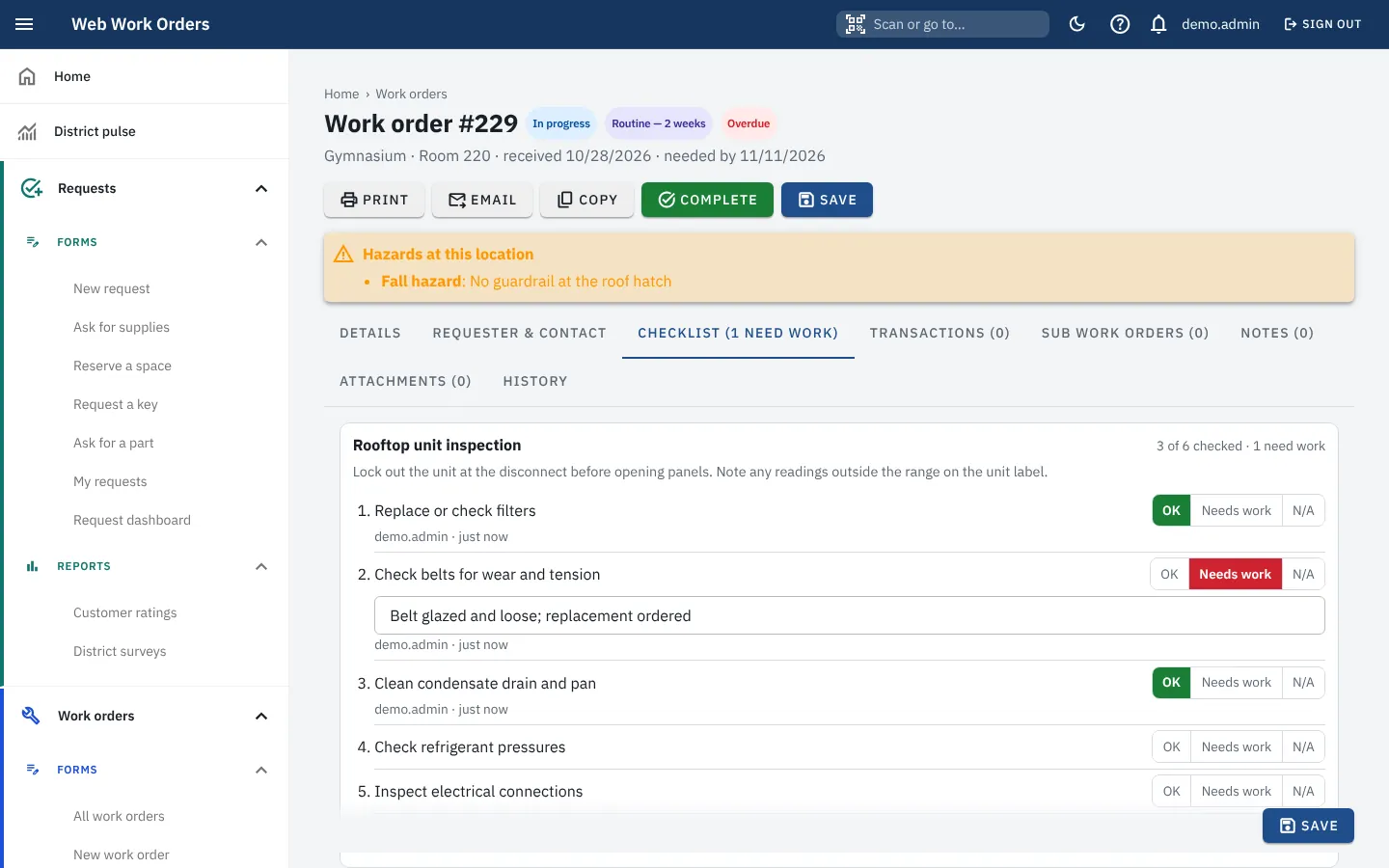
- Equipment checklistsWrite the rooftop unit check, the walk-in cooler check or the bus pre-trip once. It shows on every work order for that equipment, on the phone and on the printout, and each step is marked OK, Needs work or N/A. The earlier version’s checklists come along.
- The manual is on the work orderManuals, warranties and drawings attached to a unit, its type or its group show on every work order for it, so the technician on the roof has them without asking.
- Email a work orderSend it to a vendor, a principal or yourself without retyping it.
- Notes for the right audienceMark a note staff only and it stays between maintenance staff. Everything else the requester can read.
- Delete without losing anythingDeleting asks why, hides the ticket and keeps its history. An administrator can restore it.
- Checked before it savesField lengths are checked against your database’s real columns, and two people editing the same ticket can’t silently overwrite each other.
- Paper that comes back in by itselfEvery printed work order carries a QR code and a turn-in strip. Scan the afternoon pile, each page finds its own work order, Spark reads the handwriting (hours, parts, what was done) into a form beside the picture, and the office checks it and applies. No AI key? Type beside the picture instead; the work order is already open.
- Who should take it?On a work order nobody is assigned to, the people who did that trade’s work in that building this past year are suggested, with how many of the last jobs they took, how much they have open and how long they usually take. One click assigns. No AI needed.
- Possibly the same problemWhile a request is typed, open work at the same place that reads like it shows up, so the second call about the same leak joins the first instead of becoming a second job.
- Your archive, still thereDistricts that ran the earlier version’s archive manager have years of old work orders in a second database. Name it once: they search with the same filters as the live list, an old number opens its archived copy, and an asset’s history counts its archived jobs. Read only, always.
- Print the way you used toA standard sheet with costs, a compact one (two to a page), a technician sheet with room to write, or a close-out sheet with sign-off. Print on save, or print every work order matching a filter in one go. Each sheet carries a barcode that opens it again.
Pickers that read your mind
- Type a word, get the codeEvery code field searches the code, the name and a detail line at once: exact codes first, then the best matches. Scroll through every match with a count, so a 400-item list is still quick.
- The right list for the jobPurpose codes narrow to the trade you picked, asset types to the group. Retired codes stay out of the way. Requesters see only the codes meant for them.
- Your recent picks firstThe codes you use most are at the top of the list.
- Add it without leavingA trade or purpose code missing? Add it, or fix a misspelled one, right from the work order.
- Places and equipment that know each otherPick the building and the equipment list narrows to what’s in it; pick the equipment first and its building and room fill in. A mismatch is flagged before you save. Pick a technician and their trade and department fill in.
- The location tree opens where you arePick a room and the tree opens onto it, every level above expanded, highlighted and scrolled into view. Arrow keys move through it.
Requests from staff
- One request dashboardFix something, bring me supplies, let us use a space: work, inventory and reservation requests on one page, each on its own tab for the people who handle it.
- Several problems, one requestClogged sink, two lights out and a door that slams: one request, and each problem becomes its own work order, routed to its own trade, noting the others it came with. Up to nine at once.
- One form you designShow, hide, require, rename and reorder fields. Add help text to any of them. No developer needed.
- Location rightsTeachers request work only for the buildings they’re allowed to.
- Your own questions on the formUp to four extra fields (grade level, program, anything), each a pick list or a typed answer, shown, hidden or required. Answers show on the work order and its printout.
- Photos before you sendRequesters attach up to ten photos or files on the request form itself. Budget codes fill in their dashes as people type.
- Accept or decline in one stepAccept with trade, priority and technician set, or decline with a reason the requester sees. The requester gets a confirmation with the ticket number the moment they submit.
- Supplies, deliveredStaff ask for light tubes, ceiling tiles or paint for their room. The stockroom approves, prints numbered pick lists grouped by delivery stop, marks them picked and delivers, which takes the stock off the shelf and charges the requester’s location.
- How did we do?When a request is finished, the completion notice carries a five-star survey: five quick questions, a comment, and a box to ask for a call. No sign-in, works on a phone. A low score reaches the supervisors at once, and the follow-up is recorded on the work order.
- Once a year, the whole districtA two-minute survey of a few statements you write, scored one to five, with room for a comment. Answers are kept with the person’s school, never their name. Results come back against the year before, school by school.
- My requestsRequesters follow their work, supplies and reservations in one place and hear about each decision. They stop calling the office.
Routing rules
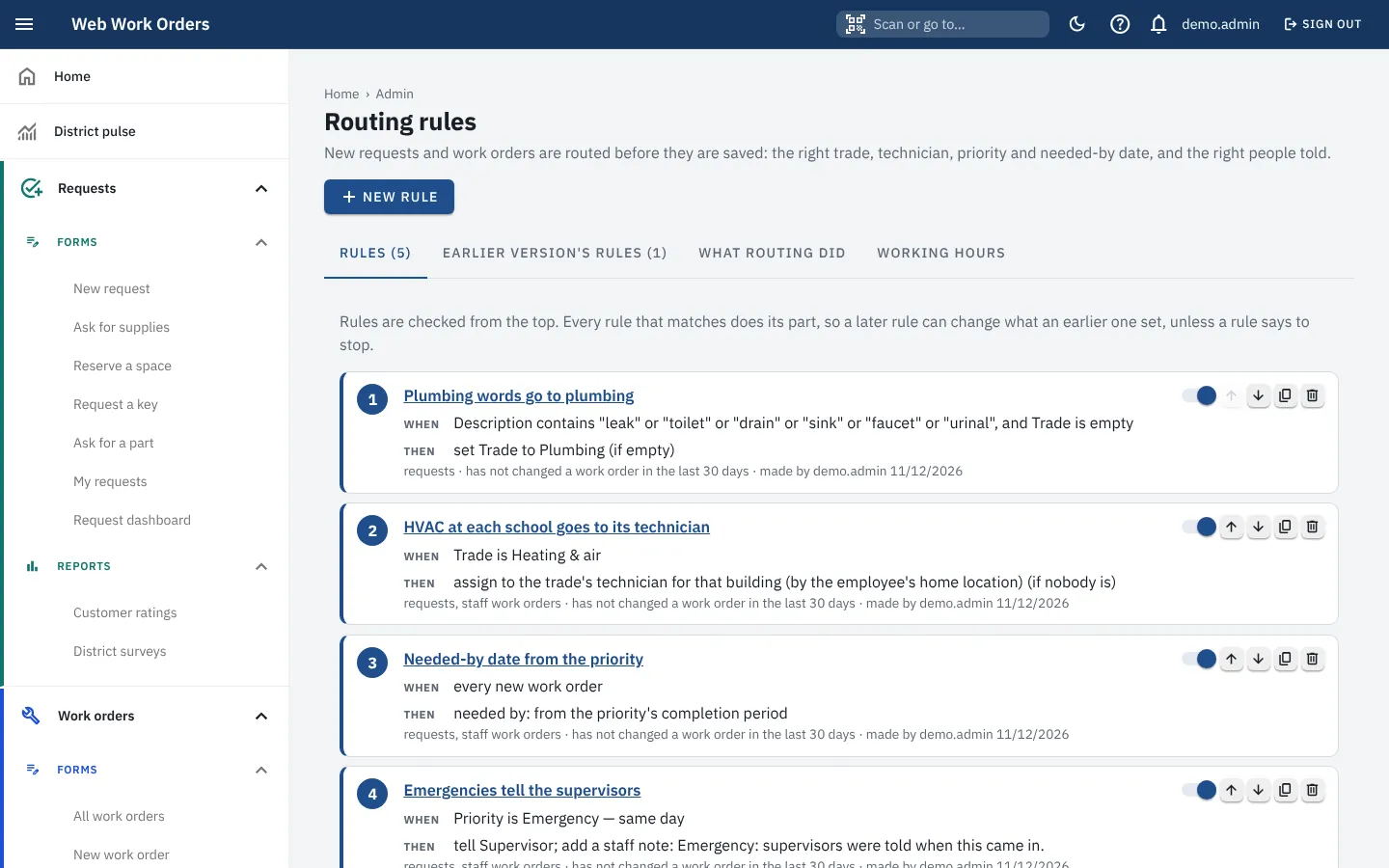
Rules run on every new request and work order before it’s saved, so nothing waits in a pile for someone to sort it.
- WhenAny field on the work order: the building and every room in it, trade, priority, purpose, department, equipment and its type, requester, words in the description (“leak”, “no heat”), where it came from, and whether it came in after hours, on a weekend or on a holiday.
- ThenFill in the trade, priority, status or budget where nobody chose one. Assign the technician who covers that building, the one with the least open work, or each in turn. Set the needed-by date from the priority. Tell the principal or the on-call supervisor. Add a note for the technician.
- Reads like a sentenceRules run top to bottom, each one written out in plain words, and any rule can stop the rest.
- Check before you trust itSee which of the last 90 days’ work orders a rule would have matched, and try it on any work order without changing anything. Each work order’s history says which rule set what.
- Your earlier rules come with youRules from the earlier version are read, explained in plain words and brought over with a click.
Facilities and events
Let your community use your buildings, without the phone tag. More about facility rentals.
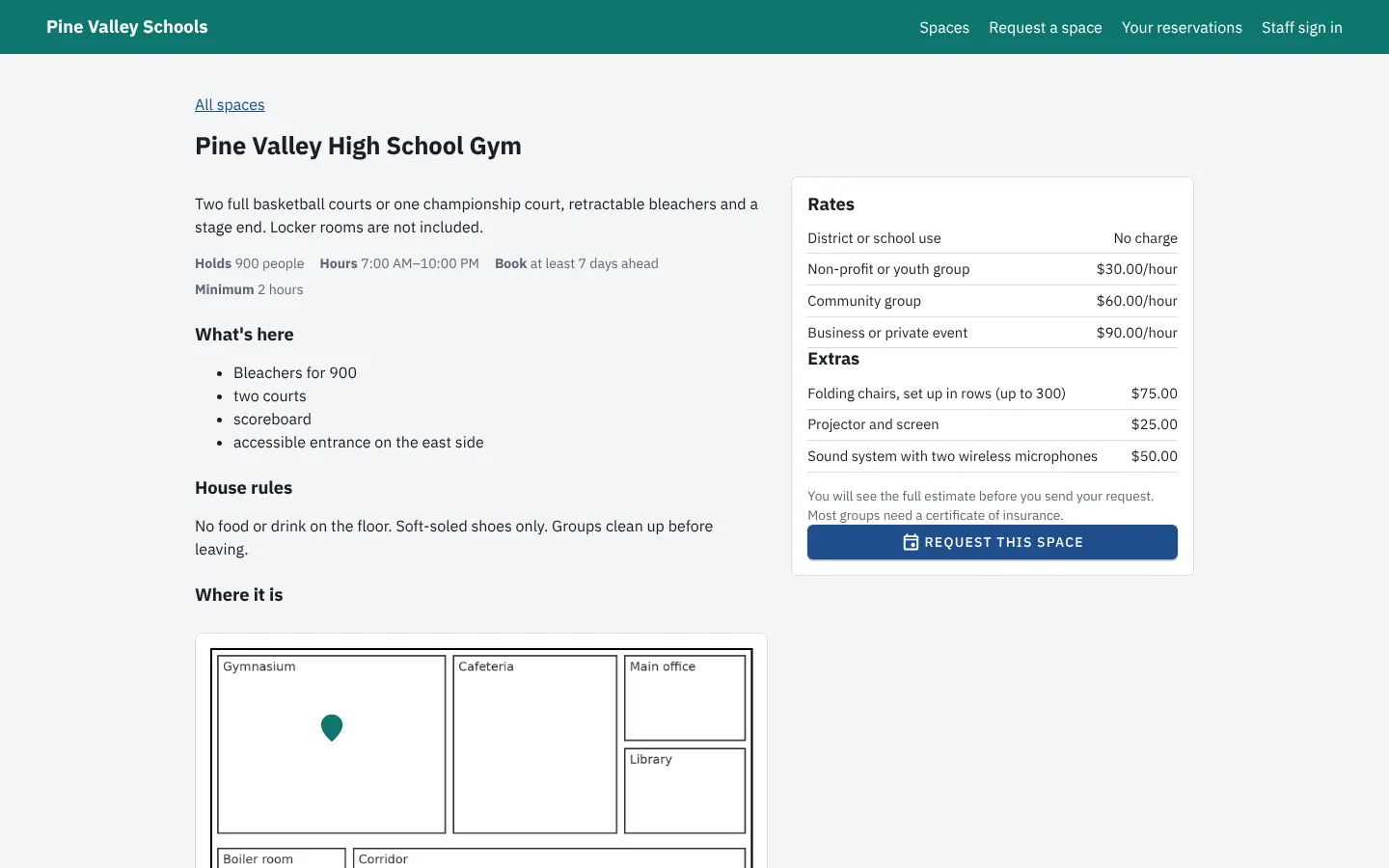
- A public page for every spaceGym, cafeteria, auditorium, fields: photo, description, what’s included, house rules, capacity, hours and rates for each kind of group.
- When it’s freeA four-week view shows booked and requested times. Names stay private unless you allow them.
- The price up frontPeople pick a space, a date and time (weekly repeats too) and extras like a sound system or field lights, and see the estimate before they send. They agree to your use rules and attach their certificate of insurance.
- Approvals your wayBuilding principal first, then the facilities office, or any number of steps. Each approver sees what’s waiting for them.
- No double bookingsEvery request is checked against bookings in the space, the building around it and the rooms inside it, against blackout dates, and against maintenance already scheduled there.
- Setup happensApproving an event that needs chairs and tables opens a work order for the custodial team, due before the doors open.
- Fees, invoices and paymentsFees from your own rates. Print an invoice, record checks, purchase orders, transfers or waivers, and see who still owes.
- Pay by card onlineConnect your district’s own Stripe account and renters pay the balance from their reservation page or the portal. The payment lands on the reservation the moment Stripe confirms it. Card numbers never touch Web Work Orders.
- A portal for the groups that rent from youThe PTA signs in with a link sent to its email, no password to forget, and sees every one of its reservations: what is waiting, what is coming up, what it owes, each invoice, and the insurance certificate on file with when it runs out. Request again copies last season’s booking.
- One calendarReservations, blackout dates and work orders together, by space or building.
Preventive maintenance
- Any scheduleEvery N days, weeks, months or years, or every N hours or miles from a meter, with a second frequency for “every 6 months or 5,000 miles, whichever comes first”. Calendar patterns like every other Monday or “the second Tuesday of the month”. Specific weeks of the year for summer field work. Dates to skip, like winter break.
- Says what it meansThe editor spells the schedule out in plain words and shows the next dates before you save. Count from the due date or from when the last one was finished.
- Tasks and material listsFilters, extinguishers, roof drains, playground checks, boiler inspections, emergency lights. Task lists print as a checklist.
- Due and overdue tilesWhat’s due, what slipped, what was done late. The compliance view your insurer asks for.
- ForecastHours and cost by month, so the budget request has numbers behind it.
- Generate what you mean toThe daily job runs at the hour you choose, never twice for the same due date. Or generate now for one trade, one building, one asset type, one technician or a number of days ahead, and reprint what was made on any date. If your district already has its own PM procedure in the database, it’s used as-is.
- Schedules carry overThe earlier version’s schedules and week lists are read and written as they are, so both versions agree while you move over.
- What the history saysEvery time-based PM beside its own breakdowns. Breakdowns between services say service sooner; years of services and no breakdowns say it could stretch; services finished late say the crew is behind, not the schedule. Each verdict shows its arithmetic. Suggestions, never changes.
- Pause a PMMark it inactive for the summer or while equipment is down. Nothing is deleted.
Assets
- Equipment and vehiclesService history, PMs, warranties, in one record. New work order or new PM straight from the asset.
- Quick viewsVehicles, warranties ending in the next 90 days, and retired assets with their history kept.
- Organized your wayGroups, types, manufacturers, serial numbers, condition ratings for the capital plan, and meter readings.
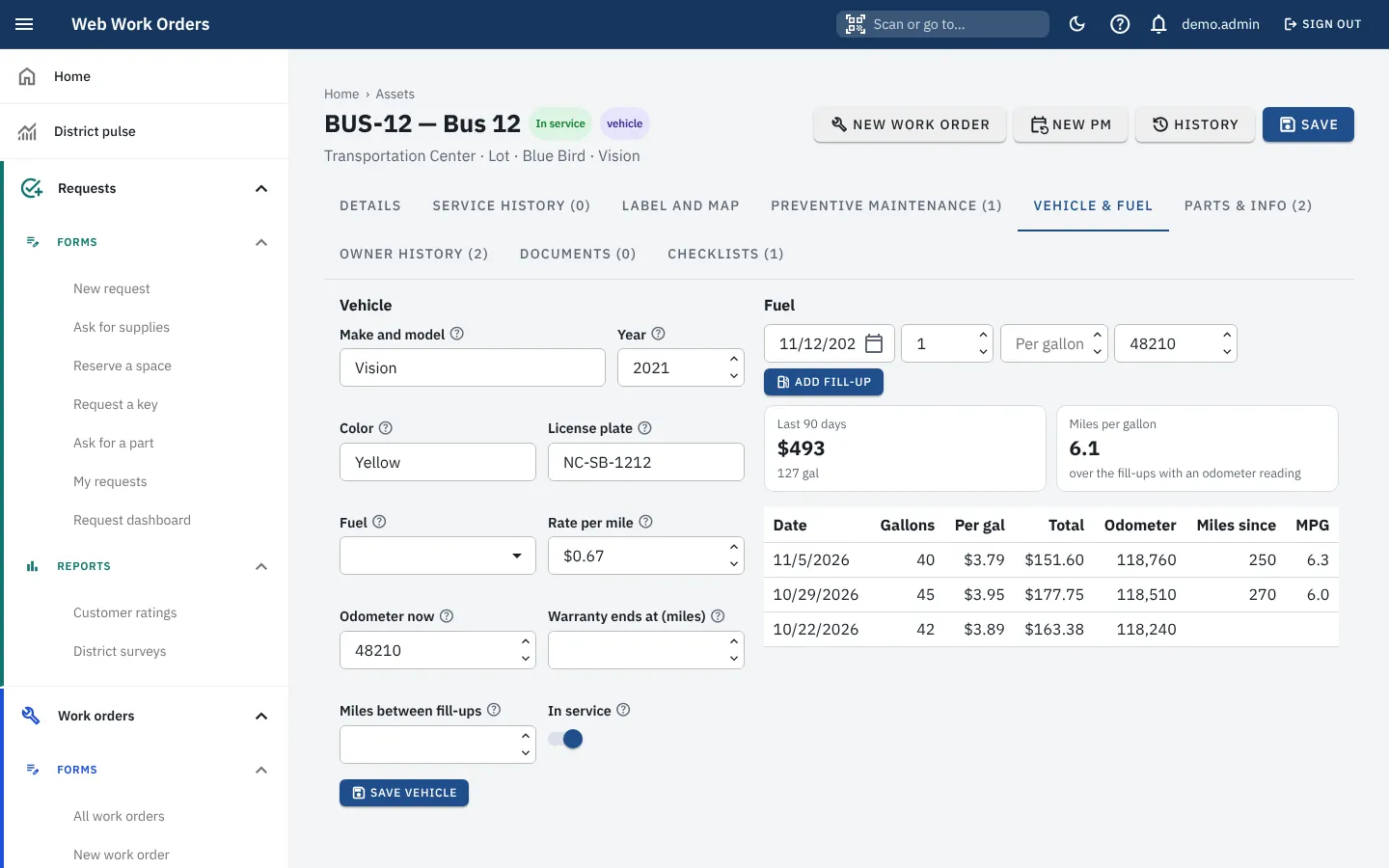
- Vehicles and fuelMake, plate, fuel, rate per mile and the odometer, and every fill-up with miles since the last one and miles per gallon. The bus that’s getting thirsty shows it.
- Parts, tools and extra informationThe filters, belts and nozzles a unit takes, straight from stock, so the right ones go up the ladder. Tonnage, refrigerant, breaker or seating as name-and-value lines.
- Owner historyA line each time a unit moved, changed hands, department, status or value.
- Documents where you look for themOn the unit, its type (every unit of that model shares the manual), its group, a code, a school or a vendor. Removing one keeps the file and records who removed it.
Inventory
- On-hand by locationStoreroom, truck, school. Issue parts to a work order and the cost lands on the ticket.
- Receive, transfer, count, adjustEvery move audited.
- Receive a whole deliveryVendor, PO, invoice and every line on the packing slip at once. Fill from the PO brings in what hasn’t arrived yet. Stock goes up where each line is put away, and the item remembers the price, vendor and PO.
- Count shelf by shelfPick the stockroom or truck, narrow to an aisle or group, and type counts in shelf order. See the difference and the value found or lost before you post. Print a count sheet first, blind if you like.
- Items kept rightUnit, cost and charge, main vendor, manufacturer and model, whether staff can ask for it, state contract, discontinued, and every other vendor you can buy it from with their own stock number.
- Vendors in one placeAddress, phone and email, payment and delivery terms, credit limit and minimum order, the people to call there, the items they supply, and what you spent with them this year and last.
- Low, out and overEvery item at every stock location shows its flag, counting what approved supply requests have already promised. One grid sets Low, Reorder and High levels, aisle and bin. The reorder list says how many to order.
- Usage by itemWhat went out over the last week, month, quarter and year against what is on the shelf, months of supply, and the items that sat idle for a year with the money tied up in them. The item catalog prints the whole list with vendors and part numbers.
- Stock alerts your wayA district default, then rules for a stock location (the HVAC truck), an item (air filters) or both. Send to roles, people or outside addresses, as it happens, daily or weekly. Each item is announced once, and again only after it was restocked.
Purchasing
- Purchase orders on the tables you haveThe earlier version’s purchase orders are in the list on the first day. Stock lines restock the shelf; job lines are bought for a work order and land on it as a purchase when they come in.
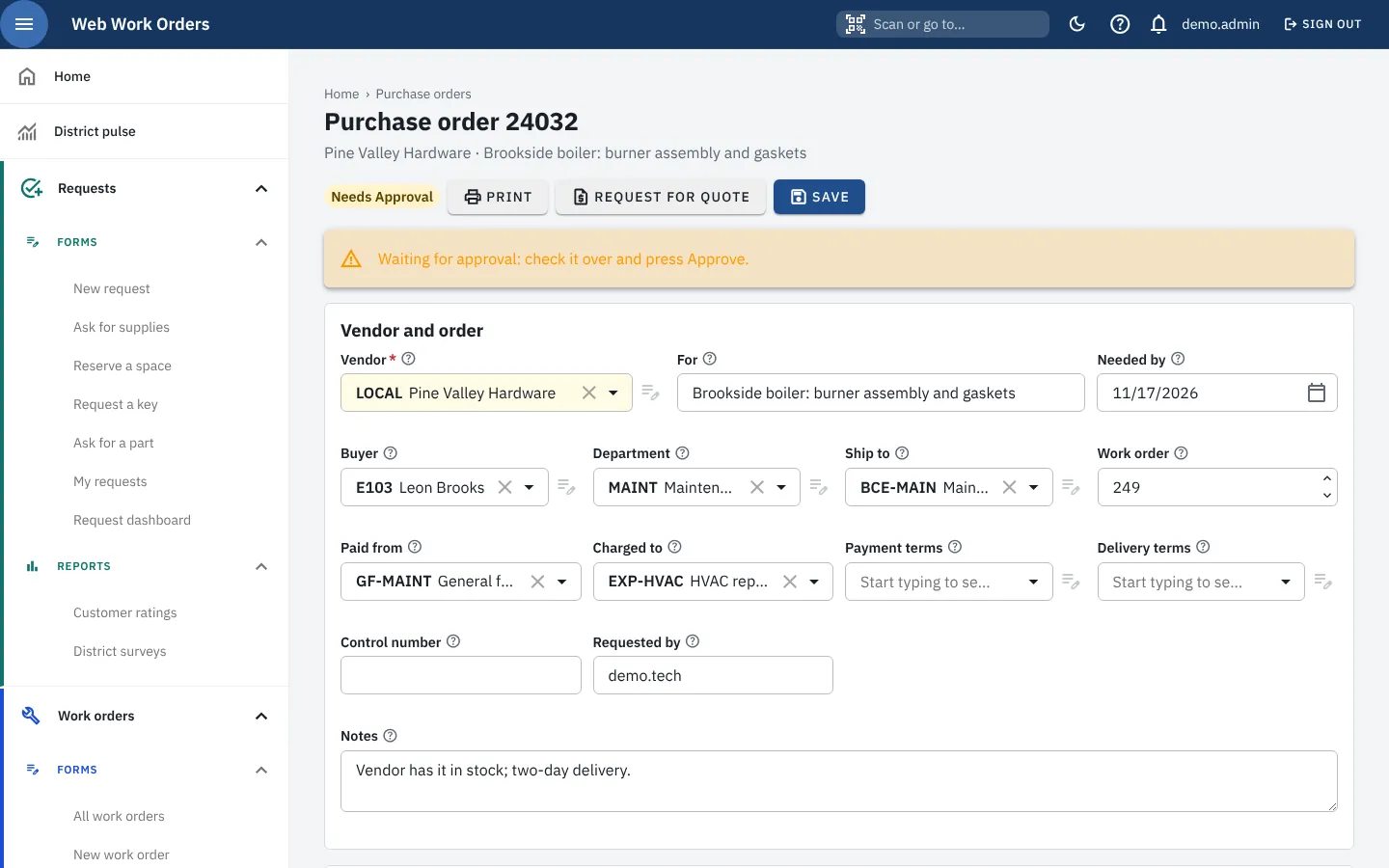
- Draft, approve, send, receive, closeOrders wait for a supervisor or finance to approve them, with an amount under which they skip the queue. Send opens the print with the vendor’s address and the school it ships to. Void keeps the order, marked, with the reason.
- Let the shelves write the orderEvery item at or below its Low level, how many bring it back to High, and its usual vendor. Tick the rows and one draft order per vendor is made.
- Money committed, not just spentOpen orders show by account on Accounts & budgets and on the district pulse, beside what has already been spent.
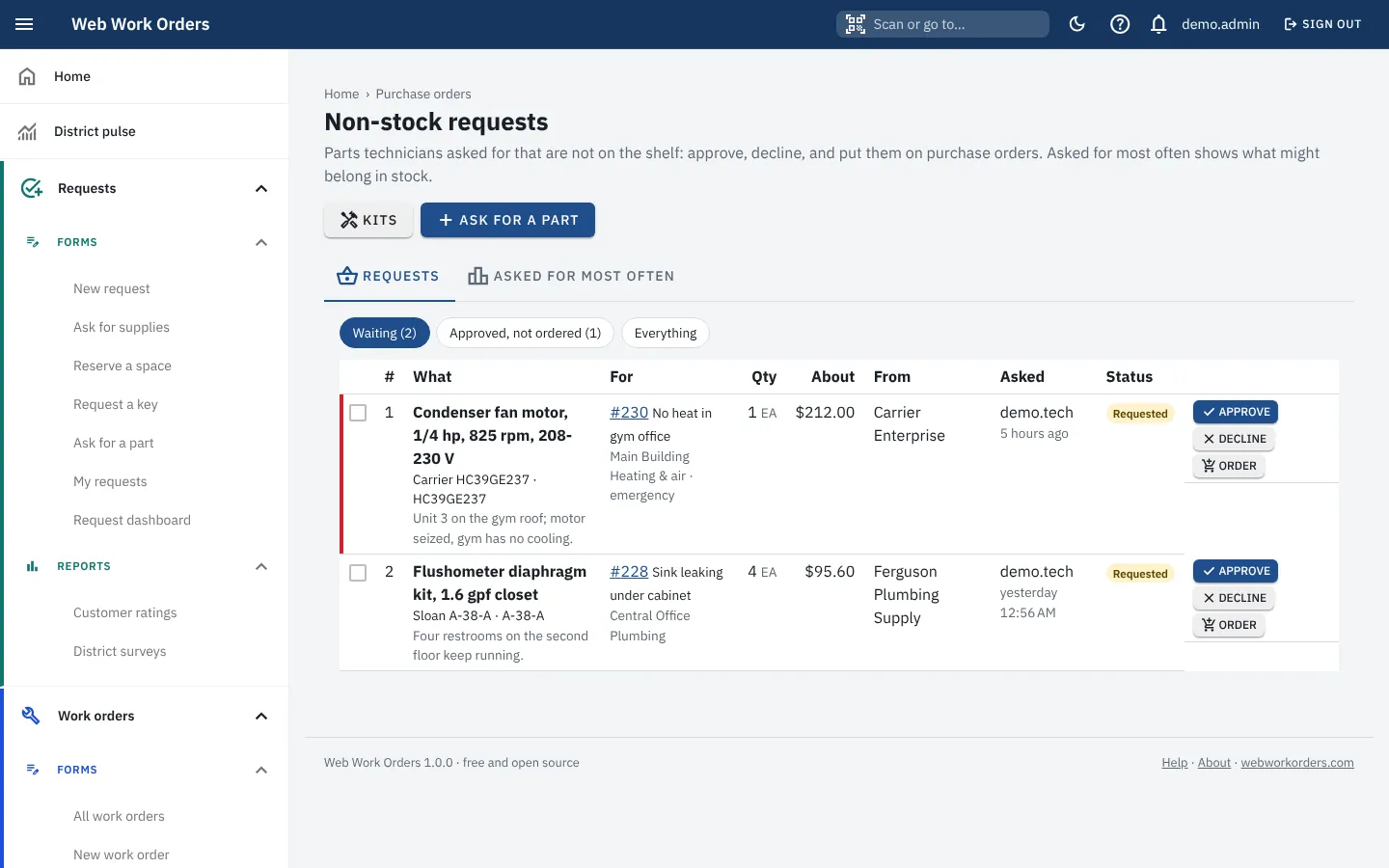
- Ask for a partThe technician who needs a motor that is not on the shelf says what the job needs: part, make and model, how many, about how much, for which work order, and whether the job is stopped without it. A buyer approves it and puts it on an order in one click, and the purchase lands on the job when it arrives.
- KitsThe parts a job usually needs, listed once: a faucet rebuild, a rooftop fan motor swap. One pick asks for the whole kit.
- What keeps getting asked forThe parts requested again and again: the case for putting them on the shelf.
- On the shelf elsewhereBefore anything is bought, the stock at other locations is shown, so the warehouse sends the belt the middle school truck already has.
- Requests for quoteA printable request for quotation per draft order, with price and lead-time columns for the vendor and a quote-by date.
- The card statement, reconciledImport the purchasing card statement as the bank exports it. Each charge finds its order; what is left is the list finance wants: charges with no order, amounts that differ, totals by merchant.
- BuyersWho buys what, by trade, commodity or stock location. Each buyer’s queue opens on their own requests, and the notice for a new one goes to the right desk.
- Two exports to accountingPurchase orders, and every cost line on work orders by account, as a spreadsheet or a balanced journal with charge-backs. Mark a batch exported and the next run offers only what is new, so nothing is entered twice.
Keys
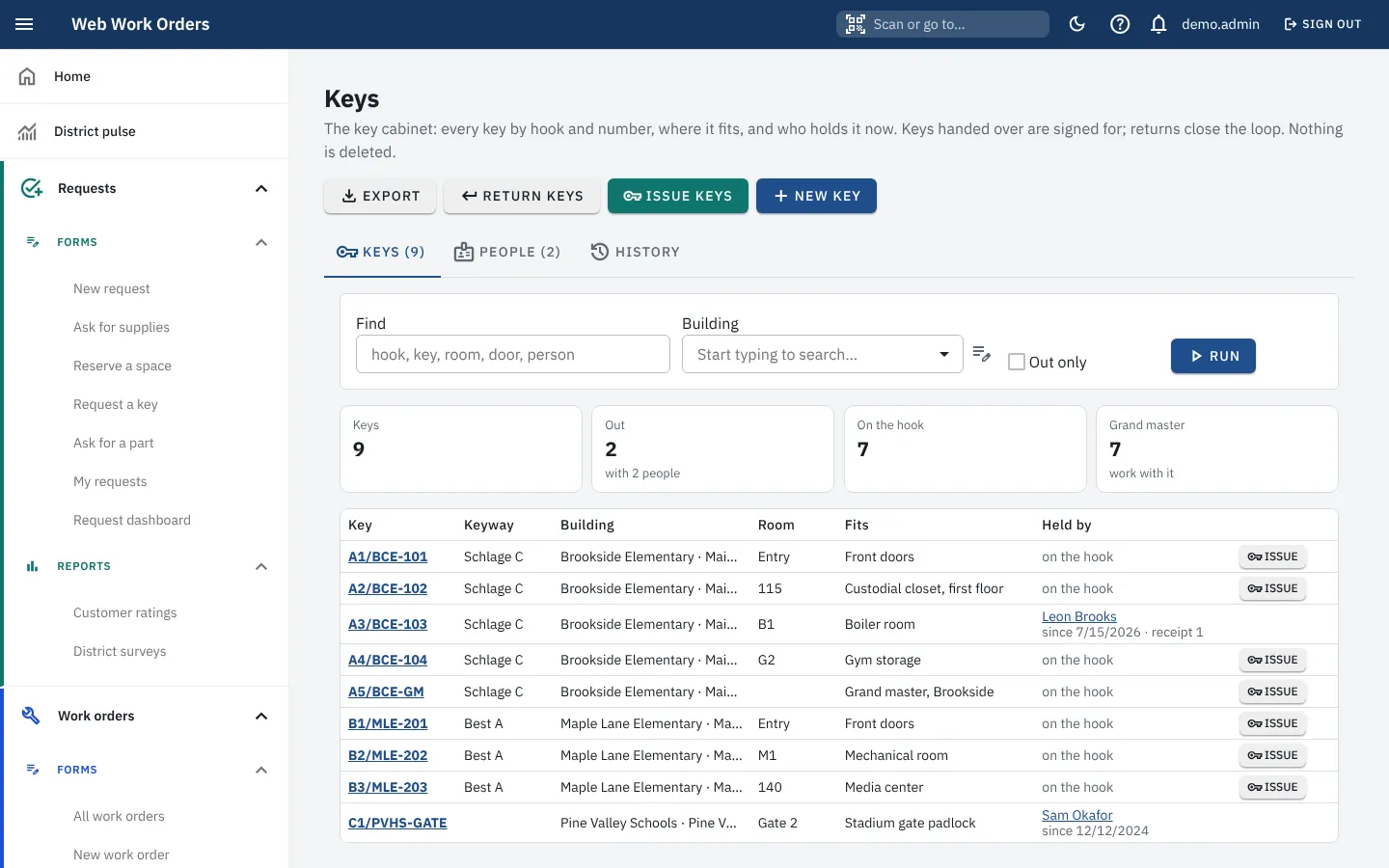
- The cabinet on screenEvery key by hook and number: keyway, building and room, what it fits, whether the grand master opens it, and who holds it now. On the earlier version’s tables, so the cabinet and its history are there on day one.
- Ask for a key like anything elseStaff request a key and it goes through your approval steps in order, the principal first and then facilities, say, each yes recorded with who and when. One click makes a work order for the locksmith.
- Signed forIssue keys against a signature on the screen: one receipt, one issue row per key. A key that is out can’t be issued twice, and returns close the loop.
- The reports the auditor asks forKeys out by building with who holds each one, since when and whether it was signed for; who holds what, person by person; every issue and return in a period. Print them or take the spreadsheet.
Utilities and energy
- Bills beside the buildingsEnter a bill as it reads or import a spreadsheet from the utility’s portal, previewed line by line. Years of history on the earlier version’s tables are there on day one.
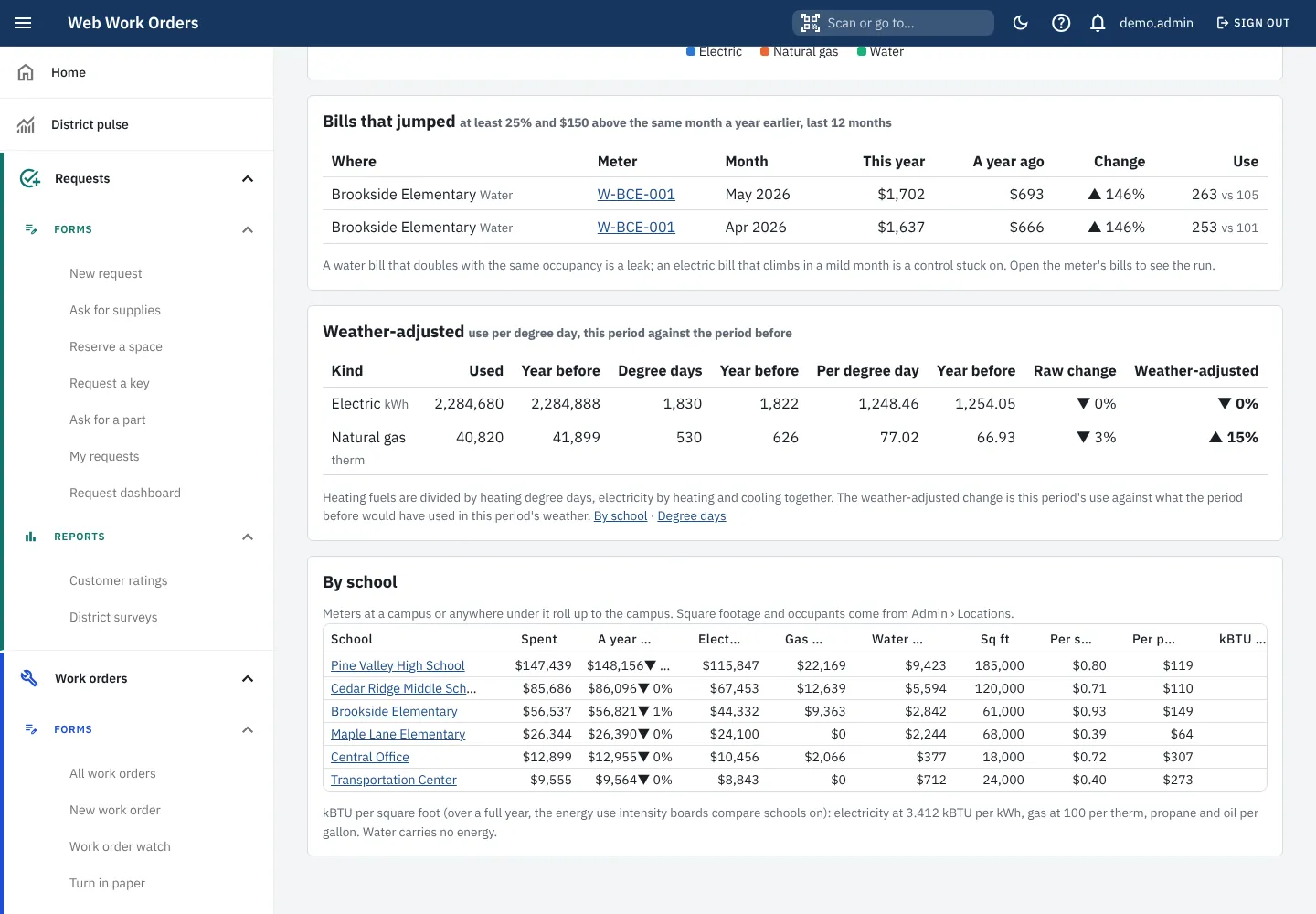
- By schoolThis year against last, electric, gas and water apart, cost per square foot and per occupant, and energy per square foot in kBTU.
- Bills that jumpedAny month at least 25% and $150 above the same month a year earlier on the same meter. A water bill that doubles is a leak; the pulse lists it the day the bill is entered.
- Take the weather outA cold winter burns more gas, so a year-over-year change says little on its own. Enter each month’s heating and cooling degree days and the overview shows the change the weather doesn’t explain: in the demo, 18% more gas than the weather called for.
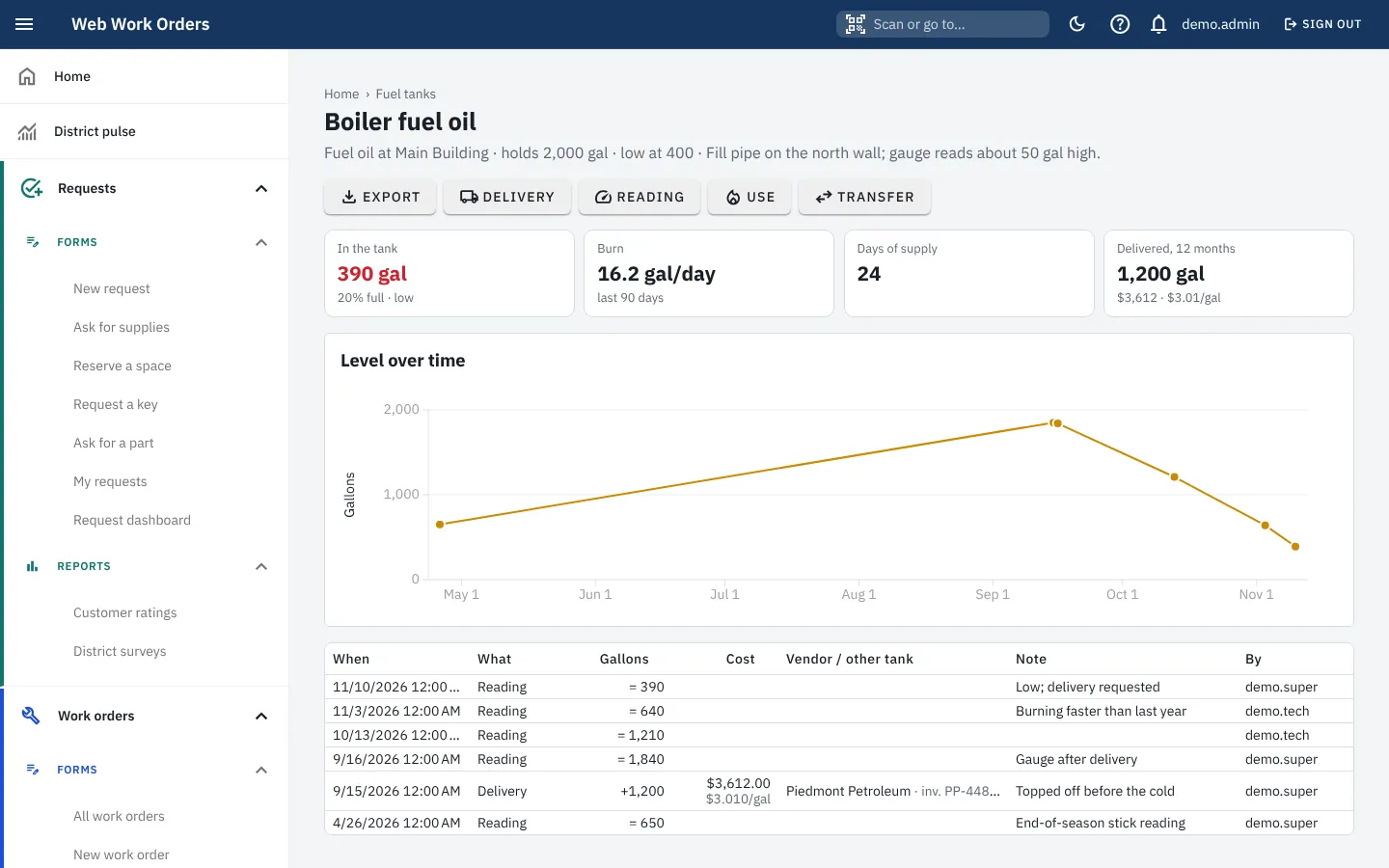
- Fuel tanksFuel oil for the boilers, propane for the kitchens, diesel for the buses: what each tank holds, the burn per day, days until low, every delivery and reading, and a notice to the office when a tank reaches its low mark, before the morning the boiler doesn’t light.
Barcodes, labels and scanning
- Labels for everythingShelves, stock items, equipment and rooms, on Avery sheets or a label printer. Equipment and room labels carry a QR code that opens a request for that equipment or room on any phone.
- Scan anywhereA scan box at the top of every staff page: an asset tag opens the asset, an item number the item, a work order number the work order.
- The phone is the scannerThe Mobile App and Mobile Inventory read barcodes and QR codes with the phone’s camera. No app to install.
Maps and floor plans
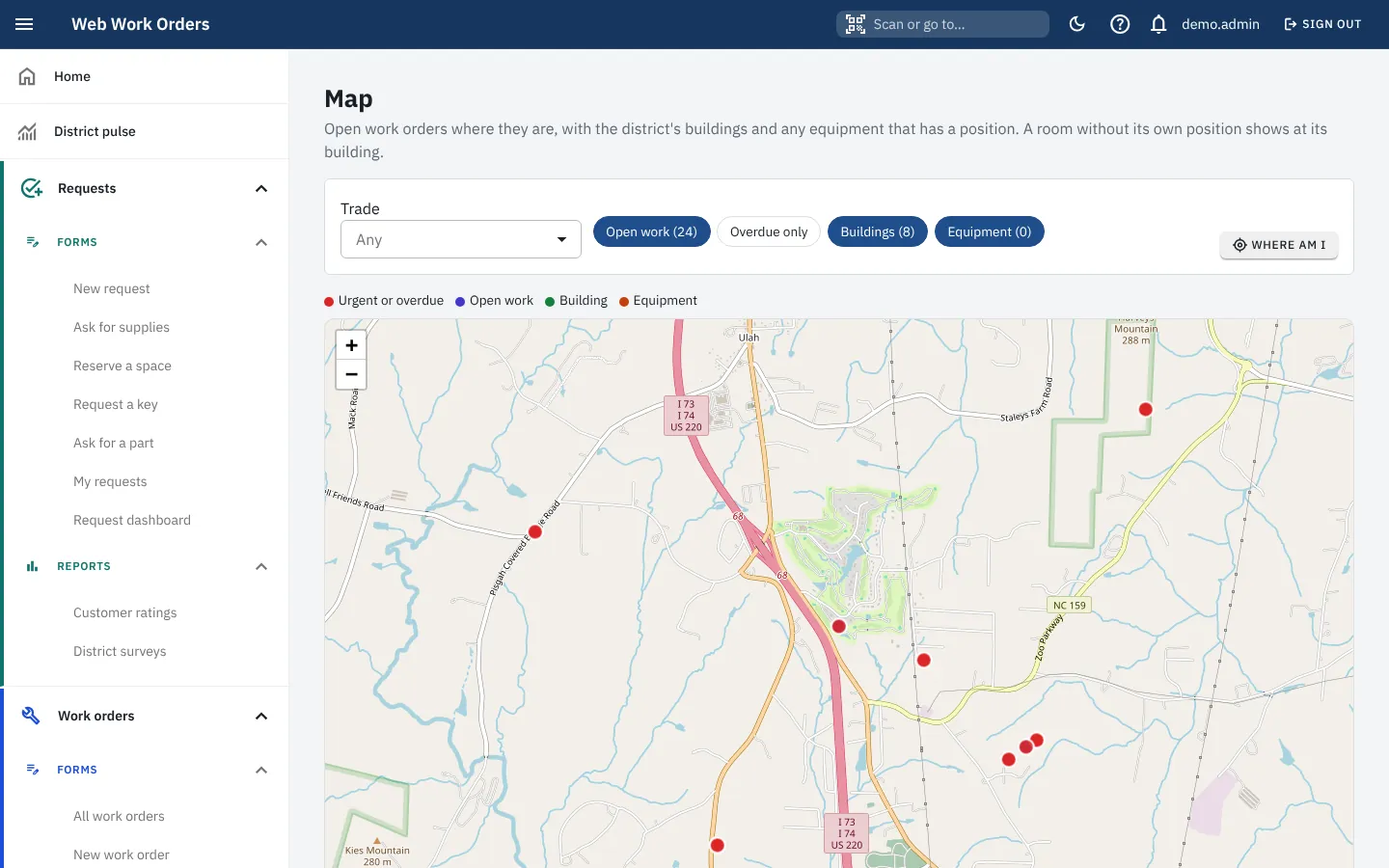
- A map of open workEvery open work order at its building, urgent and overdue ones in red, with your buildings and positioned equipment. Click a pin to open the work order.
- Directions from the work orderTechnicians tap Directions and their map app opens on the building: OpenStreetMap, Google, Apple, Bing or your own GIS viewer.
- Your GIS, linkedGive buildings and equipment their GIS ids and the map opens your ArcGIS (or other) viewer on that feature. Use your district’s own basemap. Stand at a building and press “Use my location” to place it.
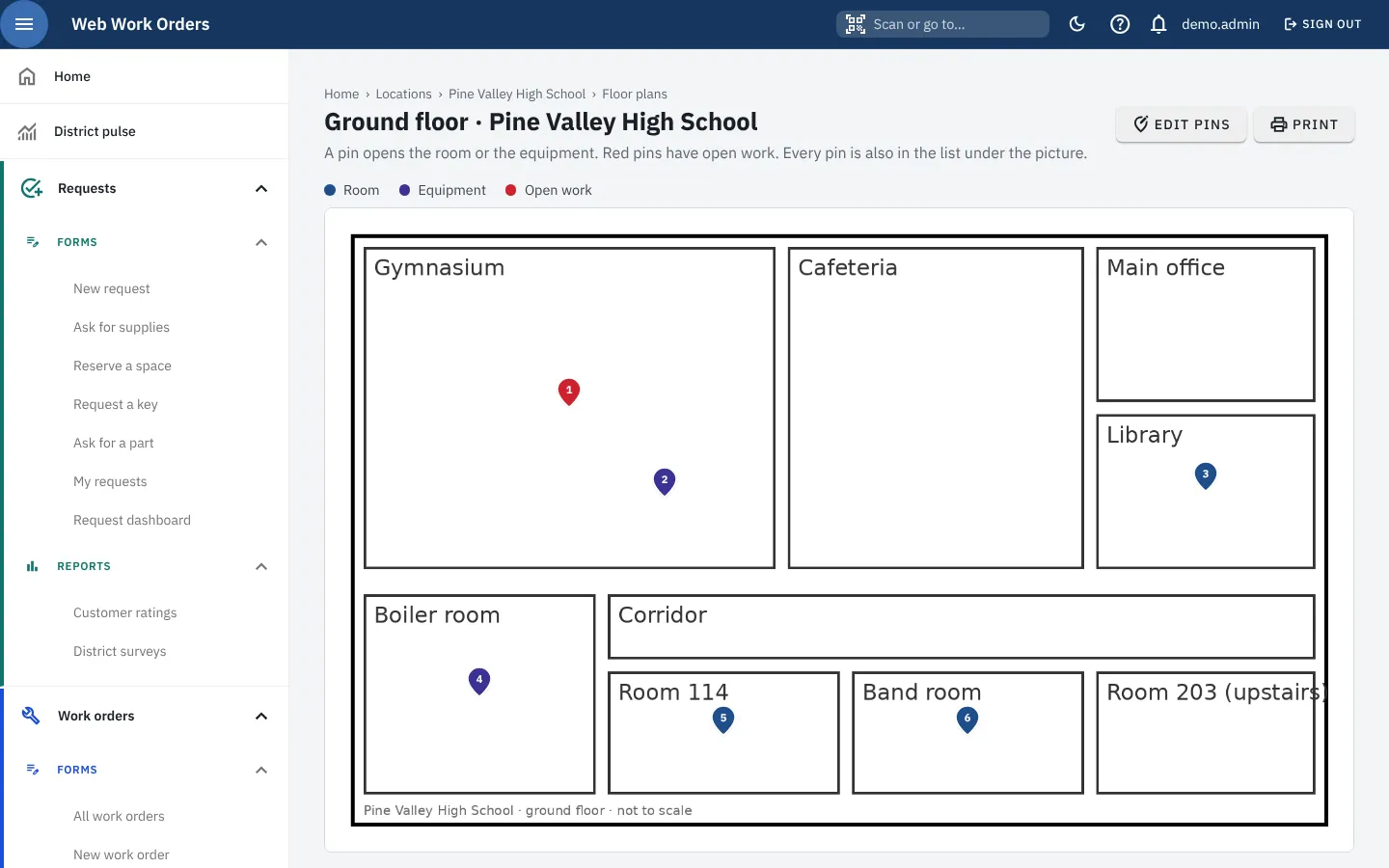
- Floor plans anyone can readAny picture of a building (PNG, JPEG or the architect’s SVG) becomes a floor plan once someone pins rooms and equipment on it. Pins open their work, and red pins have open work with the count. The pins are also a numbered list for screen readers and can be placed with the keyboard. Work orders, assets and rooms carry an On the plan link, and a space open for rentals shows its own pin on its public page.
- Building alarmsAlarms from building controls that the earlier version turned into work orders stay visible, with the control point and the work order each one made.
Locations
- Your district as a treeAdd buildings, wings and rooms anywhere. Record address, contact, square feet, occupants, default account and map position.
- Hazards where they matterAsbestos in the boiler room? It shows on every work order, mobile page and printout for that location and everything under it.
- Move and copyMove a wing under a new parent and every path below is rewritten. Copy a location with its rooms, details, hazards and who can request there, and a new wing is set up in seconds.
- Move history safelyRenamed or merged a room? See first how many work orders, transactions and assets would move, then move them. Any move can be undone.
- Copy accessCopy who can request from one room to others, or give a new hire the same access as someone who does the same job.
Accounts and budgets
- Balances you can trustEach account’s balance, spending in a period, a ledger and monthly activity, built from the transactions themselves.
- Costs to accountingEvery cost line on work orders for a period with the accounts it moves money between: by line, by finished job, totalled by account, or as a balanced journal with charge-backs for finance.
- Labor ratesPay and charge rates per employee and labor type, used automatically on labor lines.
- Code lists in one placeBudget codes, labor types, suppliers and the rest, with retire instead of delete.
On the phone
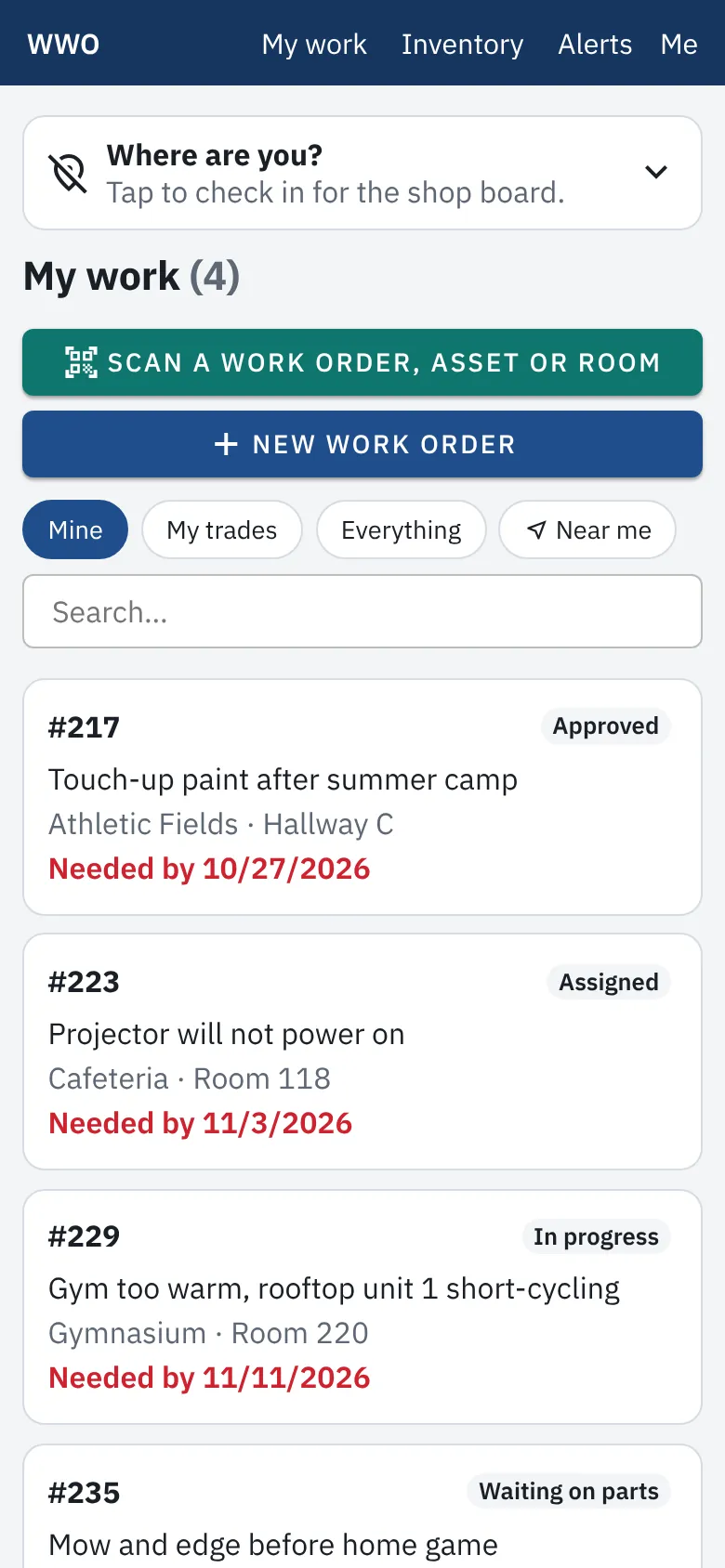
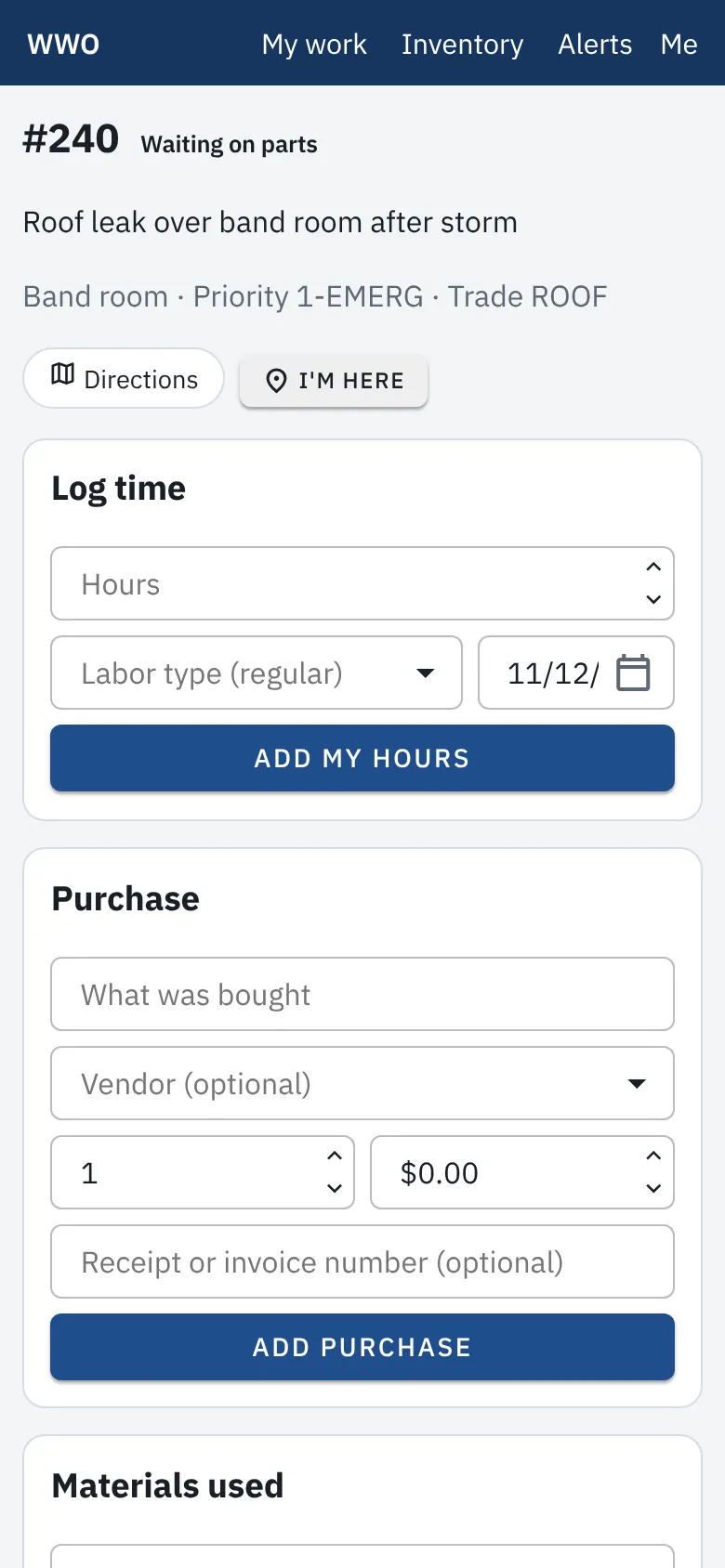
- The Mobile App for techniciansMy work with status colors and one-tap status buttons. Log hours with the labor type, use materials, add purchases and photos, start a new work order, and finish with a signature.
- Set up for your crew, and for one personAdmins choose which sections, statuses and colors the Mobile App shows, then set it differently for one technician: fewer sections for a new hire, other buttons for the grounds crew, their truck, or no Mobile App at all.
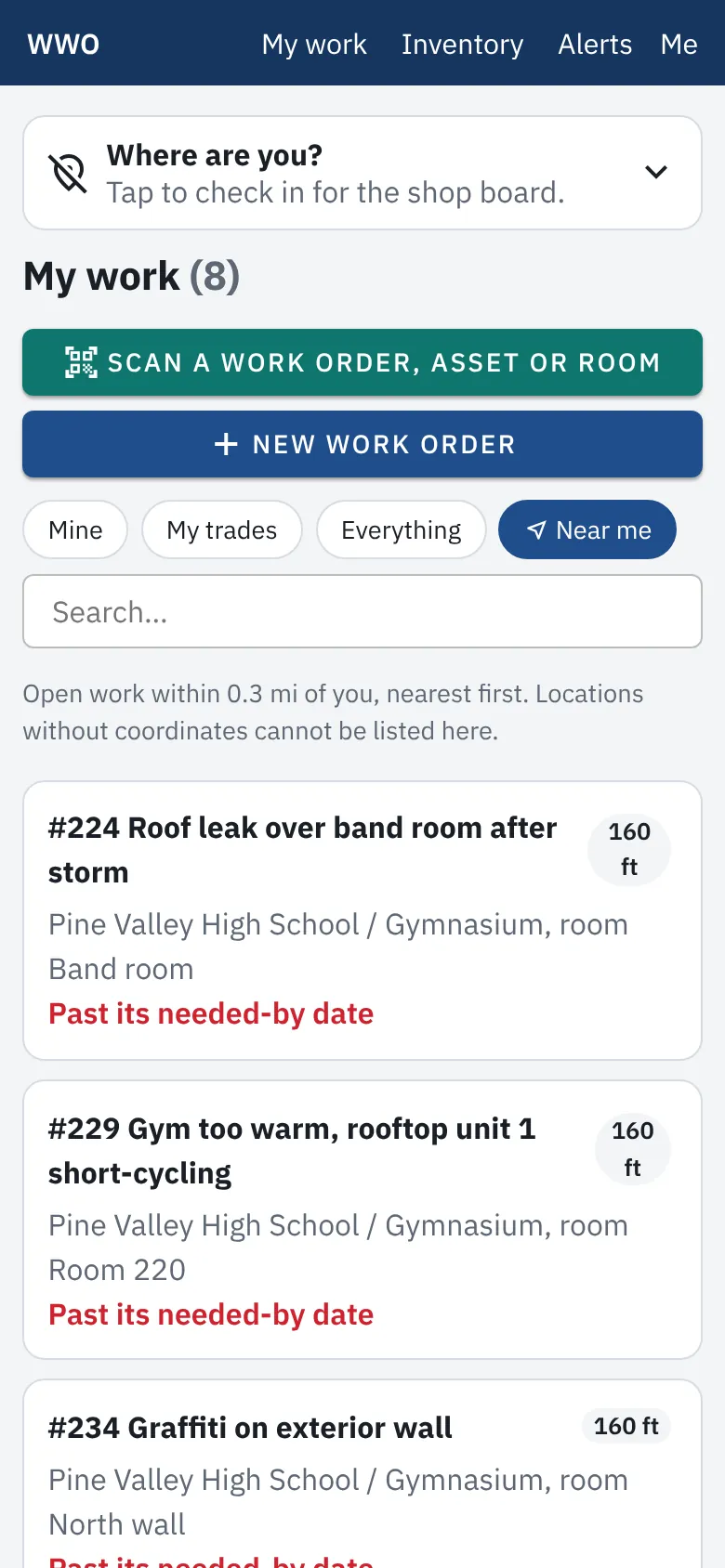
- Work near meMy work, my trades, everything, or the open jobs within walking distance of where the phone is, nearest first.
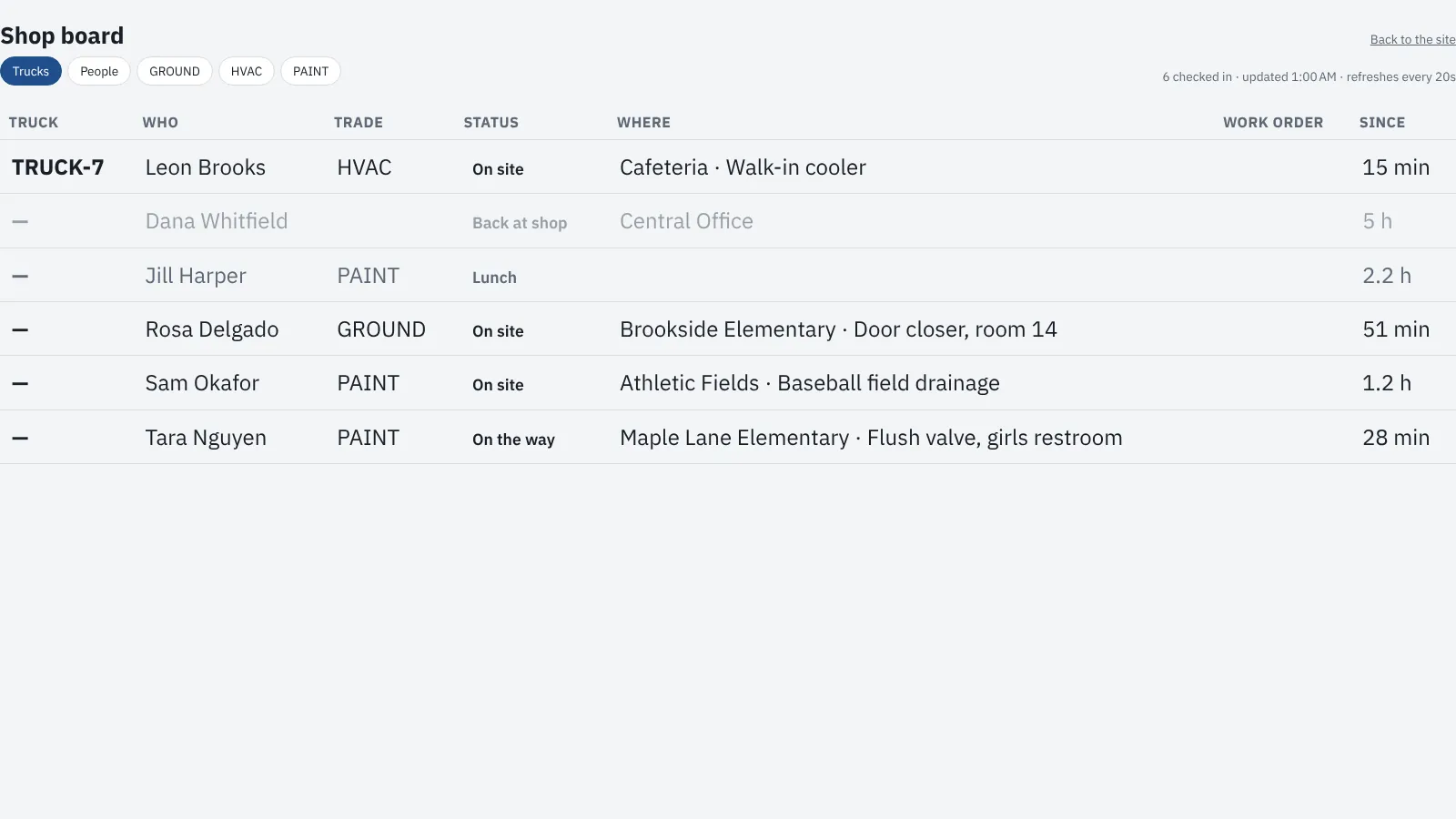
- Where is everyone?Technicians tap On the way, On site, Back at shop or Lunch, and the shop sees every truck and person, where and since when. A big-type version runs on the shop wall; the earlier version’s truck log keeps getting written.
- Checklists on the phoneMark each inspection step on the job, with a note for anything that needs work.
- Add to Home ScreenOpens from the phone’s home screen like any app. No app store, no install to manage.
- Mobile InventoryLookup, issue, receive, transfer and counts from the shop floor or the truck. Choose which actions the phone shows, the stock location it starts on (the technician’s truck), where transfers go, decimal quantities and count reasons, for everyone or for one person.
- Spark in the truckA technician asks “what do I have today” or “is the 20×25 filter in stock” and gets the answer with links to the phone’s own pages. Read only, with the person’s own access.
- Try it from a deskThe phone screens run live inside a phone on the full site, so a supervisor sees exactly what the crew sees.
- Modules you controlTurn each one on or off per district. Techs on paper today can stay there until they’re ready.
Notifications
- Five channelsIn-app bell, email, text message, phone and desktop push, and team chat. Texts go through each carrier’s own gateway, so there’s no texting service to pay for. Teams and Power Automate get proper cards.
- Quiet hours and a daily digestNothing buzzes at 2 a.m.: notices wait and go out when quiet hours end. Or get one email a day at the hour you pick instead of twenty.
- The events that matterNew request, request received, assigned to you, status changed, work completed, overdue work, waiting too long, PM work generated, low stock, and every decision on a supply or reservation request.
- Admin rules plus personal choicesThe district sets defaults; each person picks what they hear about.
- Email built in, and visibleA background job sends queued mail, including anything the database already queues. The email log shows what’s waiting, what went and what bounced and why; fix the mail server and send the failed ones again with one click.
- “Sub-trade” if that’s what you call itDistricts that used the purpose code as a sub-trade can call it that everywhere, in one click.
Reports
- Repair or replaceAny two campuses or buildings side by side on four gauges against your targets, and every piece of equipment marked keep, watch or replace, with the payback and the yearly saving. The report a board asks for before it votes on a budget. How it works.
- Capital planEvery piece of equipment in the year its life ends, priced at today’s replacement cost raised for inflation, with what is already past its life as the deferred backlog. The page a bond or budget request is built on. See it.
- Warranty finderRepairs you paid for while the equipment was still under warranty, parts and labor apart, so the claim goes in before the invoice is forgotten.
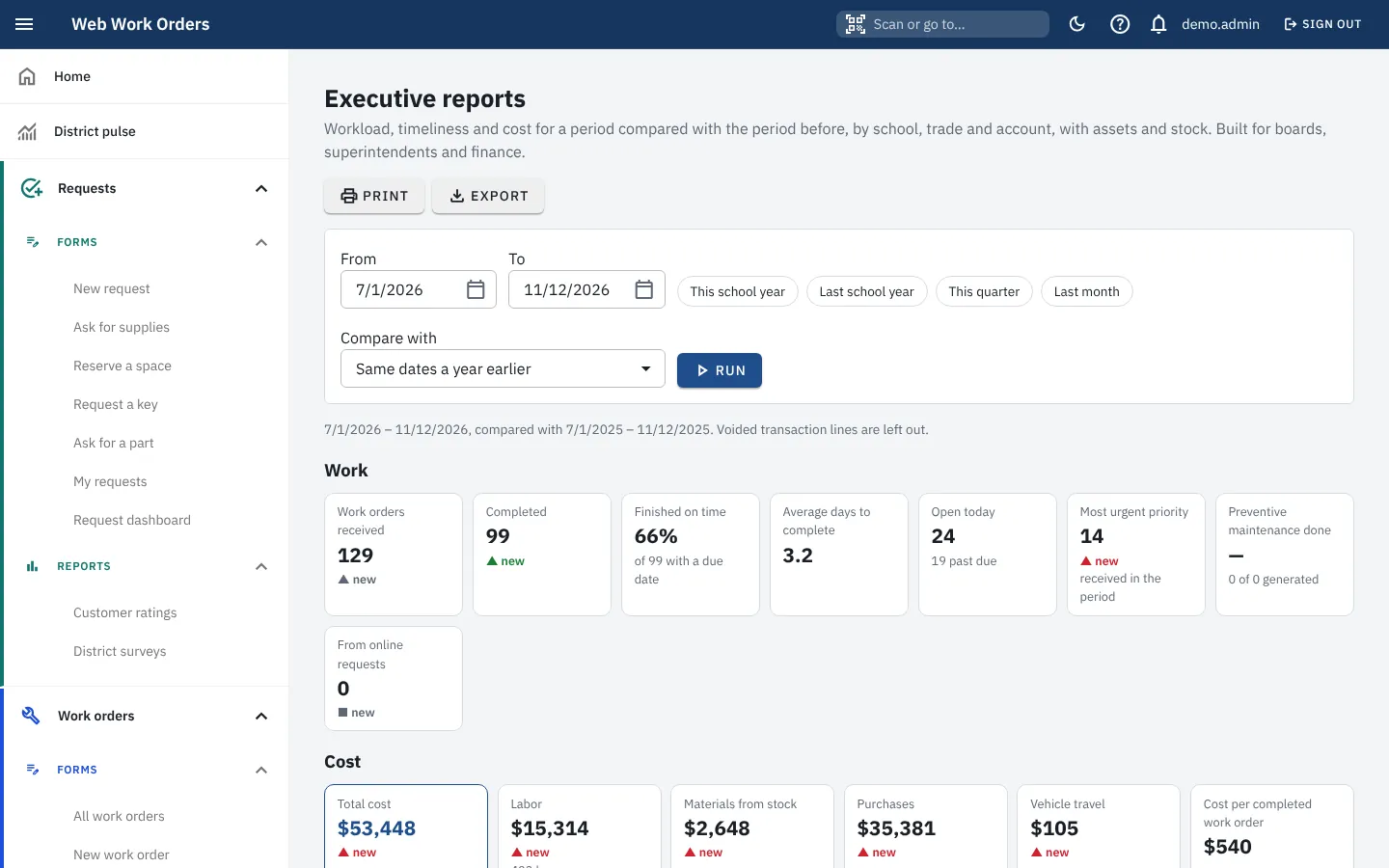
- Executive reportsOne printable page for the board, the superintendent and finance: workload, timeliness and cost against the same dates a year earlier, a 12-month trend, cost per square foot and per occupant by school, cost by trade, budget against spending, labor and overtime by employee, assets reaching end of life or warranty end, and stock value, used and unused.
- A report libraryTwenty reports rebuilt from the earlier version: the general work order report, open work by trade, overdue and deadline reports, work by school, the monthly report, labor and material cost by location and trade, technician hours, on-time completion, PM work orders, asset service history and more.
- Build your ownCount work orders or add up hours and costs, grouped one or two levels deep (by school, then trade), with the work orders listed under each group and filters on any field. Chart it, grid it, export it.
- Periods that move“Last month”, “this fiscal year” and “the last 4 weeks” stay true every time you run them, with your fiscal year and first day of the week.
- Saved, shared and emailedKeep your versions, share them with a role, open your favorite first, and email any report daily, weekly or monthly to people, roles or addresses.
- Inventory and asset reportsStock issued, returned, received, moved and counted; spend by vendor; count adjustments and the value found or lost; shelf value by stock location. An asset register with cost totals, and a one-page sheet per building with its contact, hazards, equipment and open work.
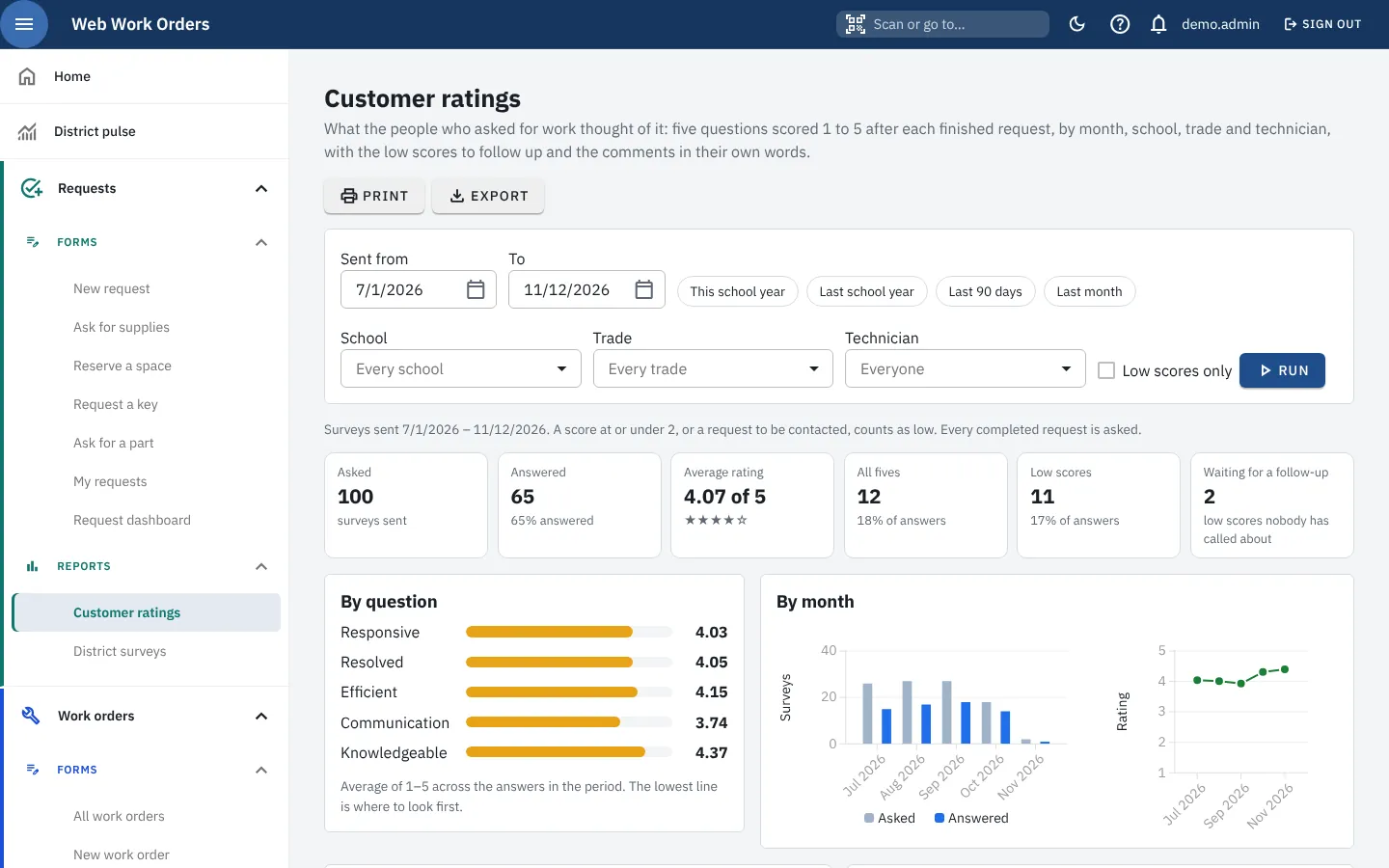
- Customer ratingsAsked, answered and the response rate; the average and each question’s score, so the weakest one stands out; by month, school, trade and technician; the low scores with their follow-ups; the comments in people’s own words. A rating gauge on the district pulse.
- Where the hours goTechnician hours by person, with the travel inside them: travel as a share of each person’s time, miles by driver, and hours per job.
- Technician productivityDirect hours, travel and administrative time against the hours the period offered less time off, so utilization means something. One click opens anyone’s daily labor review, line by line.
- AttendanceTime off logged on the earlier version’s tables: hours lost by reason, month and person, and the share of working time it came to. Earned time is never counted as time lost.
- The district surveyThe response rate, every statement against the year before, every school side by side, the low answers and the comments: the number a facilities director brings to the board.
- The reports you already hadWe went through every report layout and nightly job the earlier version shipped with. Each one has a home here now, down to the A/R charge-back report and the job that closed finished work orders after 48 hours, now a setting.
- One definition of costLabor, materials, purchases and travel are counted the same way on the work order, every report, the executive page and the pulse, checked against plain SQL by automated tests. Receipts, transfers and count adjustments never count as the cost of a job.
- Home dashboardOpen, overdue and due today the moment you sign in, with a getting-started list for a new admin.
Spark, the optional AI assistant
- Ask about your own work“What’s open at the high school?” “What did plumbing cost last month?” “Who did the last boiler repair?” “What PM is due this week?” Spark answers from your district’s data.
- Shows what it checkedSpark can only ask a fixed set of read-only questions, the same reports and lists your staff already use, with the asker’s own access. Every answer says what it looked at, and a number opens as a report you can change and save. It cannot assign, close or edit anything.
- Help chat“How do I…” answers about the software.
- Draft a work orderDescribe the problem in plain words; Spark fills in description, trade, priority and room from your district’s own codes. You review before saving.
- Your key, your accountOff by default. Requests go from your server to the AI provider under your own agreement. Nothing is sent until an admin turns it on.
- Smart without a keyThe suggested technician, the possible-duplicate hint and the PM history check run on your own records, with no AI account at all.
Sign-in
- Active Directory and LDAPAdd your domain, and a second or third. People sign in with their network name and password, checked by your directory over an encrypted connection.
- Groups become rolesMap “Maintenance Staff” to Technician and “Principals” to Executive; nested groups count. Limit sign-in to one group if you like.
- New staff just sign inThe first sign-in adds them with the access of a template user you choose: groups, trades and the locations they can request for.
- Test before you switchTry a sign-in and see every step and the person’s groups, without signing anyone in.
- SAML 2.0AD FS, Shibboleth, Okta, Entra ID as a SAML app, ClassLink and Clever. Swap metadata addresses, map groups to roles, and it works: no server configuration, no restart. Every response is checked for signature, audience, expiry and replay.
- Single sign-onMicrosoft Entra ID (Office 365), Google Workspace, ClassLink and CAS over OpenID Connect and CAS.
- Never locked outAdmins keep a Web Work Orders password that works even if the directory is down.
- Self-registrationGive staff a registration code and they can make their own account.
Administration and security
- Each person sees their own workLimit anyone to their trades, their schools, or both: plumbers see plumbing, the night custodian sees the high school. Work assigned to them or entered by them is always theirs to see. Administrators are never limited.
- Field by fieldEach work order field can be changeable, read-only or hidden for one person, and so can each kind of cost line. The list, the work order, printouts, the map, exports and the Mobile App all follow the same limits. The earlier version’s trade, location and field security settings carry over.
- See what they see“It doesn’t show the button” is answered in one click: an admin views the app as that person for up to 15 minutes, with a banner on screen, and everything done meanwhile is logged under both names.
- Your data, any timeAn admin downloads the whole database as a CSV file per table in one zip, whenever they like. No request, no fee.
- Support signs in only when you say soOn a hosted site, our support accounts can’t sign in at all until a district admin grants access, for 1 to 72 hours. Every grant and sign-in is recorded, and you can end it on the spot.
- A color for every moduleWork orders blue, preventive maintenance green, inventory purple, each with its forms and reports underneath. Rename, recolor, reorder or hide groups, show them only to some roles, and add links to the other systems your staff use.
- Form setupDefault values (today, today plus 7), required, hidden and locked fields, which fields Tab skips and the order it follows, for the work order, labor, material and purchase forms. Everyone can save their own defaults too.
- Passwords done rightOld stored passwords are upgraded to modern salted hashing the first time each person signs in, and an administrator can clear leftover plain-text copies. Temporary passwords must be changed at next sign-in.
- Locked against guessingFive failed sign-ins lock the account for 15 minutes. Sign-in attempts are rate limited, and every page is served with strict security headers.
- Every edit can be tracedBefore the app changes a row in your district’s tables, it copies the old row to a history table. The audit log records who did what, and when.
- System checkDatabase, email, background jobs, disk and support access at a glance (and as JSON for your monitoring), your last backup, and a safety copy before an upgrade. A setup checklist on the admin’s dashboard ticks off what’s left.
- Reset to defaultsEvery settings page shows what each setting does when it’s left alone. Reset one area (settings, modules, notification rules, the menu, form setup, facilities, sign-in) after seeing what goes back. Passwords and keys are kept, and every reset is logged.
- Finished work closes itselfCompleted work orders close after the number of hours you choose, through the app and with the audit trail. Off until you turn it on.
- Updates itselfIts own tables are created and updated when the app starts. A health address lets your monitoring watch it. Settings import moves a configuration between districts.
Easy on the eyes
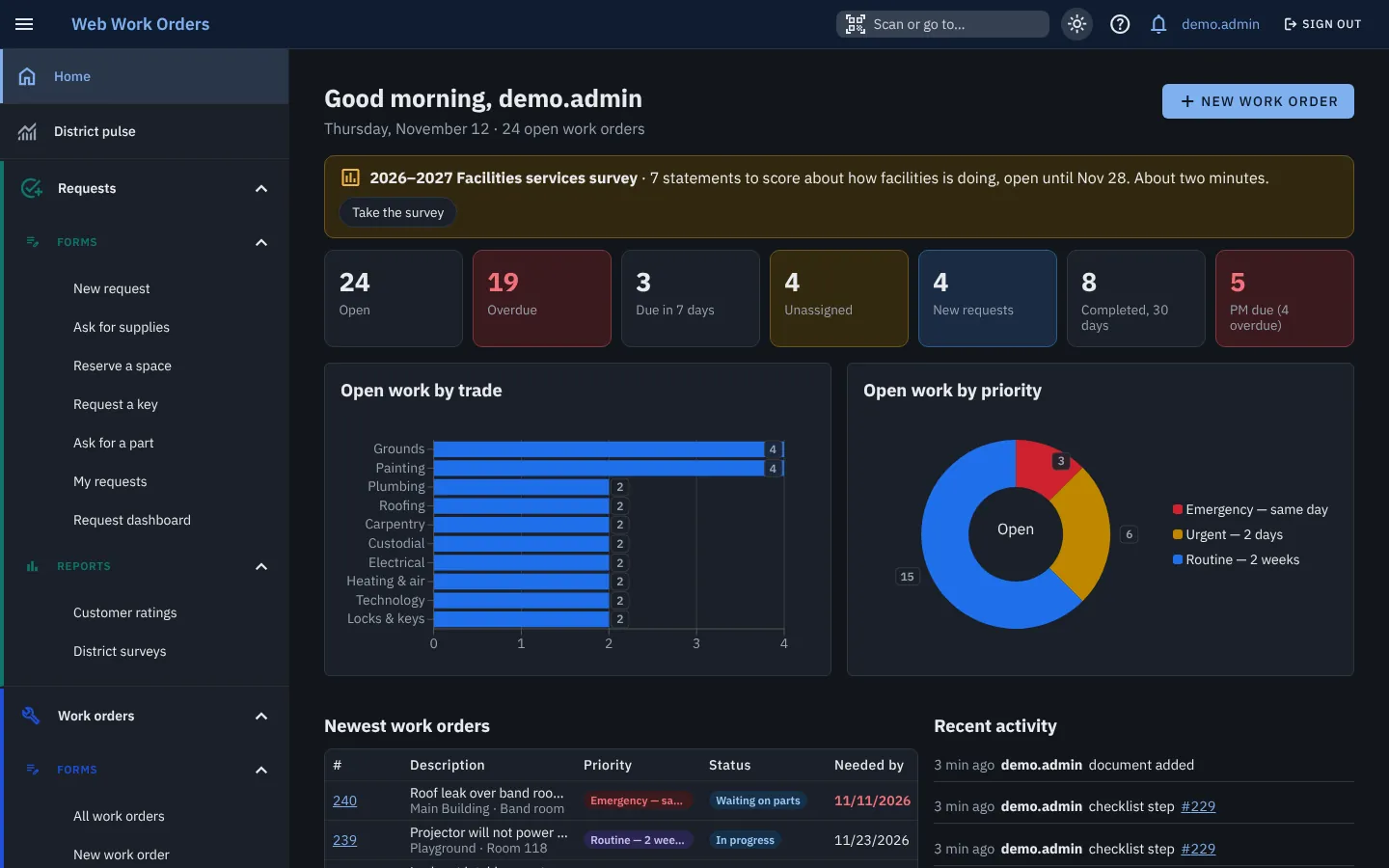
- Light or darkIt follows the phone or computer’s own setting, and one tap on the moon locks it the other way, on that device only: a technician’s phone can be dark while the office stays light. Printed work orders, labels and pick lists are always black on white.
- Made for screens full of numbersIBM Plex Sans, shipped with the app so nothing is fetched from an outside font service, with figures that line up in columns. One navy and warm greys; color is kept for meaning: red for overdue, amber for watch, green for done.
Help, everywhere
- A ? beside every fieldAdmins can reword any of them to match how your district talks.
- Help drawer on every pagePlus a help center and keyboard shortcuts.
Runs on what you have
- Your existing databaseReads the columns each district actually has, and keeps working with the reservations, organizations and blackout dates districts already have. Adds only its own
wwo_tables. Never alters or drops your tables, and never deletes their rows. - SQL Server, free edition works2012 or later. Express and LocalDB are fine. The two-click Windows demo installs LocalDB for you.
- Your own server in ten minutesOn any Linux server with Docker, one command asks a few plain questions (your SQL Server or one beside the app, empty, sample data or last night’s backup, http or https), then builds, starts and checks itself.
backup,updateandrestoreare one command each. On Windows, the two-click download still works. - Transfer scriptMove to a new free server and verify every table’s row count before cutover.
- First start that explains itselfNo admin yet? The start script offers to make one. Sign-in problems are written to a daily log with the reason, and the demo sets its sample accounts back every time it starts.
What’s next
In the order districts ask for it. Each item moves up this page when it ships, not before. All of it stays free.
- Import from any system: drop in a CSV or Excel export from your current system or a spreadsheet, and Spark suggests the column matches for you to check
- A ready-made app image, so Portainer and
docker runneed no build
Every module the earlier version had is built now: work orders, PM, assets, inventory, purchasing, keys, utilities, attendance and facilities, and every one of its report layouts has a page here. Something you rely on that isn’t on this page? Tell us.