Replenish stock
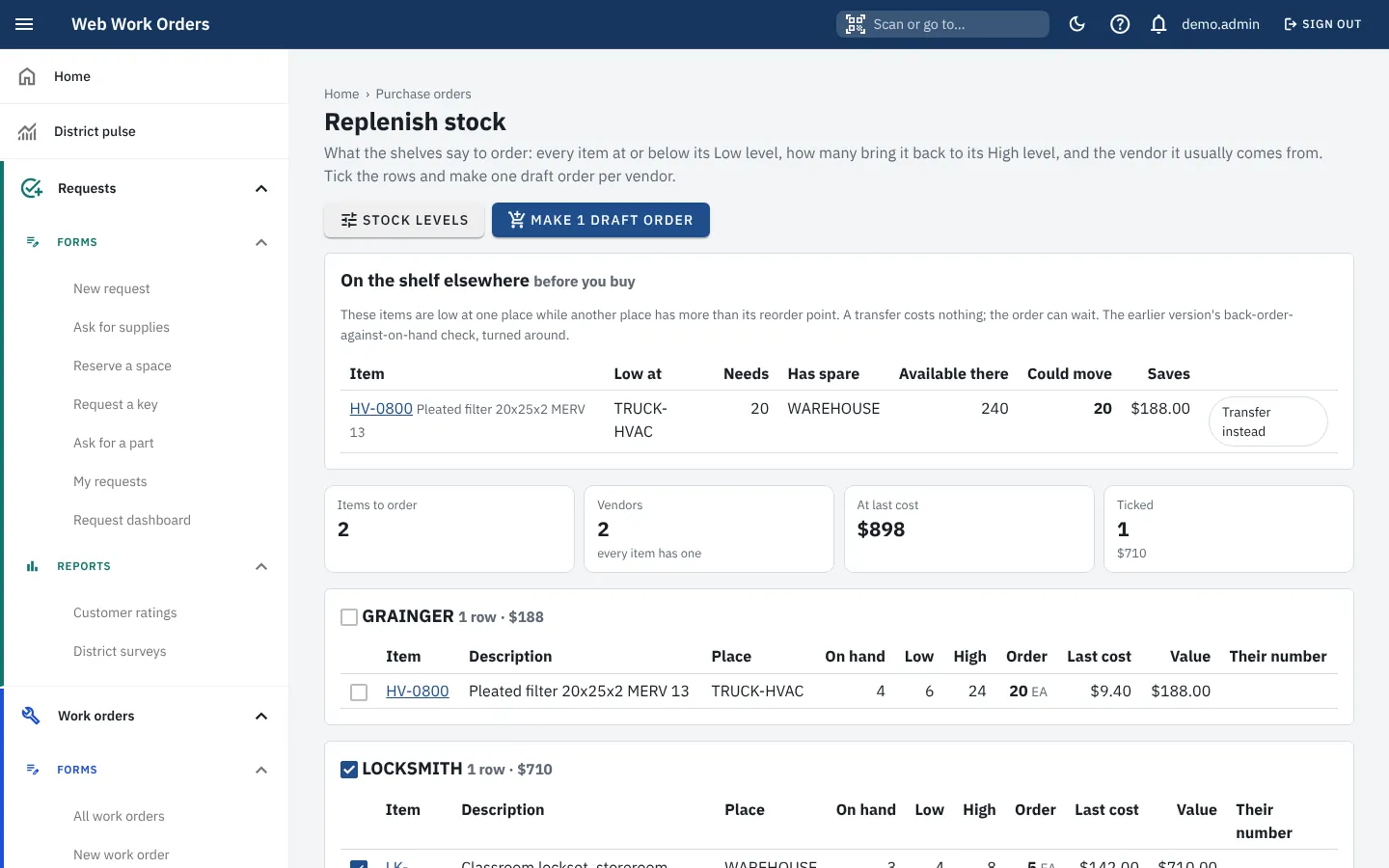
What the shelves say to order: every item at or below its Low level, how many bring it back to its High level, and the vendor it usually comes from.
How it helps
Let the shelves write the order. Every item at or below its Low level is listed with how many bring it back to its High level and the vendor it usually comes from; tick the rows and one draft order per vendor is made. No more walking the aisles with a clipboard.
Who uses it
Stockroom (inventory clerks)Supervisors
How to use it
- Rows are grouped by the item's vendor (the item record's vendor, else the first alternate vendor). Tick what to order; one draft purchase order is made per vendor.
- The quantity is what brings the item back to its High level (or twice the Low level when no High is set); change it on the order afterwards.
- Items with no vendor are listed but left out; set the vendor on the item record and come back.
Where to find it
In the app at /purchasing/replenish. Every screen has a ? in the header with help for that page.
Terms on this page
Related
Next in Purchasing: Ask for a part →
Screenshots come from the Pine Valley Schools demo, a made-up district. Something unclear or out of date? Tell us and we'll fix it.